LibreOffice Tuesday T&T: Writer Keyboard Shortcuts

Interesting article on REPUBLICWORLD.COM about LibreOffice Writer Keyboard Shortcuts, which – according to the editor – help to improve the usability of the software:

However, it becomes highly important to know LibreOffice shortcut keys to create content faster. LibreOffice shortcut keys also help a user use the medium more effectively. If you want to learn how to use LibreOffice shortcut keys, here are some of the many essentials to know to be able to use the software more effectively.

Shortcuts are based on the English keyboard, but many works also with other keyboard layouts:

F2 – Formula Bar
Ctrl+F2 – Insert Fields
F3 – Complete AutoText
Ctrl+F3 – Edit AutoText
F4 – Open Data Source View
Shift+F4 – Select next frame
F5 – Navigator on/off
Ctrl+Shift+F5 – Navigator on, go to page number
F7 – Spellcheck
Ctrl+F7 – Thesaurus
F8 – Extension mode
Ctrl+F8 – Field shadings on / off
Shift+F8 – Additional selection mode
Ctrl+Shift+F8 – Block selection mode
F9 – Update fields
Ctrl+F9 – Show fields
Shift+F9 – Calculate Table
Ctrl+Shift+F9 – Update Input Fields and Input Lists
Ctrl+F10 – Nonprinting Characters on/off
F11 – Styles and Formatting window on/off
Shift+F11 – Create Style
Ctrl+F11 – Sets focus to Apply Style box
Ctrl+Shift+F11 – Update Style
F12 – Numbering on
Ctrl+F12 – Insert or edit Table
Shift+F12 – Bullets on
Ctrl+Shift+F12 – Numbering / Bullets off
Alt+Arrow Keys – Move object.
Alt+Ctrl+Arrow Keys – Resizes by moving lower right corner.
Alt+Ctrl+Shift+Arrow Keys – Resizes by moving top left corner.
Ctrl+Tab – Selects the anchor of an object.

Ctrl+A – Select All
Ctrl+D – Double Underline
Ctrl+E – Centered
Ctrl+F – Find and Replace
Ctrl+Shift+P – Superscript
Ctrl+L – Align Left
Ctrl+R – Align Right
Ctrl+Shift+B – Subscript
Ctrl+Y – Redo last action
Ctrl+0 – Apply Default paragraph style
Ctrl+1 – Apply Heading 1 paragraph style
Ctrl+2 – Apply Heading 2 paragraph style
Ctrl+3 – Apply Heading 3 paragraph style
Ctrl+5 – 1.5 Line Spacing

There is a larger list of LibreOffice Writer Keyboard Shortcuts on SHORTCUTWORLD.COM, and a full list on LibreOffice Online Help.
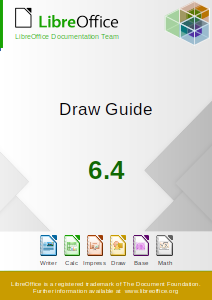

The Draw Guide 6.4 is Ready for Download

Draw Guide 6.4

Following the recent release of our updated guides, the LibreOffice Documentation Team is happy to announce the immediate availability of the LibreOffice Draw Guide 6.4, the complete handbook for the drawing tool of LibreOffice. The guide was updated from the existing release 4.3 and include all the improvements developed since early 2014, when the last version of the guide was published.

LibreOffice Draw is the vector drawing tool of LibreOffice, capable of creating and edit complex drawings, from basic geometric shapes to sophisticated technical drawings, including tri-dimensional composition, all supporting the ODF file format standard.

“Returning to the LibreOffice Documentation team was a great opportunity for me to continue to contribute for the LibreOffice Community. I used all my 35 years of professional experience as a technical writer in high end industries to bring the Draw Guide up to date with the latest publicly available release of LibreOffice (Version 6.4). I hope the community enjoy LibreOffice as this is an excellent office software package that is freely available” said Peter Schofield, who coordinated the update and release of the Draw guide.

“Our vision for LibreOffice goes beyond the software development and we care to create the elements of an authentic LibreOffice culture. It is a great joy for all of us to see the LibreOffice community and the documentation team actively working on the update of the Guides. These books are important assets of the LibreOffice ecosystem and a critical element to improve and enlarge the opportunities for all persons of the community” Said Emiliano Vavassori and Daniel Rodriguez, members of The Document Foundation Board of Directors.

The Draw Guide 6.4 is the result of the collaborative work of Peter Schofield, Claire Wood and Regina Henschel. A big thanks to them for all their work!

Peter Schofield Claire Wood Regina Henschel


Meet the whole LibreOffice Documentation Team.

LibreOffice has extensive documentation in many languages, thanks to our worldwide community.

Download it

PDF version – recommended for viewing
ODT version – for opening/editing in LibreOffice

Everyone is welcome to join our documentation team! It’s a great way to build up experience in a large and well-known open source project, especially if you’re interested in a career in technical writing one day.

Community Member Monday: Andreas Heinisch

Today we’re talking to Andreas Heinisch, who recently became a member of The Document Foundation, the non-profit entity behind LibreOffice…

Tell us a bit about yourself!

I am from South Tyrol, and live near the city of Meran/Merano on the mountain side. I studied computer science, and teach informatics, physics and mathematics at the local high schools. In my spare time, I like to go hiking, climbing, and of course programming 🙂

What are you working on in the LibreOffice project right now?

At the moment I am part of the Macro team, and try to solve some of the bug reports. I don’t remember exactly, but I think that I contributed to about over a dozen of them. Personally, I think macros are not without controversy due to the security concerns, but they are widely used in order to automate some easy tasks.

Why did you decide to become a member of TDF?

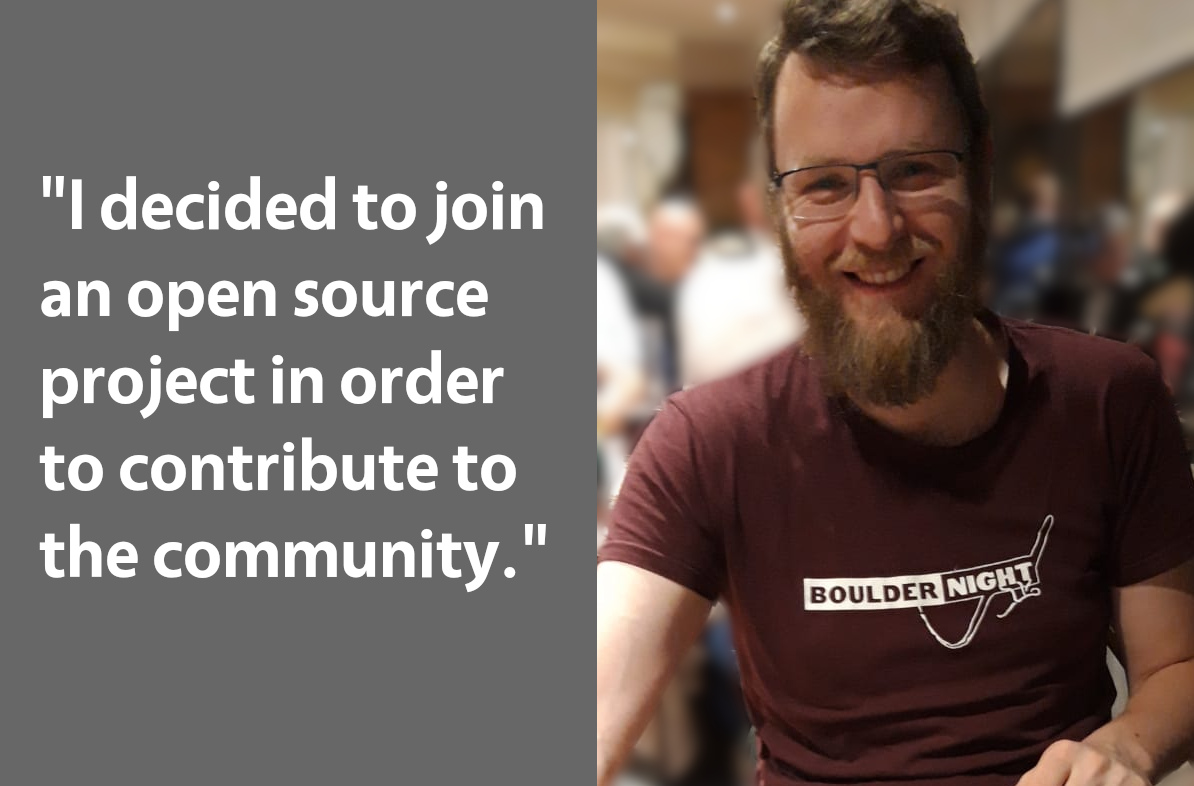
In my teaching activity, there’s only a small part where I can really program or solve some challenging problems. So I decided to join an open source project in order to contribute to the community, get in touch with current software lifecycle technologies and to improve or contribute to existing widely used software. To be honest: LibreOffice was the first product which came to my mind.

In addition, I think that local public administrations should not invest only in proprietary software solutions, which abuse their market position.

Anything else you plan to do in the future?

In the future I want to promote LibreOffice for our local high school, and to encourage more students to contribute to open source software. For this reason, I think that the help pages of LibreOffice should be revisited and simplified in order to attract more people to improve and contribute to such a great product.

Thanks to Andreas for all his work! Everyone in the LibreOffice project is welcome to apply as a member of TDF – check out this short video for more info…

Please confirm that you want to play a YouTube video. By accepting, you will be accessing content from YouTube, a service provided by an external third party.

YouTube privacy policy

If you accept this notice, your choice will be saved and the page will refresh.

Month of LibreOffice, May 2020: The winners!

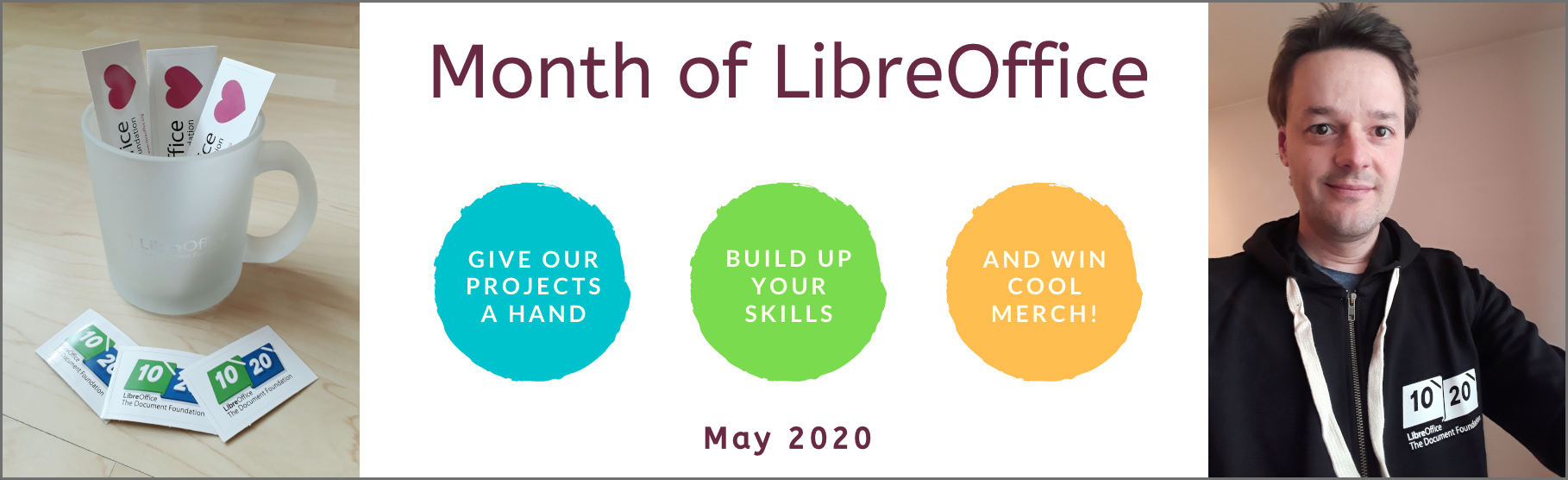
At the beginning of May, we started a new Month of LibreOffice, celebrating community contributions all across the project. So how many people got sticker packs? Check it out…

This makes it the best Month of LibreOffice we’ve ever had! Hundreds of people, all across the globe, have helped out in our projects and communities. We’re hugely thankful for your work – and, of course, everyone who’s listed on the page can get a sticker pack!

How to claim

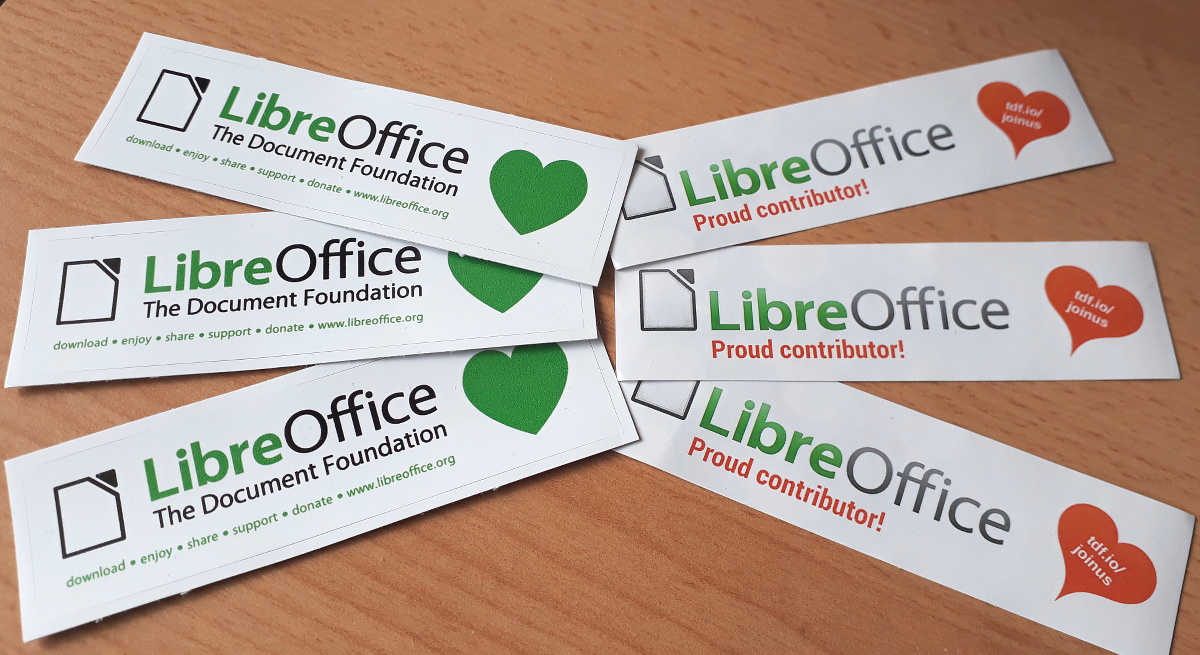
If you see your name (or username) on this page, get in touch! Email mike.saunders@documentfoundation.org with your name (or username) from the wiki page so that we can check, along with your postal address, and we’ll send you these:

(Note: your address will only be used to post the stickers, and will be deleted immediately afterwards.) If you contributed to the project in May but you’re not on the wiki page, please let us know what you did, so that we can add you.

But wait – there’s more…

And we have an extra bonus: 20 contributors have also been selected at random to get an extra piece of merchandise – a hoodie, T-shirt or snazzy LibreOffice glass mug. Here are the winners – we’ll get in touch personally with the details:

  • Gellért Gyuris
  • Anastasiya T
  • Walter o’Dim
  • BigRAl
  • hoergen@horche.demkontinuum.de (Mastodon)
  • Schiavinatto
  • Earnest Al
  • jwtiyar ali nariman
  • Dimitris Spingos
  • Tuomas Hietala
  • @mpanhans@librem.one (Mastodon)
  • Hugo Carvalho
  • Ayhan YALÇINSOY
  • @sebastiaanveld (Twitter)
  • Sarper Akdemir
  • pb
  • Steve Fanning
  • Rob Westein
  • Andrew Krizhanovsky
  • Peter Schofield

Congratulations to all the winners, and a big thanks once again to everyone who took part! Your contributions keep the LibreOffice project strong. We plan to have another Month of LibreOffice in November, but everyone is welcome to see what they can do for LibreOffice at any time!