When governments and organisations talk about “digital sovereignty,” they usually mean one thing in practice: the ability to choose, control, and if necessary replace the software they depend on — without asking permission from a vendor.
It sounds simple. It rarely is.
Document software sits at the centre of almost every organisation’s operations. Contracts, reports, budgets, policy documents, public communications: they all live in files. And for decades, the format of those files — and therefore the tools required to open, edit, and share them — has been controlled by a single commercial entity. That is not sovereignty. That is dependency with a friendly interface.
LibreOffice Technology exists to make genuine sovereignty possible. Not as a promise, and not as a political statement — but as a technical architecture that removes the dependency by design.
This post explains what LibreOffice Technology actually is, why it is categorically different from a “free alternative to Microsoft Office,” and why it is the only open platform capable of supporting software that is fully compatible with the demands of digital sovereignty. It also reviews what several months of deployments, policy decisions, and one very public debate over what “sovereign” actually means have confirmed about that architecture since we first started making this argument.
Beyond the Application: LibreOffice Technology as a Platform
 Most people who encounter LibreOffice encounter it as an application — a word processor, a spreadsheet editor, a presentation tool. That is a reasonable introduction, but it misses what makes LibreOffice Technology significant.
LibreOffice Technology is the underlying platform on which LibreOffice — and a growing number of other products — is built. It is a modular, open-source software framework for creating document applications. It includes rendering engines, import/export filters for dozens of file formats, scripting infrastructure, accessibility layers, and interfaces for integration with operating systems, cloud environments, and enterprise software stacks.
Think of it the way you might think of a general-purpose operating system kernel: the kernel itself is not what users interact with directly, but it is what makes everything else possible — and it is what determines whether the system is genuinely open or merely open-looking.
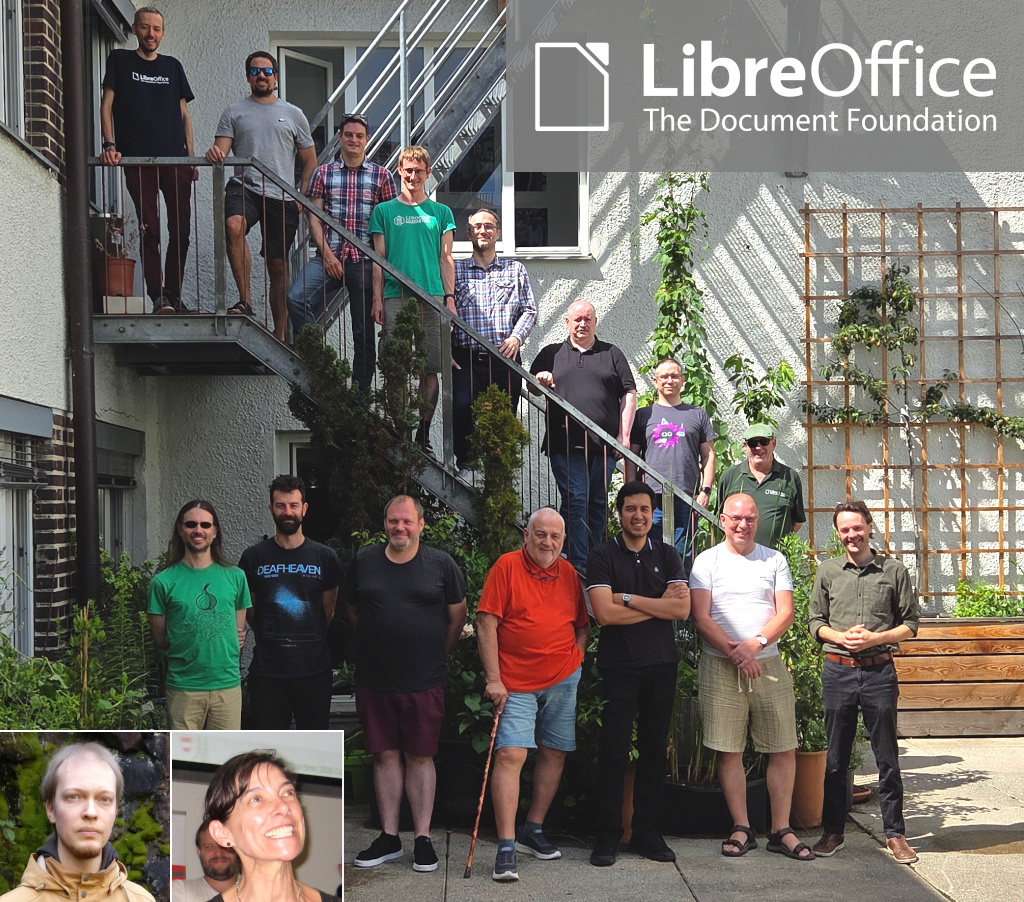
LibreOffice Technology is governed by The Document Foundation (TDF), a non-profit foundation incorporated under German law. Its source code is publicly available, its governance is transparent, and its development is carried out by a global community of contributors from dozens of countries and organisations — including Collabora, allotropia, Red Hat, and many others.
No single company controls it. No acquisition can change its licence. No pricing decision by a distant board can determine whether your organisation can keep using it next year.
That is what a platform for digital sovereignty looks like.
Open Standards Are Not Optional: The Role of ODF
Sovereignty over software is meaningless if the data is not equally free.
A document format is not just a technical specification. It is a commitment about who can read your files in ten years, which tools can process them today, and whether you are locked into a particular vendor’s upgrade cycle to maintain access to your own information.
 LibreOffice Technology is built around the Open Document Format (ODF), an ISO/IEC international standard (ISO/IEC 26300) developed through an open, multi-stakeholder process. ODF defines how text, spreadsheets, presentations, and other document types are stored — in a way that any conforming application can read and write, regardless of who made it or on what platform it runs.
This matters in ways that are easy to underestimate. When a public administration stores its records in ODF, it is not dependent on any vendor to access those records in the future. When a hospital uses ODF for patient documents, it can switch tools without migrating data. When a ministry publishes a policy document in ODF, any citizen with any compliant application — on any operating system — can open it.
Contrast this with proprietary formats that, despite occasional published specifications, remain under the effective control of the companies that defined them. “Open enough” is not the same as open. Earlier this month, we set out a first version of what separates the two: a thirteen-criterion definition of what a genuinely open document format requires, from public specification and royalty-free implementation through to independent governance. That short version is only the opening statement — we originated this framework, and a fuller, more rigorous edition is in development, applying all thirteen criteria in detail to ODF, OOXML Strict, and OOXML Transitional in turn.
LibreOffice Technology’s commitment to ODF is not a preference. It is an architectural principle. The platform is designed around the assumption that the data belongs to the user, not to the software.
The Platform Others Build On
One of the clearest indicators that LibreOffice Technology is a genuine platform — not just a standalone application dressed up in platform language — is the ecosystem of products built on top of it.
Collabora Online, a cloud-native document editing solution deployed by enterprises, governments, and cloud providers across Europe and beyond, is built on LibreOffice Technology. Collabora’s 2025 merger with allotropia — whose engineering team brought deep WebAssembly and vertical-application expertise into the same organisation — is itself an example of how the ecosystem consolidates and grows without ever touching the underlying platform’s governance. Other commercial and community products remain in active development by organisations that have chosen LibreOffice Technology precisely because it provides a stable, open foundation they can build on without acquiring permission from or paying royalties to a gatekeeper.
This ecosystem diversity is itself a form of sovereignty insurance. If one vendor stops supporting a product built on LibreOffice Technology, the platform continues. If a government or organisation builds custom tooling on top of LibreOffice Technology, it owns that investment. If the community of contributors shifts, the codebase remains — licensed under the Mozilla Public License 2.0, which ensures it can never be made proprietary.
A sovereign digital infrastructure is not one built on a single vendor’s promises. It is one built on a platform that multiple independent actors develop, maintain, and depend on. LibreOffice Technology is that platform.
The Euro-Office Test Case: Why Compatibility Is Not Sovereignty
No event tested this argument more directly than the emergence of Euro-Office, the European coalition initiative that surfaced this spring under the digital sovereignty banner.
Our first reaction, when the initiative made its opening announcement, was blunt about the architecture: a European suite built around full compatibility with Microsoft’s OOXML formats does not escape dependency, it relocates it. The hosting moves to Europe. The format — and the vendor who controls its evolution — does not.
Euro-Office’s formal pre-announcement in June moved the conversation forward. It leaned much further into a commitment to open standards, and we welcomed that shift while correcting one detail then circulating in the press: LibreOffice, developed under this Foundation for a decade and a half by a global — and substantially European — community, was never absent from the field Euro-Office proposes to enter. We also set out, plainly, the one destination consistent with the sovereignty the coalition invokes: ODF as its native document format, not merely a supported one.
The distinction is not a technicality. As we laid out in A Standard in Name Only, the version of OOXML every proprietary vendor ships by default is the Transitional conformance class — built to preserve decades of undocumented legacy behaviour from Microsoft Office versions of the 1990s, not the cleaner Strict variant an independent implementer could actually build to. An office suite that treats OOXML Transitional as its working format, however European its servers, is building on a specification only one vendor has ever fully implemented. What Euro-Office does next will show whether the coalition takes the final step from sovereign hosting to sovereign format.
Where Sovereignty Is Not an Abstraction: Real Deployments
Digital sovereignty is sometimes discussed as though it were a future aspiration. For a growing number of organisations, it is a present operational reality — and this year produced the clearest evidence of that yet.
 In March, Germany’s Federal Ministry for Digital and State Modernisation folded ODF, alongside PDF/UA, into the Deutschland-Stack, the technical framework that will govern digital infrastructure across every level of German public administration. OOXML did not make the list. “This is not a recommendation or a preference, it is a mandate,” said Florian Effenberger, TDF’s Executive Director, at the time — and as we argued in the days that followed, it is a decision the rest of Europe, and every digital policy advisor reading it, should be studying closely.
Germany is not alone. The Italian Ministry of Defence has spent several years migrating well over 100,000 workstations to LibreOffice under its LibreDifesa programme, reducing dependency on proprietary desktop software and building direct control over its document infrastructure. The French Gendarmerie nationale has pursued the same goal at comparable scale over two decades, moving the substantial majority of its computing estate to open-source software as part of a deliberate strategy to reduce vendor lock-in. And in August, in a two–part interview with the Austrian Bundesheer, we heard directly from the team that has moved 16,000 workstations off Microsoft Office: the decision traced back to a 2020 review of what guarantees existed for running office software without a cloud connection at all. The City of Munich’s long-running open-source initiative — despite its complex political history — remains the clearest illustration that sovereign document infrastructure is both technically achievable and organisationally demanding, at scale, inside a large public administration.
These are not proofs-of-concept. They are operational deployments in organisations for which the ability to control their own software stack is not an ideological preference but a security and continuity requirement.
They also illustrate something important: the question is no longer whether LibreOffice Technology can support enterprise-scale sovereign deployments, or whether governments will choose ODF when the choice is put to them plainly. Germany has already answered both. The question now is how quickly the rest of Europe follows.
Why “No Single Vendor Can Pull the Plug” Matters More Than Ever
In 2011, Oracle donated the OpenOffice.org codebase to the Apache Software Foundation and largely stepped back from development. The product that had been the leading open-source office suite effectively stalled. Development slowed, releases became infrequent, and the community migrated — mostly to LibreOffice, which had been founded in 2010 precisely to create a more independent governance structure.
This episode is instructive. A product can be open-source and still be effectively controlled by a single corporate actor. When that actor’s priorities change, the product suffers.
Much of what we have published this year has been an attempt to make that risk structural rather than anecdotal. The invisible architecture of lock-in traces how dependency on a document’s format cascades into dependency on the rendering engine that displays it and, beneath that, the fonts that give it its final shape — three technical layers, each one obscuring the one beneath it. The Calendar and the Invoice extends the same argument to two layers that are not technical at all: the migration deadline a vendor sets, and the subscription price it charges. Five layers, and what unites all of them is a single absence — the user has no exit.
The Document Foundation was designed with this risk explicitly in mind. TDF’s statutes prevent any single company or individual from controlling the foundation. Its governance model distributes decision-making across an elected board, a membership body, and an engineering steering committee. The LibreOffice Technology codebase cannot be re-licensed, sold, or restricted by any single party.
This is not an accident of history. It is an architectural decision about governance — as important to digital sovereignty as any technical specification.
What Sovereignty Requires of a Platform
Digital sovereignty is not a binary condition, and it is not the same thing as self-sufficiency. As we argued in July, it is not about owning everything — no institution, and certainly no continent, is going to reimplement the entire computing stack from silicon upward. It is about ensuring that nothing essential can be taken away. Different organisations will weigh that differently, but a platform that genuinely enables it must satisfy several non-negotiable criteria:
Open source with a robust licence. The code must be inspectable, modifiable, and redistributable. Not just available — auditable and forkable by any qualified party.
Open standards at the data layer. File formats must be governed by independent standards bodies, not by the platform vendor.
Independent governance. No single commercial entity should be able to make decisions — about licensing, pricing, feature development, or platform direction — that override the interests of the broader community of users and contributors.
An active, diverse contributor base. Sovereignty requires resilience. A platform maintained by a single company is a single point of failure.
Ecosystem depth. Sovereignty at the document layer requires that the platform be capable of supporting the full range of an organisation’s document needs — not just basic editing, but integration with enterprise systems, accessibility compliance, multi-language support, and cloud deployment.
LibreOffice Technology satisfies all of these criteria. We are not aware of another document software platform that does.
Sovereignty Starts Here: The Story So Far
When we first sketched out this argument, we framed it as the opening of a campaign. Several months on — with the Euro-Office debate still very much alive, Germany’s Deutschland-Stack mandate now a matter of public record, and the US CISA’s own guidance on open-source verifiability landing squarely in the same argument — it makes more sense to call it what it has become: an ongoing, evidence-led case, not a one-off pitch.
If you want the fuller version, the pieces above trace most of the argument in detail: what digital sovereignty actually means and doesn’t mean; the layered architecture of lock-in and its non-technical extensions; what separates a genuinely open format from one that merely claims the label; the Euro-Office exchange in both its instalments; and, most concretely, the Austrian Bundesheer’s own account of why and how it moved 16,000 desktops off Microsoft Office. Together with the Deutschland-Stack decision, they are the evidence behind everything argued in this piece.
We are not finished. There are interoperability failures we haven’t yet written about, further national deployments to document as they happen, and — with LibreOffice 26.8 due for release on 26 August — a platform that keeps giving us more to report on. Watch this space for what comes next.
If you are a journalist or analyst covering digital sovereignty, open source, or public-sector technology, we would like to talk. If you are an organisation considering or using LibreOffice Technology and would like to share your experience, we would welcome the conversation. Reach out to our communications team at media@documentfoundation.org.
Digital sovereignty requires infrastructure that is genuinely open. That infrastructure exists. It is called LibreOffice Technology, and — as the months since we first wrote that line have gone on to show — this really is where the story starts.
The Document Foundation is the non-profit organisation behind LibreOffice. It is independent, non-commercial, and governed by its membership community. LibreOffice Technology is the open platform on which LibreOffice and a growing ecosystem of document applications are built.
Tags: digital sovereignty, LibreOffice Technology, open document format, ODF, open source, The Document Foundation, public sector IT, vendor lock-in, document software, Euro-Office, Deutschland-Stack
Further Reading on This Blog
The posts behind the argument above, in the order they were published:
External Resources