LibreOffice has a new Macro Team

Power users often implement macros in their documents, and LibreOffice’s volunteer contributors are typically power users, so it makes sense to ensure the tools they need are in excellent shape. We are excited to announce the creation of a dedicated team for macro improvements in the LibreOffice contributor community.

The team composition is currently as follows:

  • Andreas Heinisch, a new contributor who has improved the user interface of macro editing
  • Tomoyuki Kubota, a contributor for 1.5 years who has done bug and build system fixes and code cleanups
  • Luane, a new contributor who is improving the documentation related to macros and extension development as well as analysing macro-related bug reports
  • Alain Romedenne, a veteran documenter of macro matters

To make sure the macro team can work efficiently, the LibreOffice quality assurance team has cleaned up the collection of macro issues. The QA team will offer help to all macro team members to the best of its ability.

Examples of tasks the team members have worked on:

If you are interested in contributing to the macro team (development, testing or documentation), please send an email to ilmari.lauhakangas@libreoffice.org. Thanks!

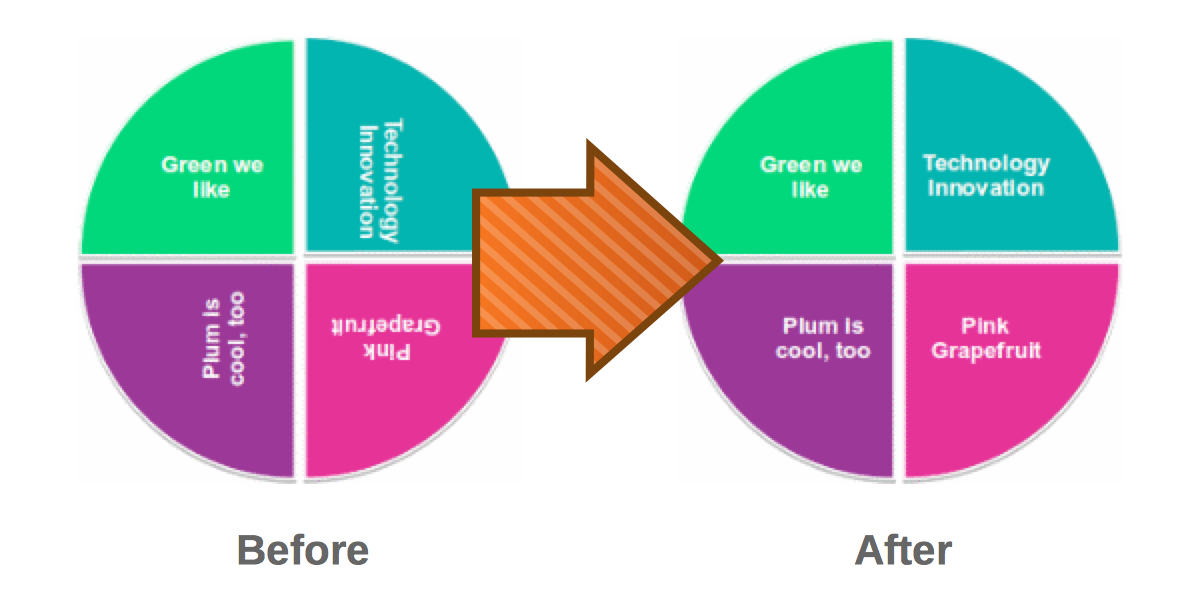
LibreOffice developers team up to improve PPT/PPTX (PowerPoint) file support

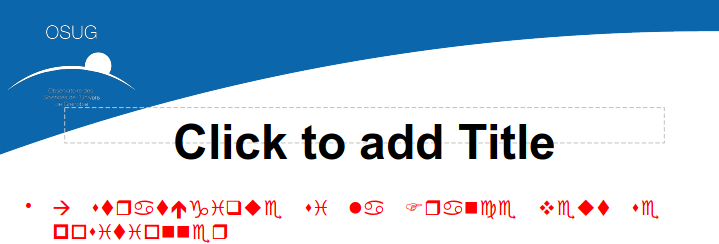
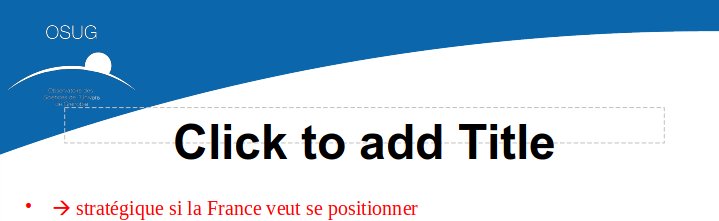
Good news for all users of high quality presentation software: a dedicated team has been formed within the LibreOffice community with the aim of further improving PPT/PPTX (PowerPoint) file format support. The initial developer members are:

  • Bartosz Kosiorek, known for his numerous improvements to Windows Metafile support
  • nd101, a new contributor with a passion for PPT/PPTX support
  • Mark Hung, invited due to his experience in fixing many PPT/PPTX and Impress issues

Team members will be able to support each other through code reviews and advice. We will document the progress here on the TDF blog.

LibreOffice’s Quality Assurance team is currently going through the collections of PPT and PPTX issues and carefully re-analysing and prioritising them. The QA team will continue to provide support in the form of patch testing and verification.

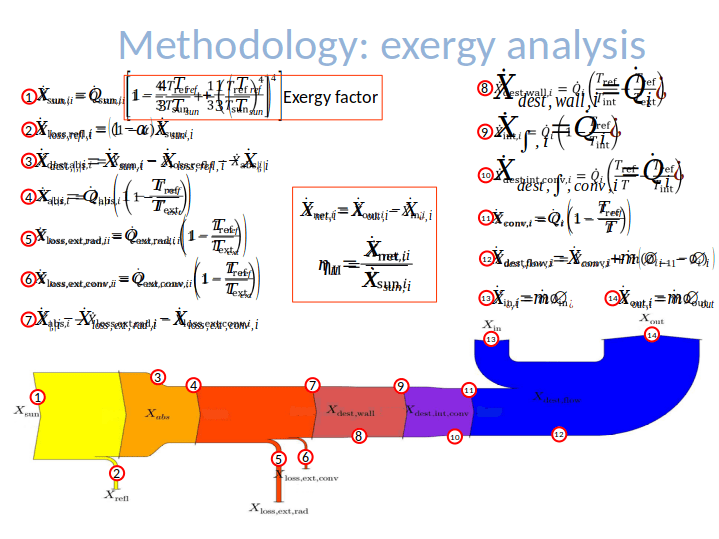
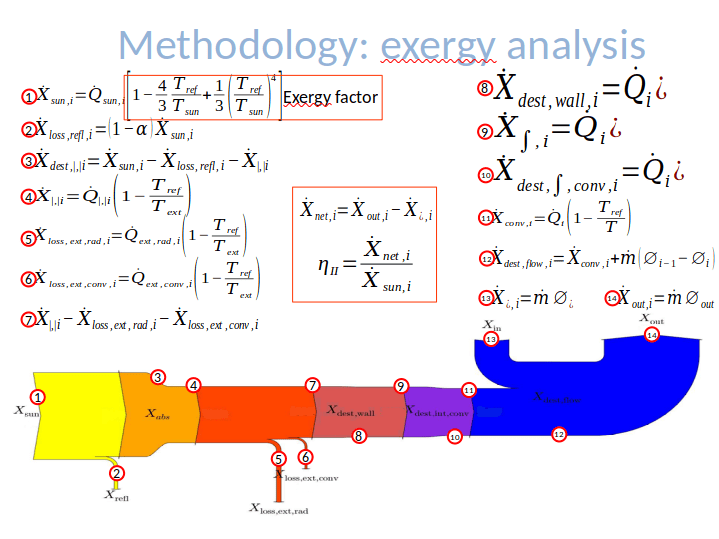
Examples of tasks that the team members have worked on:

Everyone is invited to participate, either in development or testing. If you are interested in joining, please send an email to ilmari.lauhakangas@libreoffice.org. Or if you have a PPT(X) file that doesn’t look quite right in LibreOffice, help us to improve compatibility – attach it to a bug report so that our QA team can investigate!

(PPTX icon: ncrow on DeviantArt)

Annual Report 2018: LibreOffice Hackfests

Most LibreOffice developers are working from their home offices, so hackfests provide a unique opportunity to spend some time working shoulder-to-shoulder with their peers. In 2018, LibreOffice developers and community members met at four hackfests in Brussels, Hamburg, Tirana and Munich.

Brussels (Belgium), February 5-6

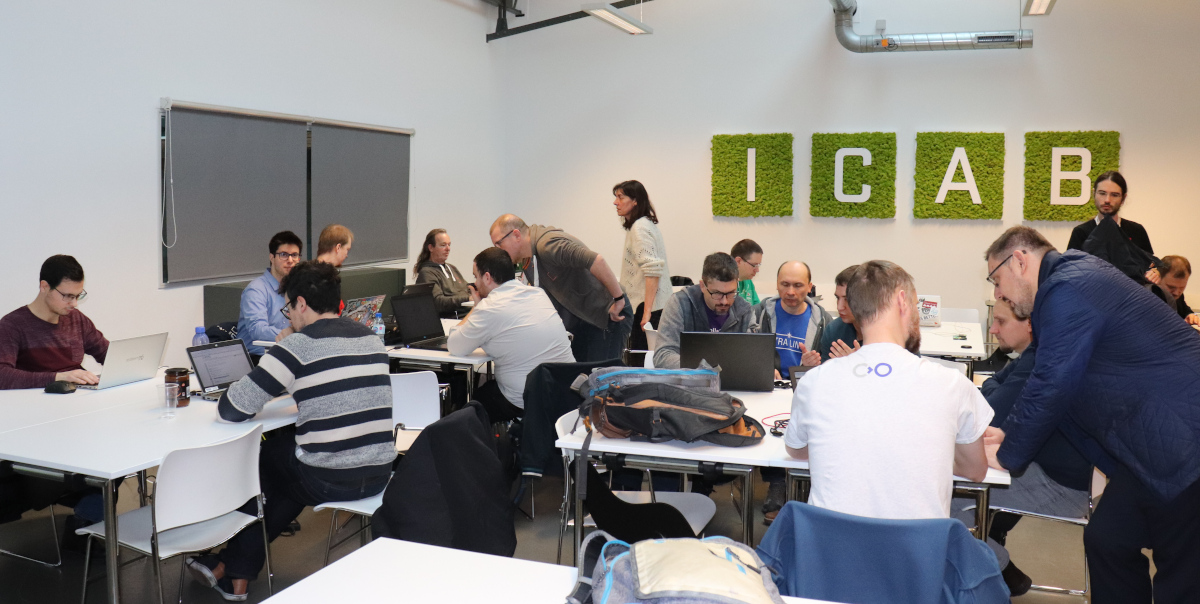
The first hackfest of the year was organized at ICAB in Brussels immediately after FOSDEM, the largest European gathering of FOSS developers and advocates, which is organized every year at ULB (Brussels Free University) during the coldest weekend of the winter season. The hackfest was attended by over 30 people, equally split between those focused on development and those taking care of non technical tasks such as localization, documentation, certification and marketing. In term of development, there were achievements in various areas of the office suite and in quality assurance.

Hamburg (Germany), April 6-8

The community gathering started with a walk through the fascinating Hanseatic city of Hamburg, with its river, canals and lake in the centre (Binnenalster), and a sample of local food at the Groeninger Privatbrauerei.

On Saturday, around 45 people attended the hackfest, divided in two groups: the first focused on coding for fixing bugs and working on new features, and the second on the meeting of the German-speaking LibreOffice community. Developers worked on different topics, like making drawing layers ODF conformant, migrating old database to HSQLDB, speeding up VLOOKUP, and improving LibreOffice Viewer on Android, plus other random bits related to bugs, regressions and new features.

German community members discussed about bringing in potential new contributors, developing materials for courses (both online and in schools) about LibreOffice, and creating a new “Get Involved” flyer and page on the website, both in German. And at the end, we relaxed with drinks and food!

Tirana (Albania), September 27

As part of the LibreOffice Conference in Tirana, Albania, this “hacknight” was held at the Destil from 7:30PM to 11PM with over 100 participants, which have covered tasks such as development, localization, documentation, quality assurance, certification and marketing. In fact, the conference brings together a large number of community members from around the globe, and the hackfest is for many contributors the very first opportunity to meet face-to-face after months or even years of interaction on mailing lists and IRC.

Munich (Germany), October 26-28

In late October, CIB hosted a hackfest at modulE in Munich, Germany, with 25 participants over the three days. The meeting started with a few presentations on Friday evening, with Andreas Kainz showing the amazing progress on the NotebookBar design. During the event developers were able to fix several bugs and polish some new features for the upcoming LibreOffice 6.2 major release, while German community members discussed non-technical topics such as marketing and local events. Of course, there was Italian pasta, like in every hackfest in Munich. The meeting ended with a quick city tour and beer at the world-famous Hofbräuhaus.

Annual Report 2018: LibreOffice development

In 2018, 17,473 commits were made to the LibreOffice source code, from 223 authors. Here’s an overview of what they worked on…

Behind the scenes of LibreOffice 6.2

Throughout the second half of 2018, the developer community worked on a new major release: LibreOffice 6.2. Details about the end-user-facing new features are provided on this page, and in the following video – so in the rest of this blog post, we’ll focus on developer-related changes.

Please confirm that you want to play a YouTube video. By accepting, you will be accessing content from YouTube, a service provided by an external third party.

YouTube privacy policy

If you accept this notice, your choice will be saved and the page will refresh.

So, let’s get technical!

In terms of system requirements, the macOS minimum version was bumped up to 10.9 (and will be 10.10 in LibreOffice 6.3). Similarly, binary Linux x86 (32-bit) releases from The Document Foundation were deprecated, so there will be no Linux x86 builds produced by TDF after LibreOffice 6.2. However, this does not mean that Linux x86 compatibility will be removed; Linux distributions can still opt to build 32-bit binaries. See here for more details.

On the user interface front, there were other changes. Two new VCL plugins (qt5 and kde5) were implemented (with the KDE5 plugin extending the Qt5 one), to provide integration with KDE Plasma 5 and other Qt5-based desktop environments. These were mainly implemented by Katarína Behrens (CIB) and Jan-Marek Glogowski (City of Munich).

If the kde5 and the gtk3_kde5 plugins are installed, the desktop detection will now prefer the kde5 one. The qt5 plugin must be explicitly selected via SAL_USE_VCLPLUGIN=qt5, as it’s never selected automatically.

Native copy and paste of spreadsheet data in Writer tables was implemented by László Németh (NISZ): previously, you could paste a copied table as image, object, plain text, and as RTF; the latter resulting in a new table in Writer. In LibreOffice 6.2 you can paste directly in an existing table.

Data Validation now supports custom formulas thanks to Marco Cecchetti (Collabora), while Edit > Track Changes > Show no longer severely impacts performance in documents with many tracked changes. The document view is now capable of hiding the tracked changes, so they do not have to be rearranged in the document model to be hidden – implemented by Michael Stahl (CIB).

LibreLogo, the programming interface for graphic design and education got unit testing, IDE and compiler fixes and improvements (László Németh – FSF.hu Foundation). Meanwhile, work continued on the native GTK3 UI, as demonstrated by Caolan McNamara (Red Hat) at FOSDEM 2018:

Please confirm that you want to play a YouTube video. By accepting, you will be accessing content from YouTube, a service provided by an external third party.

YouTube privacy policy

If you accept this notice, your choice will be saved and the page will refresh.

Google Summer of Code

The Google Summer of Code (GSoC) takes place every year, and provides university students with funding to work on free and open source software. For 2018, seven LibreOffice developers were accepted into GSoC, and they worked on various features and updates. These improvements were presented in a session at the LibreOffice Conference in Tirana, Albania.

Daniel Silva showed his work on the revamped print dialog, which reorganised options into two tabs, to make them easier to find: a General tab, covering all components of the suite, and then a separate tab for component-specific features (ie those found in Writer, Calc, Impress and so forth). Altogether, this makes it easier for end users to find the options they need, without having to look through many different tabs.

Meanwhile, Mert Tümer worked on the LibreOffice Android Viewer as part of GSoC: he produced 23 patches, made up of nine new features and 14 bug fixes. Some of the new features include Export to PDF, printing, customising worksheets, and better language support.

Saurav Chirania implemented a logger for user interface testing, which logs interactions and stores them in a file, while Vikas Mahato worked on features for importing data from external sources, along with transformations for the data (38 types of transformation were implemented). Finally, Hrishabh Rajput worked on updating listbox widgets to separate read values from input values, Kshitij Pathania added some improvements to the Notebookbar, and Shobhan Mandal focused on adding support for Python in the LOEclipse plugin.

A big thanks to everyone who contributed code last year! Why not join them?

You don’t need to be the world’s best C++ wizard to get involved – just some C++ knowledge and willingness to explore the codebase is great!

We have Easy Hacks to get your started, so check out this page for inspiration. Cheers!

Start developing LibreOffice! Download the source code, and build on Windows

Please don’t use these instructions in practice – they become obsolete over time. Instead, follow the wiki article for building on Windows.

(This post was originally written in Hungarian by Adam Kovacs for his blog. Thanks Adam!)

In our previous post in this series, we looked at building on Linux. But it’s also possible to download and compile the LibreOffice source code on Windows, so that’s what we’ll demonstrate here!


Step 1: Download and install Visual Studio Community version (free)

Get it from the Visual Studio website. Add these components during installation:

  • MSVC v142 – VS 2019 C++ x64/x86 build tools (v14.2x)
  • C++ core features
  • Windows 10 SDK (10.0.xxxxx.x)
  • Windows Universal C Runtime
  • C++ ATL for v142 build tools (x86 & x64)
  • .NET Framework 4.x.x SDK
  • C++ 2019 Redistributable MSMm (only required to build MSI installer)

Step 2: Download and install openJDK

Get these:


Step 3: Download and install Cygwin

Get it from here. Then, in a command prompt, access the Cygwin installer directory, for example:

cd c:\Users\username\Desktop\

And run the following command:

setup-x86_64.exe -P autoconf -P automake -P bison -P cabextract -P doxygen -P flex -P gcc-g++ ^
-P gettext-devel -P git -P gnupg -P gperf -P make -P mintty ^
-P nasm -P openssh -P openssl -P patch -P perl -P python -P python3 ^
-P pkg-config -P rsync -P unzip -P vim -P wget -P zip -P perl-Archive-Zip ^
-P perl-Font-TTF -P perl-IO-String

(This command installs different dependencies, including packages and programs, that are needed to compile LibreOffice.)

If you later want to install new programs or packages in Cygwin, you can also restart the installer. Then, when you can select the programs from the list, look for the appropriate name (eg nano, mc, wdiff) and in the drop-down list, change pending to full.


Step 4: Download JUnit and Ant

From now on, all commands are run in Cygwin.

mkdir -p /cygdrive/c/sources
cd /cygdrive/c/sources
wget https://archive.apache.org/dist/ant/binaries/apache-ant-1.9.5-bin.tar.bz2
tar -xjvf apache-ant-1.9.5-bin.tar.bz2
wget http://downloads.sourceforge.net/project/junit/junit/4.10/junit-4.10.jar

(These commands will download JUnit and Ant to the c:\sources folder. The path of Ant will be, for example: c:\sources\apache-ant-1.9.5, which should be specified later in autogen.input.)


Step 5: Download Make

mkdir -p /opt/lo/bin
cd /opt/lo/bin
wget http://dev-www.libreoffice.org/bin/cygwin/make-4.2.1-msvc.exe
mv make-4.2.1-msvc.exe make
chmod a+x make

(This will allow you to start the actual compilation later.)


Step 6: Download the LibreOffice source code

Create a directory for LibreOffice somewhere (eg in your home directory), and then go into it:

mkdir ~/libreoffice
cd ~/libreoffice

This command downloads the source files to the current directory (the “.” character):

git clone git://gerrit.libreoffice.org/core .

If the current directory is not specified as a parameter, it will create a “core” directory and download the files.

Another example: this command creates a directory called “libreoffice” in the current directory, and downloads the source code into this newly created directory:

git clone git://gerrit.libreoffice.org/core libreoffice

In the event of a download error, try replacing git:// with https://.


Step 7: Edit autogen.input

In the LibreOffice folder, create a file named autogen.input with the following content (replace the paths with the actual ones):

--enable-64-bit
--enable-debug
--with-ant-home=/cygdrive/c/cygwin64/source/apache-ant-1.9.5
--with-jdk-home=/cygdrive/c/Program Files (x86)/ojdkbuild/java-1.8.0-openjdk-1.8.0.181-1 
--disable-odk
--with-visual-studio=2019

If you still need some settings in autogen.input, you can use the ./autogen.sh –help command to list all possible settings.


Step 8: Run autogen.sh

cd ~/libreoffice
./autogen.sh

Step 9: Run “make” (this starts the actual compilation)

/opt/lo/bin/make

If you would like to compile without unit tests (so if you don’t want to check that what you have changed in the source code will cause regressions), use the “build-nocheck” parameter:

/opt/lo/bin/make build-nocheck

Note: if you forget to add a specific option (such as –enable-debug) to autogen.input, and then add it and run “autogen.sh” and “make” again, it no longer updates the existing files, so the new settings do not apply. You must then run a “make clean” first, and then run “make” again:

/opt/lo/bin/make clean
/opt/lo/bin/make

(The latter can of course be run with the “build-nocheck” parameter.)


Step 10: Run the newly built version of LibreOffice

When compilation has finished, you can start it from the LibreOffice directory:

./instdir/program/soffice
./instdir/program/soffice --writer
./instdir/program/soffice --calc

At this point, a lot of information is written to the command line while running LibreOffice. We can turn them off like this:

SAL_LOG=-INFO instdir/program/soffice

Now only SAL_DEBUG type values will be written to the command line (if they are already placed in the code somewhere).

If you just want to convert a file (for example, to fix export errors), you can do so. The converted file is then created in the LibreOffice directory (it is therefore advisable not to place the files to be converted in the LibreOffice directory, to avoid confusing them with the files that have already been converted). For instance:

SAL_LOG=-INFO instdir/program/soffice --convert-to docx ../chart_borderline.docx

Additional information

When the compilation is finished, and we modify the contents of one of the source files, we will start the compilation again. But this will not compile the entire codebase from scratch (unless we run the “make clean” command), but it only compiles the files we modified, which is a significant time saving.

If we forget to include a setting in autogen.input, but the compilation has already been done, then it is not enough to add the setting and start the compilation again – we also need to run make clean before.

For example, if we compiled without –enable-debug, add –enable-debug to the autogen.input file, then run make clean, followed by make or make build-nocheck.

You can also compile specific modules of LibreOffice:

/opt/lo/bin/make sw

Or:

/opt/lo/bin/make build-nocheck sw

These are the names of the modules:

  • sw: Writer (formerly StarWriter)
  • sc: the spreadsheet (Calc)
  • sd: Impress and Draw
  • dbaccess: database manager (Base)
  • starmath: formula editor
  • oox: source code files for importing and exporting Office Open XML files (docx, xlsx, pptx, …)
  • chart2: source code files for managing charts

For more modules, see here.

Start developing LibreOffice! Download the source code, and build on Linux

Please don’t use these instructions in practice – they become obsolete over time. Instead, follow the wiki article for building on Linux as well as the article on Linux Build Dependencies.

(This post was originally written in Hungarian by Adam Kovacs for his blog. Thanks Adam!)

In the previous part of this tutorial series, we showed how to register with Git and Gerrit, to prepare your setup for building LibreOffice and submitting patches.

Today, we describe the steps you need to download and compile the LibreOffice source code on Linux. You can, of course, modify the source code you have downloaded and, if you compile it, you can make sure your changes are working well after the compilation.

In this guide, we are using GNU/Linux distributions (typically Debian and Ubuntu-based distributions) with the apt package management frontend. Those who do not use these distributions need to run apt-get install and similar commands instead.

(Note: an internet connection is required during the compilation, after the build-nocheck command.)


Step 1: Install some required programs and packages

Open a terminal (In Ubuntu, Ctrl+Alt+t) and run this command:

sudo apt-get install git gstreamer1.0-libav libkrb5-dev nasm graphviz ccache

Then enter the password for your username. (If you do not have administrator privileges, you cannot do these steps.)


Step 2: Specify update manager sources

In the file /etc/apt/sources.list, add one of the following lines depending on your distribution:

  • Debian 9:
    deb-src http://http.debian.net/debian/ stretch main
  • Ubuntu 16.04:
    deb-src http://archive.ubuntu.com/ubuntu/ xenial main
  • Ubuntu 18.04:
    deb-src http://archive.ubuntu.com/ubuntu/ bionic main
  • Ubuntu 18.10:
    deb-src http://archive.ubuntu.com/ubuntu/ cosmic main
  • Ubuntu 19.04:
    deb-src http://archive.ubuntu.com/ubuntu/ disco main

You can edit the file using:

sudo nano /etc/apt/sources.list
sudo gedit /etc/apt/sources.list

In Nano, to exit and save: Ctrl+x, then y, then enter. The exact version and codename of the Linux distribution can be found by running the uname -a and lsb_release -a commands.


Step 3: Download available updates and build dependencies

Enter these commands to ensure you get the latest packages, and everything required to build LibreOffice from the source code:

sudo apt-get update
sudo apt-get build-dep libreoffice

Step 4: Download the LibreOffice source code

Create a new directory somewhere for LibreOffice. For example, in your own directory:

cd ~
mkdir libreoffice
cd libreoffice

Go to this directory and run this command there:

git clone git://gerrit.libreoffice.org/core libreoffice

Step 5: Setting up the autogen.input file

Create an autogen.input file in the LibreOffice directory, with this content:

--without-junit
--without-java
--without-help
--without-doxygen
--disable-odk
--enable-debug

You may also need these:

--without-krb5
--without-gssapi

If you still need some settings in autogen.input, you can use the ./autogen.sh –help command to list all possible settings.

Note: if you start compiling and miss any of these options, eg the –enable-debug line, and then add the missing line to autogen.input, the next compilation process will not replace the existing files. If you want the newly inserted line in autogen.input to be valid for the newer compilation, you must delete the results of the old compilation using the make clean command.


Step 6: Build the code

Run these commands:

./autogen.sh
make

If you would like to compile without unit tests (for example, if you don’t want to check that what you have changed in the source code will cause regressions), use the build-nocheck parameter instead:

make build-nocheck

Step 7: Run the new build

When the code is compiled, you can start it from the LibreOffice directory:

./instdir/program/soffice
./instdir/program/soffice --writer
./instdir/program/soffice --calc

At this point, a lot of information is written to the command line while running LibreOffice. We can turn them off like this:

SAL_LOG=-INFO instdir/program/soffice

Now only SAL_DEBUG type values will be written to the command line (if they are already placed in the code somewhere).

If you just want to convert a file (for example, to fix export errors), you can do so. The converted file is then created in the LibreOffice directory (it is therefore advisable not to place the files to be converted in the LibreOffice directory, to avoid confusing them with the files that have already been converted). For instance:

SAL_LOG=-INFO instdir/program/soffice --convert-to docx ../chart_borderline.docx

Additional information

When the compilation is finished, and we modify the contents of one of the source files, we will start the compilation again. But this will not compile the entire codebase from scratch (unless we run the make clean command), but it only compiles the files we modified, which is a significant time saving.

If we forget to include a setting in autogen.input, but the compilation has already been done, then it is not enough to add the setting and start the compilation again – we also need to run make clean before.

For example, if we compiled without –enable-debug, add –enable-debug to the autogen.input file, then run make clean, followed by make or make build-nocheck.

You can also compile specific modules of LibreOffice:

make sw

Or:

make sw.build

These are the names of the modules:

  • sw: Writer (formerly StarWriter)
  • sc: the spreadsheet (Calc)
  • sd: Impress and Draw
  • dbaccess: database manager (Base)
  • starmath: formula editor
  • oox: source code files for importing and exporting Office Open XML files (docx, xlsx, pptx, …)
  • chart2: source code files for managing charts

For more modules, see here.


Keep watching the blog for more guides and tips for LibreOffice development!