LibreOffice Tuesday T&T: Writer Templates

A template is a draft document that you can re-use over and over to generate new documents, based on the same basic format and with the same headers, footers, styles and formats. In this way you can make all your documents look the same. For instance, it enables you to create a single template for use whenever you wish to write a letter with a standard header. You can create a template for use in Writer (text documents), Calc (spreadsheets), Impress (presentations), and Draw (drawings).

Creating a Writer template is easy. First, create the template as any other document in Writer, without adding any text but defining all the other elements of the document: the page size and margins, with settings for headers and footers; the styles for the text, with character and paragraph formatting; etc. Once all the details are in place, you can save the new template, using File > Save As > and choosing ODF Text Document Template (OTT) from the drop-down menu. You can choose any folder, but the best option is to save the new template in the Templates Folder, which you have defined in Tools > Options…, as in this case the template will show up every time you choose New > Templates… > Documents.

After you have saved the new template, you can make it the default for all the new text documents by going to File > Templates… > Documents, and then right clicking on the document icon and selecting Set as Default. This is especially handy if you have a preferred layout for your new documents, based on your personal preferences.

Annual Report 2019: Updates from the Design community

(Note: this is a section from The Document Foundation’s Annual Report 2019, which will be published in full in the coming weeks.)

Based on LibreOffice’s Human Interface Guidelines (HIG), which provide the core framework, several significant changes were made to LibreOffice’s user interface during 2019. The most important were the improvements and the additions to icon styles, and the release of the NotebookBar in additional flavours.

Improvements in LibreOffice 6.3

Dialog Windows

A completely new Tip of the Day window shows up once per day when the user opens LibreOffice, to provide useful information, tips and tricks about the software, and from time to time a reminder about contributing or donating to the project. Tips are rotating based on a list developed by LibreOffice volunteer contributors.

Menus

Writer’s Form menu can be reorganized to have it Microsoft Office compatible, by checking out the relevant option in the Option > Writer > Compatibility dialogue window.

Toolbars & Sidebar

The NotebookBar has been improved with the addition of a Tabbed Compact option in Writer, Calc, Impress and Draw, to serve users with a wide screen where the Tabbed user interface would steal a large portion of the vertical space. In addition, a Contextual Single option has been added to Writer, Impress and Draw, to serve the same users when the choose the more traditional user interface based on toolbars.

The Toolbar “More Controls” was deleted, and all tools were moved to the toolbar “Form Controls” in all LibreOffice modules. In addition, the Sidebar width can be configured to accommodate contents of extensions which exceed the maximum width of 400 pixel.

Icons

The monochrome Sifr icon theme was significantly reviewed and updated, and the Karasa Jaga icon theme was reworked from 22 to 24 pixels to follow other icon themes. All icons of the two icon themes were drawn in Inkscape to make them available also as SVG (Scalable Vector Graphics) images to support HDPI screens.

Other GUI Items

The old Sum tool in Calc’s formula bar has been replaced by a new drop-down widget providing Sum, Average, Min, Max and Count options.


Improvements in LibreOffice 6.4

Menus

Hyperlink context menus were unified. Every hyperlink now has the following context menu entries: Open Hyperlink, Edit Hyperlink, Copy Hyperlink Location and Remove Hyperlink.

Toolbars & Sidebar

A Table panel was added to Writer’s Sidebar, with Insert, Delete, Select, Split/Merge, Optimize a Row, Optimize a Column, set the Table Cell Background Colour and the Border, insert a Function, and forms to set Row Height and Column Width.

Icons

A SVG variant of the dark version of Breeze and Sifr icon themes was added to the view options, and an extra large 32 pixels icon set has been added to Sifr.

Other GUI Items

Thumbnails of documents in the Start Center are now overlaid with an icon showing the LibreOffice module they have been created with.

Much of this was implemented by our certified developers, along with community members volunteering their time. If you find LibreOffice useful, support us with a donation so that we can continue to build our community, share knowledge, and improve LibreOffice for everyone!

Calc Guide 6.4 is Released! – Download Now!

The LibreOffice Documentation Team announces the release of the LibreOffice Calc Guide 6.4, the complete handbook for the spreadsheet tool of LibreOffice. The guide was updated from the existing release 6.2 and include all the improvements developed since then.

LibreOffice Calc is the spreadsheet module of LibreOffice, capable of creating and edit complex spreadsheets, from simple calculations to ‘What if…’ manner by changing some of the data and observing the results without having to retype the entire spreadsheet or sheet. Other features provided by Calc include

  • Functions, which can be used to create formulas to perform complex calculations on data.
  • Database functions to arrange, store, and filter data.
  • Dynamic charts, including a wide range of 2D and 3D charts.
  • Macros for recording and executing repetitive tasks; scripting languages supported include LibreOffice Basic, Python, BeanShell, and JavaScript.
  • Ability to open, edit, and save Microsoft Excel spreadsheets.
  • Import and export of spreadsheets in multiple formats, including HTML, CSV, PDF, and PostScript.

The release of the Guide is an effort of the documentation team of the LibreOffice Community, a group of skilled individuals that contributes to create the best reference guides for all LibreOffice modules, including word processor, spreadsheet, presentation, drawing, database and math equations.

“This guide achieves a very important milestone for the whole LibreOffice community since Calc documentation is the most demanded by the end user. I’m sure this great work will be very much appreciated.” said Daniel Rodriguez, Member of The Document Foundation Board of Directors.

“Building on the great work that went on during 2019 to complete the major update necessary to align the Calc Guide with LibreOffice 6.2, the update to 6.4 was a more modest task. However, I am delighted that the Team has completed this task because it gives an excellent platform for the subsequent update to 7.0 . From a personal perspective it was an enjoyable challenge and I was delighted to have a chance to make a useful contribution during our period of lockdown in the UK. Many thanks to all those who contributed to this update, especially Leo Moons, Kees Kriek, Gordon Bates, Drew Jensen and Randolph Gamo” said Steve Fanning, Calc Guide Coordinator.

Steve Fanning picture
Steve Fanning
Randolph Gamo picture
Randolph Gamo

The Calc Guide 6.4 is available in PDF for download from the new Extension website, at the following address: https://extensions.libreoffice.org/en/extensions/show/876.

The source files in Open Document Format (ODT)can be downloaded from this address: https://wiki.documentfoundation.org/Documentation/Publications#LibreOffice_Calc_Guide .

And indeed, the documentation community appreciates help in all languages – plus, contributing is a good way to build up skills for a possible career in technical writing. See here to get started!

Online events in the LibreOffice Hispanic community

Everyone loves to meet in person, share ideas, work on the software and have a good time. Of course, “real life” meetings have been difficult in the last few months, so many communities in the LibreOffice project have chosen to go online. Daniel A. Rodriguez gives us an update:

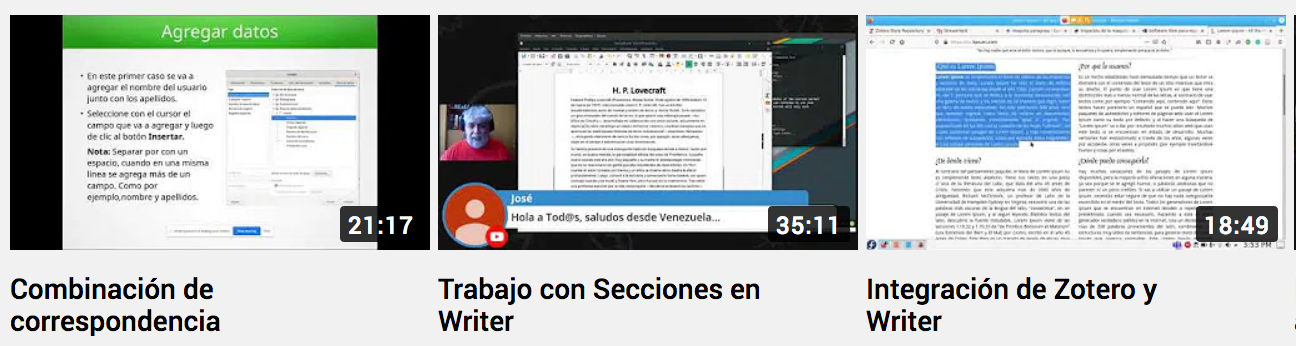
Yesterday, the Hispanic community of LibreOffice celebrated the second of a series of online events that was broadcast live on YouTube. The activity started at 17:00 UTC and lasted about 3 and a half hours. The virtual assistants benefited from the presence of several members recognized for their participation and collaboration in the project:

  • Xiomara Céspedes, from Costa Rica, provided an overview of the use of styles.

This was, of course, an open event – free of charge and aimed at anyone interested in the FOSS office suite par excellence. Also, we thank our friend Servio from the Latin Community of Free Technologies, who managed the live transmission through YouTube.

Community Member Monday: Jwtiyar Ali

Today we’re talking to Jwtiyar Ali, who is helping to localise LibreOffice into Kurdish…

To start with, tell us a bit about yourself!

Hey! I live in the Kurdistan region, in the north of Iraq – the city of Sulaymaniyah. I have an MSc in Physics, but I love computer science too. Currently I am working in the Cement Quality Control Department at a cement factory, as a physicist.

I do translations for many open source projects such as Ubuntu, Gimp, Firefox etc., leading these translation projects. My hobbies are following new open source projects and seeing how they can be more competitive. I also like football, walking, and reading Python programming courses in my free time.

What are the opportunities and challenges for promoting/using free software and LibreOffice in your region?

In my country, promoting open source apps and systems is a very big challenge because most people – maybe 90% – use proprietary apps, because they don’t hear about or know about open source alternatives.

So we in the team at www.chawg.org decided to make a website to introduce many open source projects. We created a wiki platform and a forum for that reason – and now we have Facebook groups and pages.

In my opinion, an opportunity is to provide users with more guides, and make a comparison between LibreOffice with other apps. Show users what LibreOffice can do that others apps can’t. Also, show people that LibreOffice can do the same things – or even more – with their daily work, and send them articles to educate them about the software.

What are you doing in the LibreOffice project right now?

I am translating LibreOffice. I hope to see LibreOffice in my language – that would be perfect. Also, it would help users to interact with LibreOffice more often than before.

How did you get involved in LibreOffice, and what was the experience like?

My love for open source projects made me engage with LibreOffice and the big community behind it. Being in the community made me feel that I wasn’t working in a specific part of the world – but people around the world can benefit from what I do.

The experience was amazing, because I didn’t know beforehand that we have a great app like LibreOffice.

Anything else you want to add?

I want to thank everyone who helped me to join this great community. My passion for LibreOffice has no borders, and I hope to see other open source projects grow faster than ever. The best part of the community is that we all trust in open source and teamwork.

Thesedays, I am promoting LibreOffice to my colleagues and friends. Also, I help them to fix any problems that they may face it during installing or when using the suite.

Thanks to Jwtiyar for all his contributions! Our native language communities are always open for more help – so if you want LibreOffice and its website localised in your language, give us a hand!