Announcement of LibreOffice 7.0.2

Berlin, October 8, 2020 – LibreOffice 7.0.2, the second minor release of the LibreOffice 7.0 family, targeted at technology enthusiasts and power users, is now available for download from https://www.libreoffice.org/download/. LibreOffice 7.0.2 includes over 130 bug fixes and improvements to document compatibility.

The most significant new features of the LibreOffice 7.0 family are: support for OpenDocument Format (ODF) 1.3; Skia graphics engine and Vulkan GPU-based acceleration for better performance; and carefully improved compatibility with DOCX, XLSX and PPTX files.

LibreOffice offers the highest level of compatibility in the office suite arena, starting from native support for the OpenDocument Format (ODF) – with better security and interoperability features – to wide support for proprietary formats.

LibreOffice 7.0.2 represents the bleeding edge in term of features for open source office suites. Users wanting the robustness of a more mature version optimized for enterprise class deployments can still download LibreOffice 6.4.6.

For enterprise class deployments, TDF strongly recommends sourcing LibreOffice from one of the ecosystem partners, to get long-term supported releases, dedicated assistance, custom new features and other benefits, including SLAs (Service Level Agreements): https://www.libreoffice.org/download/libreoffice-in-business/.

Support for migrations and training should be sourced from certified professionals who provide value-added services which extend the reach of the community to the corporate world. Also, the work done by ecosystem partners flows back into the LibreOffice project, and this represents an advantage for everyone.

LibreOffice – thanks to its mature codebase, rich feature set, support for open standards, excellent compatibility and long-term support options – represents the ideal solution for businesses that want to regain or keep control of their data and free themselves from vendor lock-in.

LibreOffice individual users are supported by a global community of volunteers: https://www.libreoffice.org/get-help/community-support/. On the website and the wiki there are guides, manuals, tutorials and HowTos. Donations help us to make all of these resources available.

LibreOffice users are invited to join the community at https://ask.libreoffice.org, where they can get and provide user-to-user support. People willing to contribute their time and professional skills to the project can visit the dedicated website at https://whatcanidoforlibreoffice.org.

LibreOffice users, free software advocates and community members can provide financial support to The Document Foundation with a donation via PayPal, credit card or other tools at https://www.libreoffice.org/donate.

Availability of LibreOffice

LibreOffice 7.0.2 and 6.4.6 are immediately available from the following link: https://www.libreoffice.org/download/. Minimum requirements are specified on the download page. LibreOffice Online source code is available as Docker image: https://hub.docker.com/r/libreoffice/online/.

LibreOffice 7.0.2’s change log pages are available on TDF’s wiki: https://wiki.documentfoundation.org/Releases/7.0.2/RC1 (changed in RC1) and https://wiki.documentfoundation.org/Releases/7.0.2/RC2 (changed in RC2).

All versions of LibreOffice are built with document conversion libraries from the Document Liberation Project: https://www.documentliberation.org.

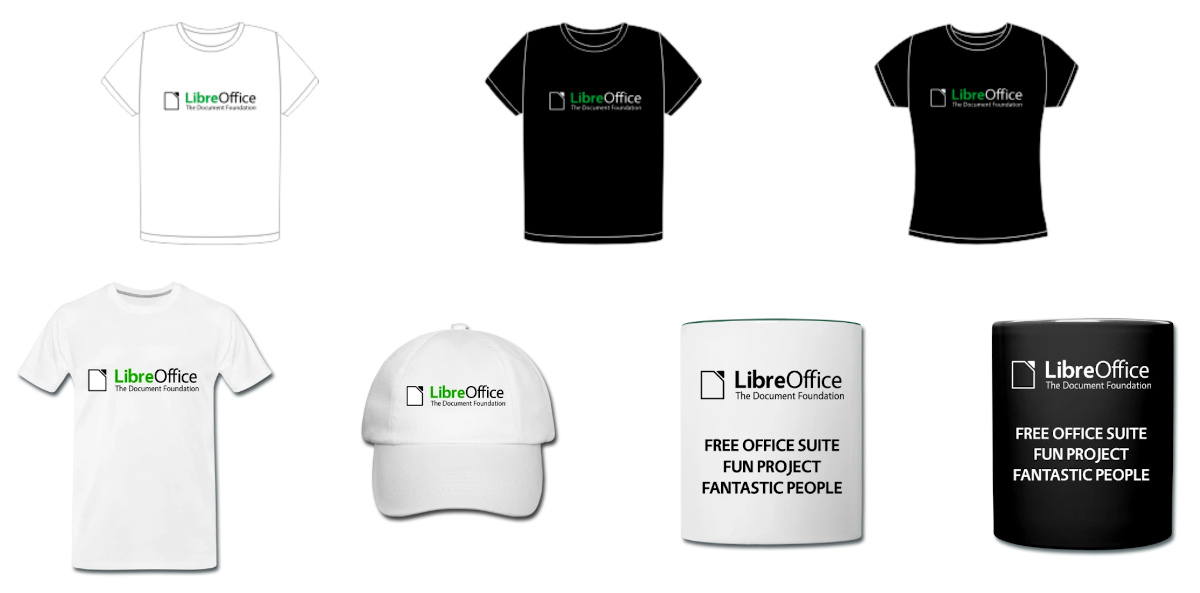
Get cool merchandise for upcoming openSUSE + LibreOffice Conference

The joint openSUSE + LibreOffice Virtual Conference 2020 will take place from October 15 – 17. And there’s lots going on! We’ll have talks, presentations, keynotes, tutorials and much more – see the full schedule for all the details.

And there’s more: we’ve got merchandise too! Get prepared for the conference with a T-shirt, hoodie, bag or baseball cap, and help to support The Document Foundation, the non-profit entity behind LibreOffice.

We look forward to seeing you at the conference!

Community Member Monday: Adolfo Jayme Barrientos

Today we’re talking to Adolfo Jayme Barrientos, who has been active in the LibreOffice community for many years. He helps out with translations, design and documentation…

To start, tell us a bit about yourself!

I live and work in Mexico. I grew up in a home where we didn’t have video games or a computer, but it was filled with books; I developed a liking for reading, typography, typesetting and book design.

I was mesmerised when I got my first computer: reading also gave me an edge for learning languages, and when it came to choosing a university major, I went straight to linguistics. I work as an EFL (English as a Foreign Language) teacher with 12 to 15-year-old pupils.

I started translating software eleven years ago, and started doing it professionally some five years ago, to finance my university tuition. I am now trilingual, and continue reading books in various Romance languages whenever I have free time.

What are you working on in LibreOffice?

As well as providing Spanish translations for the different products developed under The Document Foundation, I collaborate with the design and documentation teams.

How did you originally join the community – what was it like?

When the news broke that Oracle was buying Sun, I became concerned. I had been using Linux for a year; I feared that the main productivity suite available for Linux, OpenOffice.org, would gradually die as a result of bad leadership. Fortunately, the project’s community took the reins of it and avoided a negative fate for people like me who worry about having to store our life’s work in proprietary formats that may be deprecated in the future.

What else do you plan to work on? What does LibreOffice really need?

It’s great that TDF’s leadership has produced such a healthy ecosystem of companies who contribute developers to LibreOffice, without monopolizing power. Its community is very equitative as a result. However, investments are needed in the front-end. We can’t rely so much on volunteers to develop that kind of user interface enhancements that signal progress to end users. Papercuts like SVG icon rendering and touchscreen scrolling are long-needed, but haven’t yet found their funding.

As for my plans, I’d like to spend time learning about the best ways to market our products and attract contributors from my area.

A huge thanks to Adolfo for all his contributions and support over the years! And to all users reading this: find out what you can do for LibreOffice, to build your skillset, meet new people, and have fun in our worldwide community!

LibreOffice 10th Anniversary

Today is LibreOffice 10th Anniversary: it is a significant achievement for the project, and a date to remember for all community members.

We have created a video based on pictures of community members and a few events, in two versions: a long one, for blogs and websites, and a short version for social media.

Video LibreOffice Community 10th Anniversary (7 minutes): YouTube – PeerTube

Video LibreOffice 10th Anniversary Social Media (2 minutes): YouTubePeerTube

For Twitter, there is a MP4 version of the short video available on Nextcloud: Video x Twitter.

Get involved – Meet the TDF team

Joining a free and open source software project, such as LibreOffice, is a great way to build your skills, gain experience for future career options, meet new people – and have fun!

But sometimes, joining a large and well-established project can be a bit daunting at the start. So here we’ll introduce you to the small team at The Document Foundation, the non-profit entity behind LibreOffice. Most team members oversee certain sub-projects in the LibreOffice community – click on their names to learn more in interviews…

Note that this is just the team at The Document Foundation; the LibreOffice community is made up of hundreds of people! Most of the new features are implemented by developers in our ecosystem and volunteers.

Now that you know who we are, click here to get involved and join our projects!

Spread the word – add LibreOffice to your email signature!

Love LibreOffice? Want to let more people know about it? An effective (and easy) way is to add a mention of the software to your email signature. This is the piece of text that’s automatically added to emails that you send, and typically includes some information about your job, or other contact details.

Many people also use their email signatures (aka “sigs”) to spread the word about causes they support – such as free and open source software projects. So, you could use your signature to raise awareness about LibreOffice, for instance! When people read your emails, if they also check out the signature, they’ll learn something. For instance, you could add:

LibreOffice – free and open source office suite: https://www.libreoffice.org
Respects your privacy, and gives you back control over your data

What exactly you add is up to you, and depends on what you want to focus on. For instance, if you exchange emails with a lot of Microsoft Office users, you may want to mention that LibreOffice can work with .doc(x), .xls(x) files etc. Or perhaps you’re more focused on the ethics of free (as in freedom) software – and want to talk about the benefits to society it brings.

In any case, it’s best to keep it short (a couple of lines), and include a link so that readers can get more information. If the main LibreOffice website is too long for your sig, you can use https://tdf.io/lo as an alternative.

So, good luck, and if you have suggestions/ideas for signatures, post them in the comments below! Here are also some quick instructions for changing signatures in a few email clients and services…


Mozilla Thunderbird

Go to Tools > Account Settings in the menu, then choose your account, and scroll down to the “Signature text” box.

Google Mail (web view)

Click the Settings cog in the top-right, then “See all settings”. Under the General tab, scroll down to Signature, then click “Create new”. Give it a name and text, and underneath assign it to new emails in the “Signature defaults” option. Finally, scroll down and click “Save Changes” at the bottom of the page.

Google Mail (mobile app)

Tap the three-line “hamburger” menu in the top-left and go to Settings. Tap your account, then scroll down to “Mobile signature”.

ProtonMail

Click Settings at the top, and go to Account in the left-hand menu. Under Identity, you’ll see a box to enter signature text.

Outlook (web view)

At the top of the browser window there is a “gear wheel” icon to access the settings. Click on this and a panel opens on the right-hand side. At the bottom of this panel is a link labelled “View All Outlook settings” – click on this. A new panel consisting of three columns appears. Click on the second item in the second column, labelled “Compose and reply”. This opens one further panel including the option to set the signature text, the font attributes and to insert a graphic if required.

Apple Mail

Go to Mail > Settings, then click the “Signatures” tab. In the middle row, choose the signature text to edit, and edit the text shown in the right row. You may also add a new signature text using the “+” button at the bottom of the middle row. If you did so then choose the mail account at the left row and select the new signature texts name at the bottom of the window. So you may toggle easily between different signatures.

Got instructions for other email clients/services? Let us know in the comments – thanks!