LibreWaterloo: Building the LibreOffice community in Canada

If you’ve seen our LibreOffice contributor map, you’ll note that we have a few community members in north America. (Of course, the map doesn’t show absolutely everyone in the LibreOffice project – just people we’ve interviewed recently.) So we want to grow this community! Marc Paré has set up LibreWaterloo, to:

have a local presence on the Canadian scene with respect to the LibreOffice project and software. We would like to connect with local LibreOffice coders and users, and “to have fun” should be one of the pillars and principles we strive for.

So, how did Marc go about it, and what was the first meeting like? Here’s what he had to say:

I spoke at a meeting of the KW Non-Profit Sys Admin (KWNPSA) where I am a co-coordinator, and I announced the creation of the new LibreWaterloo community group. There, I did a two hour presentation on the status of The Document Foundation, along with LibreOffice and the benefits of starting a group.

There were approximately 15 people at the meeting, and a couple of people came to trouble-shoot their software; however, the meeting was not to trouble-shoot issues, but to discuss if there was an interest from the Sys Admin group.

We now have an organizing committee of three people, and we’ll meet in the next two or three weeks to start formalizing the community and shape its mission statement etc. I will be placing an advert in the local student newspaper at University of Waterloo announcing the community and hope to attract some young devs to the community, I also hope to meet with a local technical writer who teaches technical writing courses at our local college and universities – I will see if she would like to cooperate on her classes and perhaps have her students work on some of the LibreOffice Guides.

I also plan on contacting a national indigenous organization and see if they or we could help to organize indigenous language versions of LibreOffice. The Canadian government has put aside a large sum of money to help groups conserve indigenous languages in Canada; we are losing approximately one indigenous language every two-three weeks, as our indigenous elders are dying and their culture is also dying with them. I will see if we could apply for funds.

We will be organizing monthly meeting on a regular schedule and hope to have working groups set up sometime by October or November.

Thanks Marc! Everyone in the Waterloo area is welcome to come along – check out Twitter for updates, or this page on Meetup. Want to start (or expand) the LibreOffice community in your region? drop us a line on the marketing mailing list and we’ll give you a hand!

Annual Report 2018: LibreOffice development

In 2018, 17,473 commits were made to the LibreOffice source code, from 223 authors. Here’s an overview of what they worked on…

Behind the scenes of LibreOffice 6.2

Throughout the second half of 2018, the developer community worked on a new major release: LibreOffice 6.2. Details about the end-user-facing new features are provided on this page, and in the following video – so in the rest of this blog post, we’ll focus on developer-related changes.

Please confirm that you want to play a YouTube video. By accepting, you will be accessing content from YouTube, a service provided by an external third party.

YouTube privacy policy

If you accept this notice, your choice will be saved and the page will refresh.

So, let’s get technical!

In terms of system requirements, the macOS minimum version was bumped up to 10.9 (and will be 10.10 in LibreOffice 6.3). Similarly, binary Linux x86 (32-bit) releases from The Document Foundation were deprecated, so there will be no Linux x86 builds produced by TDF after LibreOffice 6.2. However, this does not mean that Linux x86 compatibility will be removed; Linux distributions can still opt to build 32-bit binaries. See here for more details.

On the user interface front, there were other changes. Two new VCL plugins (qt5 and kde5) were implemented (with the KDE5 plugin extending the Qt5 one), to provide integration with KDE Plasma 5 and other Qt5-based desktop environments. These were mainly implemented by Katarína Behrens (CIB) and Jan-Marek Glogowski (City of Munich).

If the kde5 and the gtk3_kde5 plugins are installed, the desktop detection will now prefer the kde5 one. The qt5 plugin must be explicitly selected via SAL_USE_VCLPLUGIN=qt5, as it’s never selected automatically.

Native copy and paste of spreadsheet data in Writer tables was implemented by László Németh (NISZ): previously, you could paste a copied table as image, object, plain text, and as RTF; the latter resulting in a new table in Writer. In LibreOffice 6.2 you can paste directly in an existing table.

Data Validation now supports custom formulas thanks to Marco Cecchetti (Collabora), while Edit > Track Changes > Show no longer severely impacts performance in documents with many tracked changes. The document view is now capable of hiding the tracked changes, so they do not have to be rearranged in the document model to be hidden – implemented by Michael Stahl (CIB).

LibreLogo, the programming interface for graphic design and education got unit testing, IDE and compiler fixes and improvements (László Németh – FSF.hu Foundation). Meanwhile, work continued on the native GTK3 UI, as demonstrated by Caolan McNamara (Red Hat) at FOSDEM 2018:

Please confirm that you want to play a YouTube video. By accepting, you will be accessing content from YouTube, a service provided by an external third party.

YouTube privacy policy

If you accept this notice, your choice will be saved and the page will refresh.

Google Summer of Code

The Google Summer of Code (GSoC) takes place every year, and provides university students with funding to work on free and open source software. For 2018, seven LibreOffice developers were accepted into GSoC, and they worked on various features and updates. These improvements were presented in a session at the LibreOffice Conference in Tirana, Albania.

Daniel Silva showed his work on the revamped print dialog, which reorganised options into two tabs, to make them easier to find: a General tab, covering all components of the suite, and then a separate tab for component-specific features (ie those found in Writer, Calc, Impress and so forth). Altogether, this makes it easier for end users to find the options they need, without having to look through many different tabs.

Meanwhile, Mert Tümer worked on the LibreOffice Android Viewer as part of GSoC: he produced 23 patches, made up of nine new features and 14 bug fixes. Some of the new features include Export to PDF, printing, customising worksheets, and better language support.

Saurav Chirania implemented a logger for user interface testing, which logs interactions and stores them in a file, while Vikas Mahato worked on features for importing data from external sources, along with transformations for the data (38 types of transformation were implemented). Finally, Hrishabh Rajput worked on updating listbox widgets to separate read values from input values, Kshitij Pathania added some improvements to the Notebookbar, and Shobhan Mandal focused on adding support for Python in the LOEclipse plugin.

A big thanks to everyone who contributed code last year! Why not join them?

You don’t need to be the world’s best C++ wizard to get involved – just some C++ knowledge and willingness to explore the codebase is great!

We have Easy Hacks to get your started, so check out this page for inspiration. Cheers!

What is the Open Document Format (ODF), and how is it developed?

Regina Henschel is a long-time member of the LibreOffice community, and has worked on ODF, the native file format of the suite. At our recent German community meetup, we talked to her about how ODF is developed, and how users can help to improve it…

Tell us a bit about ODF…

Open Document Format is LibreOffice’s native file format. (If you have a file with a .odt, .ods, .odp or .odg extension, then it’s an Open Document Text, Spreadsheet or Presentation file or Graphic respectively.)

ODF is developed by OASIS, then submitted to ISO (the International Organization for Standardization), and then adopted as a standard. There is also a working group at ISO, which by the way also works on OOXML – which can then ask questions about development, and so on.

For ODF we are now working on version 1.3. We had a “feature freeze” last summer. We have come so far that everything we wanted to have in it is available in the “editor version”. Now we’re going to fine-tune it, then we’ll be back in summer – so that was a whole year. Then comes the coordination process at OASIS, so it usually takes two years until a new version of the standard is ready.

How do you decide which new features to add?

The feature has to be well defined, and that depends a little on how good the proposal you get is. There are some suggestions like: “We want to have a feature for Fourier transformations” – but nothing else! And then we say: as long as there is no implementation that actively handles it, we’ll postpone it for later. It’s not worth it, for a standards body to deal with a proposal like this, if there are no applications that are actually interested in it.

ODF exists as a “strict” standard, for features that are fully standardized, and then there is an “extended mode” in which you can try out new features in applications. They then run under their own namespace, and if that works, organizations can make a suggestion for OASIS, eg: “This feature works well for us, so please include this in the strict standard.”

Then others can say: “Yes, we want to do something similar, but it would be better for us if we didn’t call it X, but Y instead”. Or: “We need an additional attribute to make it work for us”, for example. In situations like that, the proposals are discussed.

For example, in LibreOffice, it’s now possible to specify the size of charts, independent of their labels. In the old standard, you could only set the size including the label. This means that when data changed and the label changed, the effect was that the size of the chart changed. So that’s been fixed in ODF 1.3.

There are also bugfixes, where there are things that are simply wrong, or that are not clear enough for implementation. For example, one thing that was really incorrect was to put the units “at” and “atm” on the same level – that was definitely wrong. And one time, a matrix form was wrong as well. So we work on fixes for these.

Can normal end-users help out?

Yes, you can be a “normal person”, so to speak, without being on any committee – you can still send something to the Technical Committee. There is a mailing list, and also a homepage, where you can get informed about the work of the committee. There you can also find a link to the mailing list – but you have to register, because of spam. Messages on this list are then read and answered by the Committee.

The second way to get involved is when the Committee is about to make a new version of ODF. This will then be made available for voting – and then there will be an official time for comments. There the regulations are a bit stricter; this is not voluntary, but the committee has to actually work on these comments. That should then give a qualified answer.

The next step where official participation takes place is at ISO. They have the same disclosure process again, where comments are collected accordingly. Then the Technical Committee gets a long list from ISO: “We have received these comments, please discuss them.”

So this is a process that is very open. That’s one of the reasons why I decided to join the Committee. It’s not that something happens in secret, and then suddenly there’s a standard – but rather, the process is totally comprehensible.

The other thing that interested people can see is the archives of the mailing lists – and there are weekly teleconferences too.

Thanks to Regina for all her help over the years! ODF – and other open standards – are incredibly important, especially for long-term data storage. Indeed, the UK government recommends using ODF, and has guidelines for using the format in organisations and companies. Also check out this presentation from Regina at FOSDEM 2018.

Start developing LibreOffice! Download the source code, and build on Windows

Please don’t use these instructions in practice – they become obsolete over time. Instead, follow the wiki article for building on Windows.

(This post was originally written in Hungarian by Adam Kovacs for his blog. Thanks Adam!)

In our previous post in this series, we looked at building on Linux. But it’s also possible to download and compile the LibreOffice source code on Windows, so that’s what we’ll demonstrate here!


Step 1: Download and install Visual Studio Community version (free)

Get it from the Visual Studio website. Add these components during installation:

  • MSVC v142 – VS 2019 C++ x64/x86 build tools (v14.2x)
  • C++ core features
  • Windows 10 SDK (10.0.xxxxx.x)
  • Windows Universal C Runtime
  • C++ ATL for v142 build tools (x86 & x64)
  • .NET Framework 4.x.x SDK
  • C++ 2019 Redistributable MSMm (only required to build MSI installer)

Step 2: Download and install openJDK

Get these:


Step 3: Download and install Cygwin

Get it from here. Then, in a command prompt, access the Cygwin installer directory, for example:

cd c:\Users\username\Desktop\

And run the following command:

setup-x86_64.exe -P autoconf -P automake -P bison -P cabextract -P doxygen -P flex -P gcc-g++ ^
-P gettext-devel -P git -P gnupg -P gperf -P make -P mintty ^
-P nasm -P openssh -P openssl -P patch -P perl -P python -P python3 ^
-P pkg-config -P rsync -P unzip -P vim -P wget -P zip -P perl-Archive-Zip ^
-P perl-Font-TTF -P perl-IO-String

(This command installs different dependencies, including packages and programs, that are needed to compile LibreOffice.)

If you later want to install new programs or packages in Cygwin, you can also restart the installer. Then, when you can select the programs from the list, look for the appropriate name (eg nano, mc, wdiff) and in the drop-down list, change pending to full.


Step 4: Download JUnit and Ant

From now on, all commands are run in Cygwin.

mkdir -p /cygdrive/c/sources
cd /cygdrive/c/sources
wget https://archive.apache.org/dist/ant/binaries/apache-ant-1.9.5-bin.tar.bz2
tar -xjvf apache-ant-1.9.5-bin.tar.bz2
wget http://downloads.sourceforge.net/project/junit/junit/4.10/junit-4.10.jar

(These commands will download JUnit and Ant to the c:\sources folder. The path of Ant will be, for example: c:\sources\apache-ant-1.9.5, which should be specified later in autogen.input.)


Step 5: Download Make

mkdir -p /opt/lo/bin
cd /opt/lo/bin
wget http://dev-www.libreoffice.org/bin/cygwin/make-4.2.1-msvc.exe
mv make-4.2.1-msvc.exe make
chmod a+x make

(This will allow you to start the actual compilation later.)


Step 6: Download the LibreOffice source code

Create a directory for LibreOffice somewhere (eg in your home directory), and then go into it:

mkdir ~/libreoffice
cd ~/libreoffice

This command downloads the source files to the current directory (the “.” character):

git clone git://gerrit.libreoffice.org/core .

If the current directory is not specified as a parameter, it will create a “core” directory and download the files.

Another example: this command creates a directory called “libreoffice” in the current directory, and downloads the source code into this newly created directory:

git clone git://gerrit.libreoffice.org/core libreoffice

In the event of a download error, try replacing git:// with https://.


Step 7: Edit autogen.input

In the LibreOffice folder, create a file named autogen.input with the following content (replace the paths with the actual ones):

--enable-64-bit
--enable-debug
--with-ant-home=/cygdrive/c/cygwin64/source/apache-ant-1.9.5
--with-jdk-home=/cygdrive/c/Program Files (x86)/ojdkbuild/java-1.8.0-openjdk-1.8.0.181-1 
--disable-odk
--with-visual-studio=2019

If you still need some settings in autogen.input, you can use the ./autogen.sh –help command to list all possible settings.


Step 8: Run autogen.sh

cd ~/libreoffice
./autogen.sh

Step 9: Run “make” (this starts the actual compilation)

/opt/lo/bin/make

If you would like to compile without unit tests (so if you don’t want to check that what you have changed in the source code will cause regressions), use the “build-nocheck” parameter:

/opt/lo/bin/make build-nocheck

Note: if you forget to add a specific option (such as –enable-debug) to autogen.input, and then add it and run “autogen.sh” and “make” again, it no longer updates the existing files, so the new settings do not apply. You must then run a “make clean” first, and then run “make” again:

/opt/lo/bin/make clean
/opt/lo/bin/make

(The latter can of course be run with the “build-nocheck” parameter.)


Step 10: Run the newly built version of LibreOffice

When compilation has finished, you can start it from the LibreOffice directory:

./instdir/program/soffice
./instdir/program/soffice --writer
./instdir/program/soffice --calc

At this point, a lot of information is written to the command line while running LibreOffice. We can turn them off like this:

SAL_LOG=-INFO instdir/program/soffice

Now only SAL_DEBUG type values will be written to the command line (if they are already placed in the code somewhere).

If you just want to convert a file (for example, to fix export errors), you can do so. The converted file is then created in the LibreOffice directory (it is therefore advisable not to place the files to be converted in the LibreOffice directory, to avoid confusing them with the files that have already been converted). For instance:

SAL_LOG=-INFO instdir/program/soffice --convert-to docx ../chart_borderline.docx

Additional information

When the compilation is finished, and we modify the contents of one of the source files, we will start the compilation again. But this will not compile the entire codebase from scratch (unless we run the “make clean” command), but it only compiles the files we modified, which is a significant time saving.

If we forget to include a setting in autogen.input, but the compilation has already been done, then it is not enough to add the setting and start the compilation again – we also need to run make clean before.

For example, if we compiled without –enable-debug, add –enable-debug to the autogen.input file, then run make clean, followed by make or make build-nocheck.

You can also compile specific modules of LibreOffice:

/opt/lo/bin/make sw

Or:

/opt/lo/bin/make build-nocheck sw

These are the names of the modules:

  • sw: Writer (formerly StarWriter)
  • sc: the spreadsheet (Calc)
  • sd: Impress and Draw
  • dbaccess: database manager (Base)
  • starmath: formula editor
  • oox: source code files for importing and exporting Office Open XML files (docx, xlsx, pptx, …)
  • chart2: source code files for managing charts

For more modules, see here.

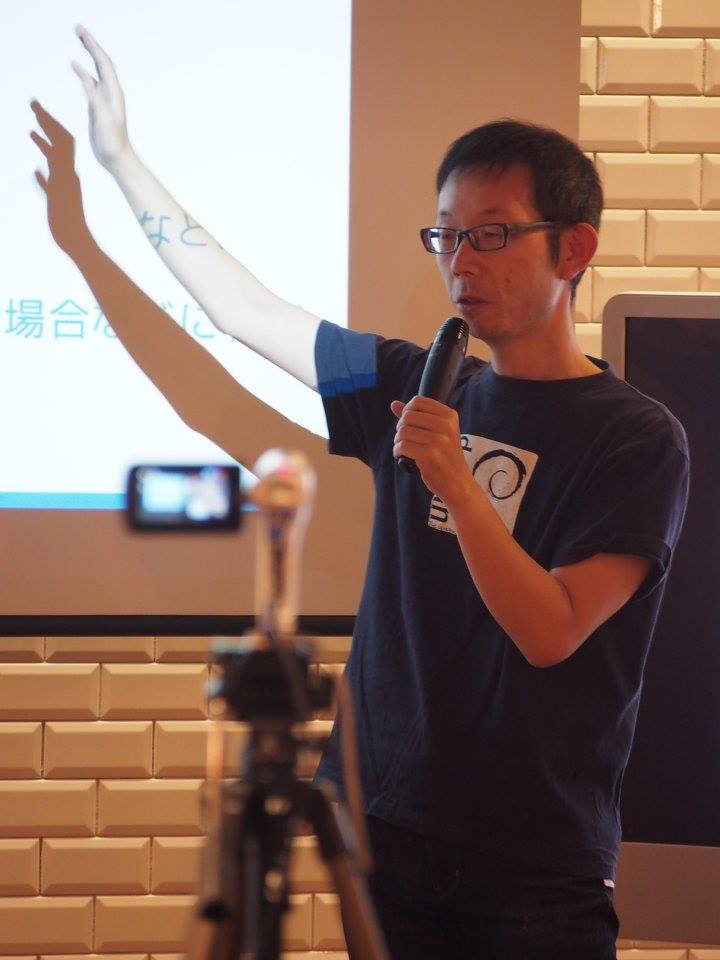
Community Member Monday: Jun Nogata

Today we’re talking to Jun Nogata from our Japanese community!

To start, tell us a bit about yourself!

So, I live in Himeji, Japan where UNESCO World Heritage site Himeji Castle is. I work a part-time lecturer at a local university.

I am a big fan of free and open source software (FOSS). I started to use Linux from Slackware 95, and I’m using Debian Sid at the moment. I am active in the Debian community in Japan and I’m also an OpenStreetMap mapper.

I like listening to indie rock music, playing guitar and DJing sometimes. Also, I’m learning Korean – I want to talk to my friend DaeHyun Sung from the Korean LibreOffice community!

Oh, and I created the LibreOffice Impress templates “Midnight Blue” and “Alizarin” – thank you for using them. On social media, you can find me on Twitter and Facebook.

What are you working on in LibreOffice at the moment?

I am working on the Japanese Ask LibreOffice website as answerer and moderator – and I’m also involved in marketing and public relations for the Japanese team.

Previously, there was no marketing from the Japanese team. December 2018, I started to post information about LibreOffice from the Japanese community Twitter accounts. There were reactions from the users, like: “I was worried that there was no information about LibreOffice, but now it’s getting better.”

I talked to the Japanese team about the necessity of creating a blog, to share and communicate information outside of social networking services. Naruhiko Ogasawara consulted with Italo Vignoli to create the blog for the Japanese team. I am happy to add information about LibreOffice in Japanese to the blog.

Is there anything else you’d like to work on in the future?

I would like to try to improve the Japanese settings. LibreOffice is known as “cost-free, but poor-quality office software” in Japan because LibreOffice’s settings are not appropriate for the language.

In Japanese, for example, you can set characters per line and lines per page to determine the page layout, but the page style text grid is not able to specify characters per line and lines per page due to improper implementation. (If you are interested, please set 37 characters x 30 lines, without changing the font and ruby size.) I will try to fix these settings and change the bad image.

How did you originally get involved with LibreOffice – and what was the experience like?

As a user, I was attending the “Kansai LibreOffice Group” (関西LibreOffice勉強会) hosted by Shinji Enoki. My templates were included in LibreOffice 4.4 – it was a big surprise, and a pleasure for me that I could contribute to LibreOffice without changing the source code. A big thanks to the whole community for LibreOffice!

Finally, what do you see in the future for LibreOffice? What does it need most?

Ideally? users in all languages can use LibreOffice without changing any settings. The paragraph style of Writer is “Align left”, but in Japanese, “Justified” is standard. Japanese users need to change the settings before writing documents. That is very difficult.

However, if set the default setting to “Justified”, Americans and people who speak European languages will be in trouble. So I think that LibreOffice can create a mechanism to resolve conflicting settings in different languages.

Thanks Jun! Japanese LibreOffice users are welcome to join us and get involved in the project – we look forward to meeting you! (Also check out the English page too.)

Coming up: Second Bug Hunting Session for LibreOffice 6.3, on July 08

LibreOffice 6.3 is being developed by our worldwide community, and is due to be released in early August 2019 – see the release notes describing the new features here.

In order to find, report and triage bugs, the LibreOffice QA team is organizing the second Bug Hunting Session for LibreOffice 6.3 on Monday July 08, 2019.

Tests will be performed on the first Release Candidate version, which will be available on the pre-releases server a few days before the event. Builds will be available for Linux (DEB and RPM) with GTK3 and KDE5 support, macOS and Windows. ( Note that it will replace your actual installation)

Mentors will be available from 07:00 UTC to 19:00 UTC for questions or help in the IRC channel #libreoffice-qa and the Telegram QA Channel. Of course, hunting bugs will be possible also on other days, as the builds of this particular Release Candidate (LibreOffice 6.3.0 RC 1) will be available until mid July. Check the Release Plan.

The Document Foundation All Rights Reserved 2025
Proudly powered by WordPress | Theme: Refined Magazine Pro by Candid Themes.