Update about Font Replacement

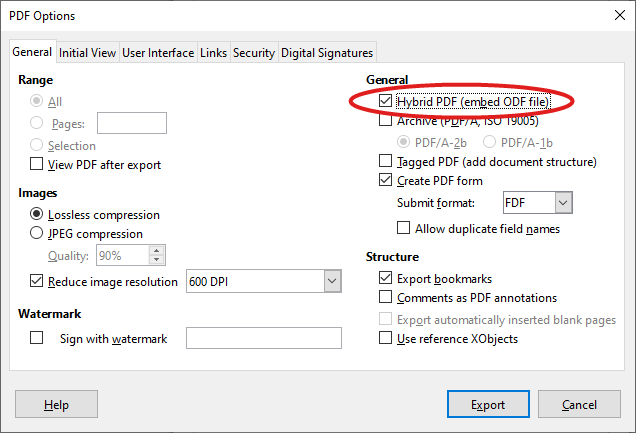
Last Saturday, November 8, I have managed a workshop at SFScon on Font management for document interoperability in LibreOffice. The workshop aimed to demonstrate how to configure and manage the LibreOffice font replacement feature, one of the key elements of document interoperability. Although font replacement on the fly is a long-standing LibreOffice feature, it is rather unknown and must be configured and managed properly in order to substitute proprietary fonts, which are standard on Windows and macOS and have been used as a lock-in tool for years, with metrically compatible free fonts.

In September 2020, I wrote the blog post LibreOffice Tips & Tricks: Replacing Microsoft Fonts, which explained how to create a Font Replacement Table (available in Tools > Options > LibreOffice > Fonts) to instantly replace Microsoft’s proprietary fonts with metrically equivalent free fonts, available from Google Fonts and other websites. However, I recommend using Google Fonts for legal compliance, as they provide the font, licence and all other documents from the font designer. This post prompted several responses and inspired Jean-François Nifenecker, a volunteer contributor, to develop the FontsSubstTableExporter extension, which creates an extension embedding the font’s replacement table for easy duplication or backup, as well as the resulting FontSubstTable, which sets the font’s substitution table values.

During the webinar, I used a short LibreOffice Impress presentation to help the audience follow my talk more easily:

SFScon Font Management 2025 Download the Slide Deck


I opened the webinar by showing the 2020 blog post and its associated font replacement table. I then presented the updated table, as Spartan — one of the free fonts — has evolved into League Spartan. I also explained how the situation has changed radically since 2020, as Microsoft has deprecated ClearType fonts (Calibri, Candida, Candara, Consolas, Constantia, Corbel and Segoe for Western languages) and now uses Aptos as the default font for Western languages. Although Aptos is Microsoft proprietary, it has a weaker licence which only prohibits redistribution. As such, it can be downloaded and installed by all users (including Linux users) provided the download is from the official Microsoft Aptos Page.

I also announced that, ideally before the release of LibreOffice 26.2 in February 2026, I will update the FontSubstTable extension to include all Microsoft proprietary fonts with restrictive licences. These are fonts that require replacement as they cannot be installed by Linux users or those without a Microsoft Windows or Microsoft 365 licence. I will also try to generate additional FontSubstTable extensions for the most commonly used fonts in DOCX, XLSX and PPTX files. Thanks to AI, I now have access to a list of these fonts in just a few seconds, which would have taken me weeks to compile manually. These extensions will be available for general use and for specific verticals, such as visual design.
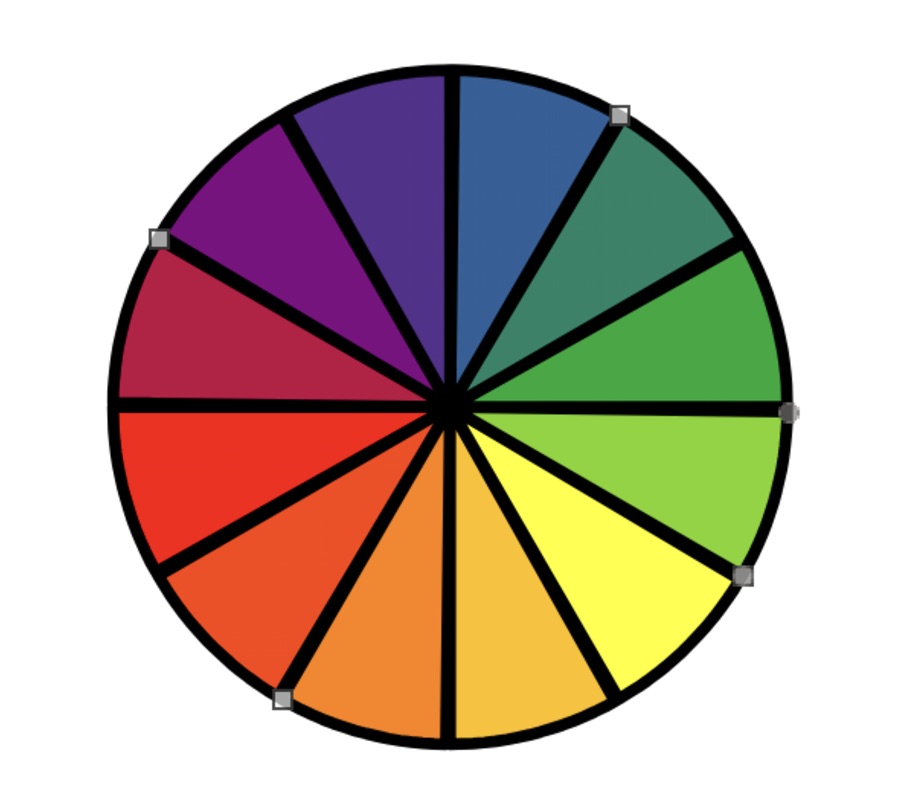
Create a colour wheel in LibreOffice

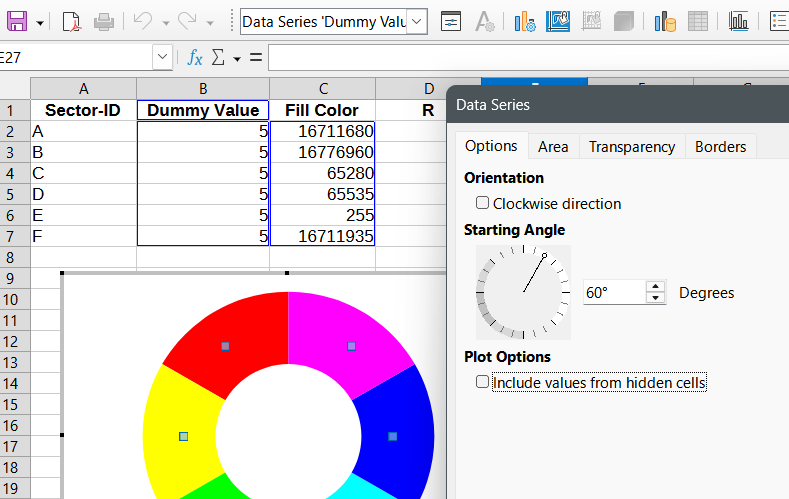
Screenshot of colour wheel being created in LibreOffice Calc

Regina Henschel writes:

Susanne Mohn asked on the German-language user’s mailing list how to create a colour wheel with LibreOffice. It was not about the colours themselves, but about the geometry. How do you create a circle or ring with equally sized sectors?

Very different solutions were proposed. Susanne Mohn, Harald Berger and I (Regina Henschel) have created a page in the LibreOffice Wiki so that these do not remain hidden in a thread. Due to the development process, some sample files are in German, but the page itself is in English.

Colour wheels can be used to create “doughnut charts” of data. Have fun exploring!

Colour wheel

Community Member Monday: Don Matschull

Thumbnails from Don Matschull's YouTube channel

TXDon (aka Don Matschull) is a regular on our Ask LibreOffice website, helping users with their questions. He also maintains a YouTube channel with video tutorials about the suite, and has created courses on Udemy. We chatted with him about his work – and here’s what he had to say.


Don Matschull: I really want to help others learn about what LibreOffice has to offer. I especially want to emphasize the advantage of using styles rather than trying to use LibreOffice Writer like other applications with direct formatting.

In the past, I tended to learn just enough about an application to accomplish the task at hand. After using one application for years, I had some extra time and started to read more of the user manual and other books. I quickly learned that I could have saved hours, days, months of time if I had delved more deeply when I first started using the application. Now, I try to gain a deeper knowledge of the application I am working with.

As I learn, I like to share the knowledge I’ve gained. Trying to explain something helps me understand it even better. When researching a topic, I tend to check the user guides, help files, do internet searches for written and video tutorials, and use help forums such as Ask LibreOffice. Often, I find only bits and pieces of what I want to know and end up experimenting until I’m satisfied that I have a decent grasp of the subject. Then, I try to share what I’ve learned to keep others from having to spend the time and frustration I spent learning.

I try to design my courses in a somewhat logical progression, though this can be difficult because of the way topics can be interrelated. My YouTube videos are more spontaneous. The biggest difficulty with these is trying to keep them short while also covering the topic in more than a superficial manner.

My next video will probably be about how to make lists more distinctive and attractive. Then, I expect to discuss the new features and changes introduced by LibreOffice 7.6 when it reaches the point that version 7.5 now holds.

Eventually, I would like to prepare a whole new course or more on LibreOffice Writer incorporating audio and video techniques I learned since my initial course.


Click here to view Don’s LibreOffice tutorial videos

Quick tutorial – Docking Colour Palettes in LibreOffice Draw

Did you know? You can dock colour palettes in many places in LibreOffice Draw. Here’s a quick video from Harald Berger, from the German LibreOffice community:

Please confirm that you want to play a YouTube video. By accepting, you will be accessing content from YouTube, a service provided by an external third party.

YouTube privacy policy

If you accept this notice, your choice will be saved and the page will refresh.

Video tutorials for LibreOffice Writer, Calc and Impress

On the LibreOffice subreddit, we became aware of some useful tutorial videos created by Steven Davids. These cover various components of the suite, and show how to achieve common tasks.

We asked Steven about how he chooses the topics for his videos, and how he makes them:

My video tutorials come to me – I do not go and look for them. If I have a problem, I search for a solution on the web. I always assume I am not unique, and that many other people had or have the same problem. If I do not find a solution or one that is readily available, I struggle my way out to a solution. Then I share that solution via video! Why video? Because it seems to me people are lazy to read and video illustrations are just easier to understand.

The videos are very low budget and homemade. There are no costs for the software since I use free public open-source programs for the screen recorder and video editor. There are many such programs, but OBS Studio and Shotcut serves me very well. I often use LibreOffice Presentation to assist in presenting the material. The hardware is also low cost. I already have a laptop and mobile phone so there are not extra costs there. A mid-range microphone from Samson is indispensable and basically the only additional cost.

Click here to view the playlist on YouTube!