Next C++ workshop: MSTs and Graph Implementations, 6 June at 18:00 UTC

Learn C++ features with the help of LibreOffice developers! We’re running regular workshops which focus on a specific topic, and are accompanied by a real-time IRC meeting. For the next one, the topic is MSTs and Graph Implementations. Start by watching this presentation:

Please confirm that you want to play a YouTube video. By accepting, you will be accessing content from YouTube, a service provided by an external third party.

YouTube privacy policy

If you accept this notice, your choice will be saved and the page will refresh.

And check out the suggested EasyHacks.

Then join us for a discussion via our #libreoffice-dev IRC channel. You can ask experienced LibreOffice developers questions, and learn more about the language. We look forward to meeting you!

Start developing LibreOffice! Registering with Git and Gerrit, and local settings

Please don’t use these instructions in practice – they become obsolete over time. Instead, follow the wiki article on gerrit.

(This post was originally written in Hungarian by Adam Kovacs for his blog. Thanks Adam!)

Want to start hacking on the LibreOffice source code? Start here! Follow the steps in this guide to enable automatic verification, so that you can submit your changes to the LibreOffice Git repository. If your code patches are accepted by other developers in the project, they will be added to the code for the next version, and then everyone in the world who uses LibreOffice will benefit from them.

This description does not include the submission (commit and push) of the patch, but only creates the preconditions for it.

If you get stuck at one of the points, reading these links can help:


Step 1 – Download the code

Create a directory (folder) for LibreOffice somewhere on your computer. At the command prompt (in a terminal in Linux, or eg Cygwin in Windows), access this folder and run the following command:

git clone https://gerrit.libreoffice.org/core libreoffice

Some notes:

  • You do not have to run “git init” after “git clone”
  • Just run the “git clone” command for the steps listed here; you don’t have to start autogen.sh and the compilation, unless you want to test your code modifications

Step 2 – Registering with Git

Git is a distributed version-control system for tracking changes in source code during software development. Register at: https://github.com.


Step 3 – Registering with Gerrit

What is a Gerrit? It complements Git. You can view patch files, messages, the results of the automatic tests of modifications, comments from senior programmers on the web interface, and whether your submitted patch has been accepted.

Register at: https://gerrit.libreoffice.org.

Fill in the following: username (no spaces and accents, example: adamkovacs), name (example: Adam Kovacs), email (example: something@valami.com). These can be found in the “Profile” and “Contact information” menu items.


Step 4 – Create SSH key

Linux:

ssh-keygen -C 'you@email.com'

Windows:

ssh-keygen.exe -C 'you@email.com'

After you run the command, you should also enter a password if you still have access to the files generated by the command, for example to commit code in your name. (The password will be required for “./logerrit submit master”, for example.)


Step 5 – Copying SSH public key into Gerrit

Copy the full contents of the id_rsa.pub file in the ~/.ssh/ folder into Gerrit by selecting SSH Public Keys.

In the ~/.ssh/ folder, create a file named “config” with this content:

Host logerrit gerrit.libreoffice.org
    IdentityFile ~/.ssh/id_rsa
    User gerritesfelhasznalonev
    Port 29418
    HostName gerrit.libreoffice.org

(It may be that port 22 (SSH( is disabled at some workplaces or public networks.)

You may need to run the following command in ~/.ssh/:

chmod 600 config

This sets a write and read (4 + 2) permission for your own username, and no permissions (0) for your group and the outside world.


Step 6 – Local Git repository

Set up your local Git repository with the username and email address as set in Gerrit, with the following commands after entering your LibreOffice directory:

git config --global user.name "Sajat Nev"
git config --global user.email "sajat@email.cim"

Use the “git config –list command” to retrieve the current settings. If they don’t include a name and email address, we haven’t set up anything yet. But with the “git config user.name” and “git config user.email” commands, you can more clearly verify this.

The file named config in the .git directory that’s inside the LibreOffice directory should look like this:

[core]
    repositoryformatversion = 0
    filemode = true
    bare = false
    logallrefupdates = true
    ignorecase = true
[remote "origin"]
    url = ssh://felhasznalonev@gerrit.libreoffice.org:29418/core
    fetch = +refs/heads/*:refs/remotes/origin/*
[branch "master"]
    remote = origin
    merge = refs/heads/master
[user]
    name = Gerriten Megadott Nev
    email = gerriten_megadott_email_cim
[submodule "dictionaries"]
    active = true
    url = ssh://felhasznalonev@gerrit.libreoffice.org:29418/dictionaries
    ignore = all
[submodule "helpcontent2"]
    active = true
    url = ssh://felhasznalonev@gerrit.libreoffice.org:29418/help
    ignore = all
[submodule "translations"]
    active = true
    url = ssh://felhasznalonev@gerrit.libreoffice.org:29418/translations
    ignore = all

The above commands may not have changed anything in this file, in which case you can manually overwrite the file, or enter the directory containing the file and issue this command:

chmod 600 config

Then try the previous “git config” commands again.

You might want to change the default text editor, if you don’t want to use Vi(m). Run the following command to change to Nano, for instance:

git config --global core.editor nano

Then, after running the “git commit command”, Nano starts instead of Vi(m).


Step 7 – Test Gerrit!

The following commands should run successfully:

./logerrit test
ssh -vvvv logerrit

If they do not run successfully, check out the error messages to see what commands you should run – and also visit the links in the introduction to this guide.


Step 8 – Legal notice

This text should be sent by mail to LibreOffice@lists.freedesktop.org:

All rights reserved for LibreOffice may be licensed under the MPLv2 / LGPLv3 + dual license.

…with the subject line ” license statement”. (More details here.) Note: please only send the statement no earlier than when you post your first submission to Gerrit, and ensure you have permission from your parents!

And now you’re set up to hack on the LibreOffice source code! We’ll follow up this guide with more tutorials soon, so keep an eye on the blog…

LibreOffice Paris HackFest

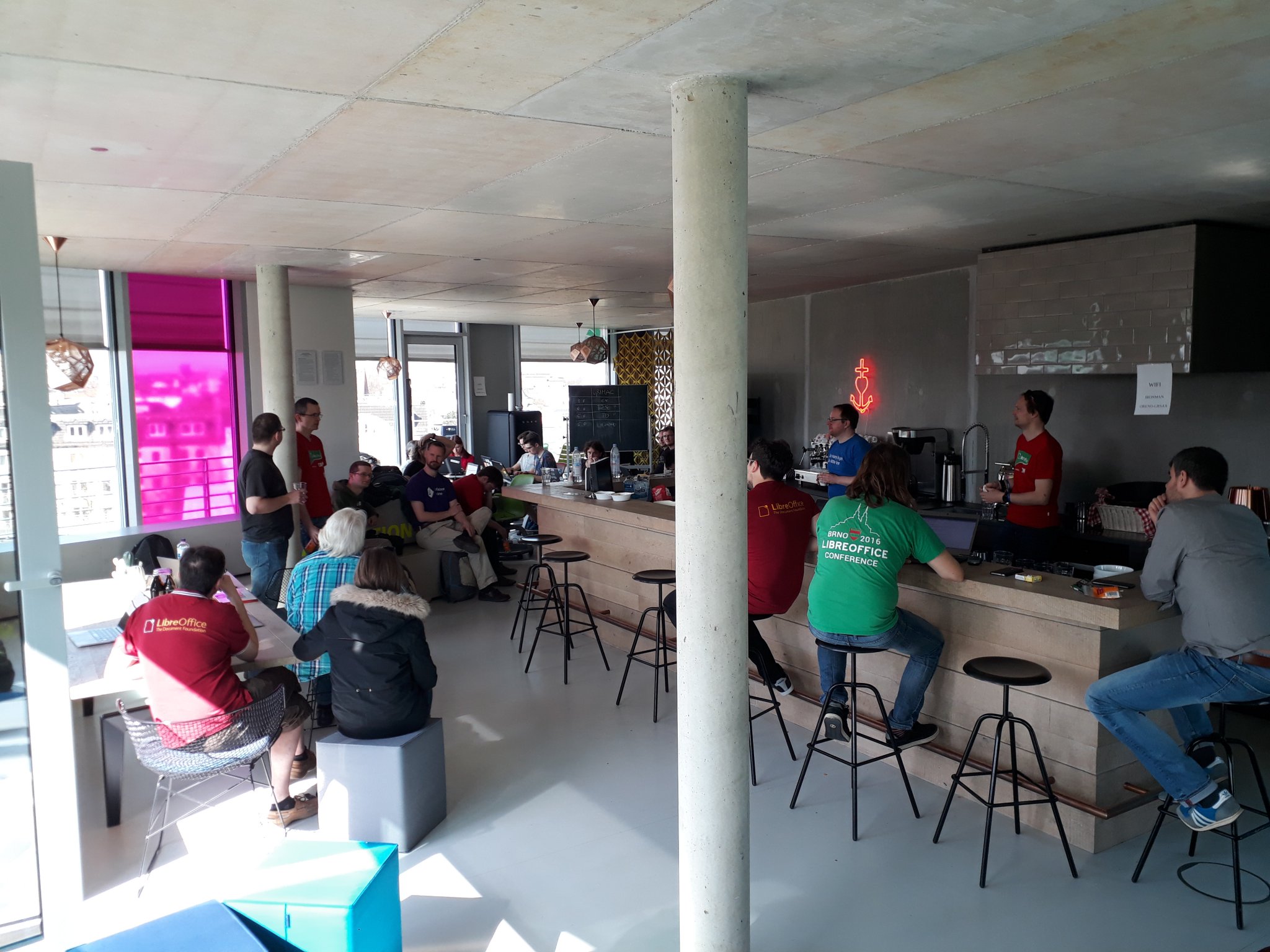
The LibreOffice Paris HackFest 2019 will take place on the weekend of July 5th-6th, at le 137, which is at 137 Boulevard Magenta, Paris 10e, France. The event is sponsored by INNO3, hosting the hackfest in their building, and The Document Foundation, providing reimbursement for travels and accommodations.

LibreOffice Paris HackFest will start on Friday at 10AM. During the day there will be an informal meeting of the French community, to discuss local activities, while developers and other volunteers will hack the LibreOffice code. The venue will be available until 2AM. On Saturday the venue will open at 10AM, to allow people to continue working, and share hackfest results. The event will officially end at 8PM, but on Sunday there will be a city tour.

More details on the LibreOffice Paris HackFest are available on the wiki at the following link: https://wiki.documentfoundation.org/Hackfest/Paris2019.

Next C++ workshop: Binary Search Trees, 23 May at 18:00 UTC

Learn C++ features with the help of LibreOffice developers! We’re running regular workshops which focus on a specific topic, and are accompanied by a real-time IRC meeting. For the next one, the topic is Binary Search Trees. Start by watching this presentation:

Please confirm that you want to play a YouTube video. By accepting, you will be accessing content from YouTube, a service provided by an external third party.

YouTube privacy policy

If you accept this notice, your choice will be saved and the page will refresh.

And check out the suggested EasyHacks.

Then join us for a discussion via our #libreoffice-dev IRC channel. You can ask experienced LibreOffice developers questions, and learn more about the language. We look forward to meeting you!

Next C++ workshop: Binary Trees, 9 May at 18:00 UTC

Boost your C++ skills with the help of LibreOffice developers! We’re running regular workshops which focus on a specific topic, and are accompanied by a real-time IRC meeting. For the next one, the topic is Binary Trees. Start by watching this presentation:

Please confirm that you want to play a YouTube video. By accepting, you will be accessing content from YouTube, a service provided by an external third party.

YouTube privacy policy

If you accept this notice, your choice will be saved and the page will refresh.

And check out the suggested EasyHacks.

Then join us for a discussion via our #libreoffice-dev IRC channel. You can ask experienced LibreOffice developers questions, and learn more about the language. See you then!

Next C++ workshop: Linked Lists / Stack Classes; PQs and Heaps, 25 April at 18:00 UTC

Boost your C++ skills with the help of LibreOffice developers! We’re running regular workshops which focus on a specific topic, and are accompanied by a real-time IRC meeting. For the next one, the topic is Linked Lists / Stack Classes; PQs and Heaps. Start by watching this presentation:

Please confirm that you want to play a YouTube video. By accepting, you will be accessing content from YouTube, a service provided by an external third party.

YouTube privacy policy

If you accept this notice, your choice will be saved and the page will refresh.

And check out the suggested EasyHacks.

Then join us for a discussion via our #libreoffice-dev IRC channel. You can ask experienced LibreOffice developers questions, and learn more about the language. See you then!