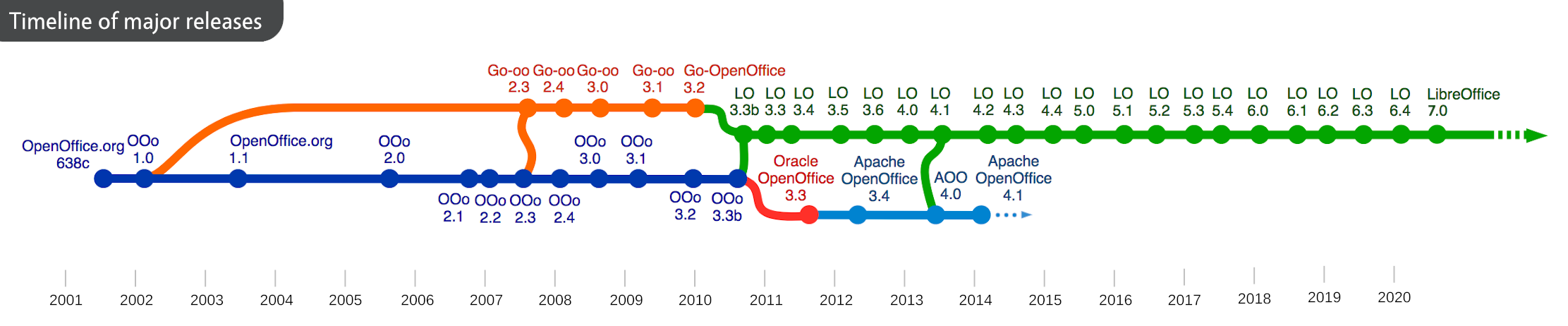
 LibreOffice 7.0: the new major release of the best FOSS office suite ever is available on all OSes and platforms, and provides significant new features
Berlin, August 5, 2020 – The LibreOffice Project announces the availability of LibreOffice 7.0, a new major release providing significant new features: support for OpenDocument Format (ODF) 1.3; Skia graphics engine and Vulkan GPU-based acceleration for better performance; and carefully improved compatibility with DOCX, XLSX and PPTX files.
- Support for ODF 1.3. OpenDocument, LibreOffice’s native open and standardised format for office documents, has recently been updated to version 1.3 as an OASIS Technical Committee Specification. The most important new features are digital signatures for documents and OpenPGP-based encryption of XML documents, with improvements in areas such as change tracking, and additional details in the description of elements in first pages, text, numbers and charts. The development of ODF 1.3 features has been funded by donations to The Document Foundation.
- Skia graphics engine and Vulkan GPU-based acceleration. The Skia graphics engine has been implemented thanks to sponsorship by AMD, and is now the default on Windows, for faster performance. Skia is an open source 2D graphics library which provides common APIs that work across a variety of hardware and software platforms, and can be used for drawing text, shapes and images. Vulkan is a new-generation graphics and compute API with high-efficiency and cross-platform access to modern GPUs.
- Better compatibility with DOCX, XLSX and PPTX files. DOCX now saves in native 2013/2016/2019 mode, instead of 2007 compatibility mode, to improve interoperability with multiple versions of MS Office, based on the same Microsoft approach. Export to XLSX files with sheet names longer than 31 characters is now possible, along with exporting checkboxes in XLSX. The “invalid content error” message was resolved when opening exported XLSX files with shapes. Finally, there were improvements to the PPTX import/export filter.
LibreOffice offers the highest level of compatibility in the office suite arena, starting from native support for the OpenDocument Format (ODF) – with better security and interoperability features over proprietary formats – to almost perfect support for DOCX, XLSX and PPTX files. In addition, LibreOffice includes filters for many legacy document formats, and as such is the best interoperability tool in the market.
Summary of Other New Features [1]
GENERAL
- New icon theme, the default on macOS: Sukapura
- New shapes galleries: arrows, diagrams, icons and more…
- Glow and soft edge effects for objects
WRITER
- Navigator is easier to use, with more context menus
- Semi-transparent text is now supported
- Bookmarks can now be displayed in-line in text
- Padded numbering in lists, for consistency
- Better handling of quotation marks and apostrophes
CALC
- New functions for non-volatile random number generation
- Keyboard shortcut added for autosum
IMPRESS & DRAW
- Semi-transparent text is supported here too
- Subscripts now return to the default of 8%
- PDFs larger than 500 cm can now be generated
 LibreOffice Technology
LibreOffice 7.0’s new features have been developed by a large community of code contributors: 74% of commits are from developers employed by companies sitting in the Advisory Board, such as Collabora, Red Hat and CIB, plus several other organizations, and 26% are from individual volunteers.
In addition, there is a global community of individual volunteers taking care of other fundamental activities, such as quality assurance, software localization, user interface design and user experience, editing of help content and documentation, along with free software and open document standards advocacy.
A video summarizing the top new features in LibreOffice 7.0 is available on YouTube: https://www.youtube.com/watch?v=XusjjbBm81s and also on PeerTube: https://tdf.io/lo70peertube
Products based on LibreOffice Technology are available for all major desktop operating systems (Windows, macOS, Linux and ChromeOS), for the cloud and for mobile platforms. They are released by The Document Foundation, and by ecosystem companies contributing to software development.
LibreOffice for End Users
LibreOffice 7.0 represents the bleeding edge in term of features for open source office suites, and as such is targeted at technology enthusiasts, early adopters and power users. The Document Foundation does not provide any technical support for users, although they can get help from other users on mailing lists and the Ask LibreOffice website: https://ask.libreoffice.org
For users whose main objective is personal productivity and therefore prefer a release that has undergone more testing and bug fixing over the new features, The Document Foundation maintains the LibreOffice 6.4 family, which includes some months of back-ported fixes. The current version is LibreOffice 6.4.5.
LibreOffice in Business
For enterprise-class deployments, TDF strongly recommends sourcing LibreOffice from one of the ecosystem partners, to get long-term supported releases, dedicated assistance, custom new features and other benefits, including SLA (Service Level Agreements): https://www.libreoffice.org/download/libreoffice-in-business/. The work done by ecosystem partners is an integral part of LibreOffice Technology.
For migrations from proprietary office suites and training, professional support should be sourced from certified professionals who provide value-added services which extend the reach of the community to the corporate world, and offer CIOs and IT managers a solution in line with proprietary offerings. Reference page: https://www.libreoffice.org/get-help/professional-support/.
In fact, LibreOffice – thanks to its mature codebase, rich feature set, strong support for open standards, excellent compatibility and long-term support options from certified partners – represents the ideal solution for businesses that want to regain control of their data and free themselves from vendor lock-in.
Availability of LibreOffice 7.0
LibreOffice 7.0 is immediately available from the following link: https://www.libreoffice.org/download/. Minimum requirements for proprietary operating systems are Microsoft Windows 7 SP1 and Apple macOS 10.12. Builds of the latest LibreOffice Online source code are available as Docker images from TDF: https://hub.docker.com/r/libreoffice/online/
LibreOffice Technology based products for Android and iOS are listed here: https://www.libreoffice.org/download/android-and-ios/, while for App Stores and ChromeOS are listed here: https://www.libreoffice.org/download/libreoffice-from-microsoft-and-mac-app-stores/
LibreOffice users, free software advocates and community members can support The Document Foundation with a donation at https://www.libreoffice.org/donate
LibreOffice 7.0 is built with document conversion libraries from the Document Liberation Project: https://www.documentliberation.org
[1] A more comprehensive list of LibreOffice 7.0 new features is available on the Release Notes wiki page: https://wiki.documentfoundation.org/ReleaseNotes/7.0
Press Kit
The press kit with press release and high-resolution images and screenshots, is available here: https://tdf.io/lo70presskit


 Today we’re talking to Pulkit Krishna, who’s a