Spread the word – add LibreOffice to your email signature!
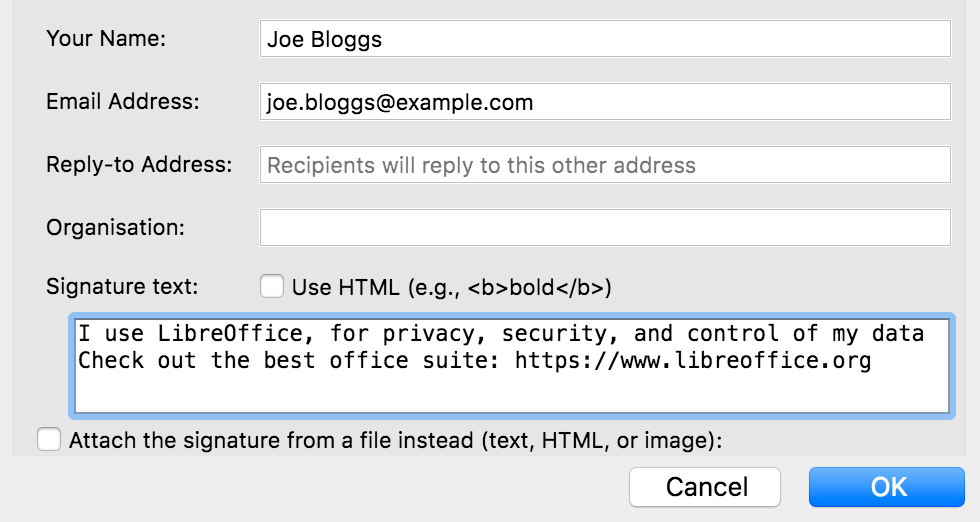
Love LibreOffice? Want to let more people know about it? An effective (and easy) way is to add a mention of the software to your email signature. This is the piece of text that’s automatically added to emails that you send, and typically includes some information about your job, or other contact details.

Many people also use their email signatures (aka “sigs”) to spread the word about causes they support – such as free and open source software projects. So, you could use your signature to raise awareness about LibreOffice, for instance! When people read your emails, if they also check out the signature, they’ll learn something. For instance, you could add:

LibreOffice – free and open source office suite: https://www.libreoffice.org
Respects your privacy, and gives you back control over your data

What exactly you add is up to you, and depends on what you want to focus on. For instance, if you exchange emails with a lot of Microsoft Office users, you may want to mention that LibreOffice can work with .doc(x), .xls(x) files etc. Or perhaps you’re more focused on the ethics of free (as in freedom) software – and want to talk about the benefits to society it brings.

In any case, it’s best to keep it short (a couple of lines), and include a link so that readers can get more information. If the main LibreOffice website is too long for your sig, you can use https://tdf.io/lo as an alternative.

So, good luck, and if you have suggestions/ideas for signatures, post them in the comments below! Here are also some quick instructions for changing signatures in a few email clients and services…


Mozilla Thunderbird

Go to Tools > Account Settings in the menu, then choose your account, and scroll down to the “Signature text” box.

Google Mail (web view)

Click the Settings cog in the top-right, then “See all settings”. Under the General tab, scroll down to Signature, then click “Create new”. Give it a name and text, and underneath assign it to new emails in the “Signature defaults” option. Finally, scroll down and click “Save Changes” at the bottom of the page.

Google Mail (mobile app)

Tap the three-line “hamburger” menu in the top-left and go to Settings. Tap your account, then scroll down to “Mobile signature”.

ProtonMail

Click Settings at the top, and go to Account in the left-hand menu. Under Identity, you’ll see a box to enter signature text.

Outlook (web view)

At the top of the browser window there is a “gear wheel” icon to access the settings. Click on this and a panel opens on the right-hand side. At the bottom of this panel is a link labelled “View All Outlook settings” – click on this. A new panel consisting of three columns appears. Click on the second item in the second column, labelled “Compose and reply”. This opens one further panel including the option to set the signature text, the font attributes and to insert a graphic if required.

Apple Mail

Go to Mail > Settings, then click the “Signatures” tab. In the middle row, choose the signature text to edit, and edit the text shown in the right row. You may also add a new signature text using the “+” button at the bottom of the middle row. If you did so then choose the mail account at the left row and select the new signature texts name at the bottom of the window. So you may toggle easily between different signatures.

Got instructions for other email clients/services? Let us know in the comments – thanks!
Conference organizers announce schedule and platform registration

Organizers of the online openSUSE + LibreOffice Conference are pleased to announce that the schedule for the conference is published.

All times on the schedule are published in Coordinated Universal Time. The conference will take place from live Oct. 15 to Oct. 17 using the oslo.gonogo.live platform.

There are more than 100 talks scheduled, covering the openSUSE and LibreOffice projects. There are talks about open-source projects, cloud and container technologies, embedded devices, community development, translations, marketing, documentation, Future Technologies, Quality Assurance and more. 

There will be multiple sessions happening at the same time, so some talks might overlap. Attendees have an option to personalize a schedule so that they are reminded when the live talk they would like to see begins. 

Live talks scheduled for the event will be either a 15 minute short talks, a 30 minute normal talks or a 60-minute work group/panel session. 

Attendees will be able to register on https://oslo.gonogo.live before the even, up until October 14. The platform is designed as a social conferencing tool. Users can put in profile information, share their location and interact with other members of the audience. 

All attendees are encouraged to click on the upper left menu and click the Info/Tour button to get familiar with the platform. The presenter will have the possibility to control the video as well as pause, rewind, fast-forward, etc., which is built into the system; the format of the video would need to be an mp4 and shared from a URL that everyone can access; this could be share from Google Drive, Nextcloud, ownCloud or another video sharing platform.

Conference T-shirts can be purchased in the platform under the shop button starting from October 13.

LibreOffice and Google Summer of Code 2020: The results

Google Summer of Code logo

This year, LibreOffice was once again a mentoring organization in the Google Summer of Code (GSoC) a global programme focused on bringing more student developers into free and open source software development. We ran six projects – and all were finished successfully. Students and mentors enjoyed the time, and here we present some of the achievements, which should make their way into LibreOffice 7.1 in early February 2021!

You can experiment with the new functionality by using daily builds and report any problems in our bug tracker.


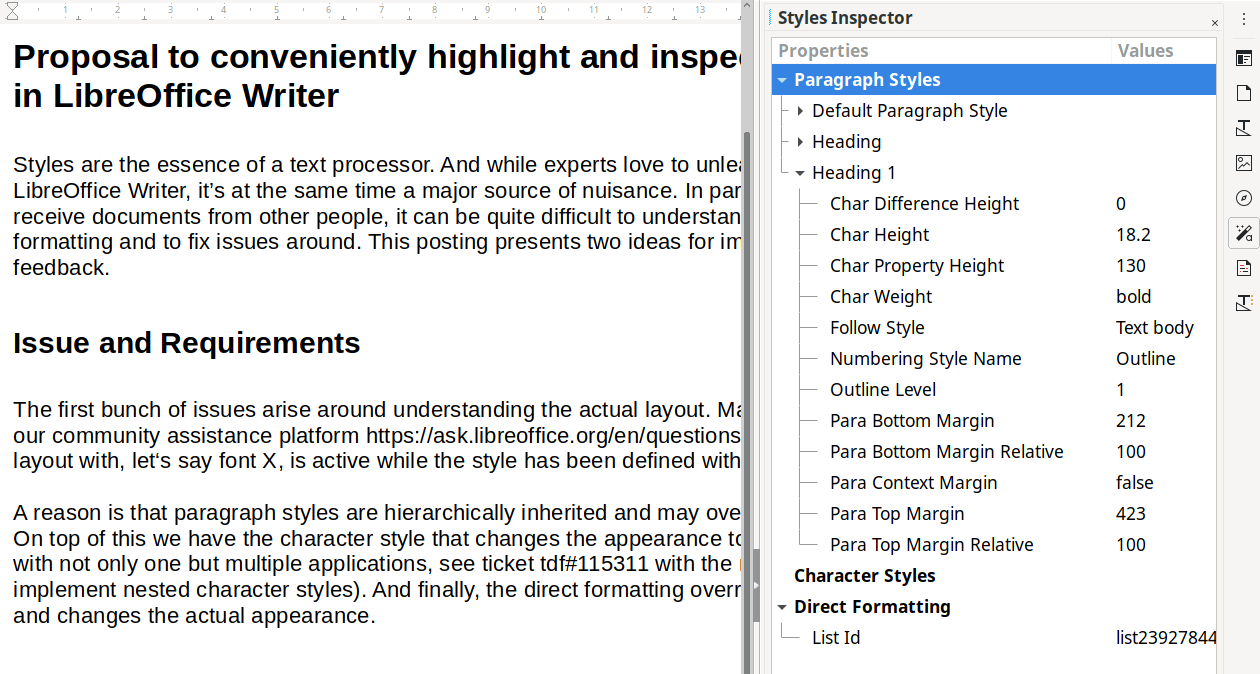
Styles Inspector for Writer by Shivam Kumar Singh

Mentors: Tomaž Vajngerl, Mikhail Kaganskiy (Collabora)

Dealing with styles and formatting in complex documents can become tedious, especially when you are working on something you did not create yourself. The Styles Inspector implemented by Shivam conveniently displays all the properties of the elements making up a document. It will surely become an essential tool for Writer experts.

Learn more about the Styles Inspector in the final report.

Styles Inspector


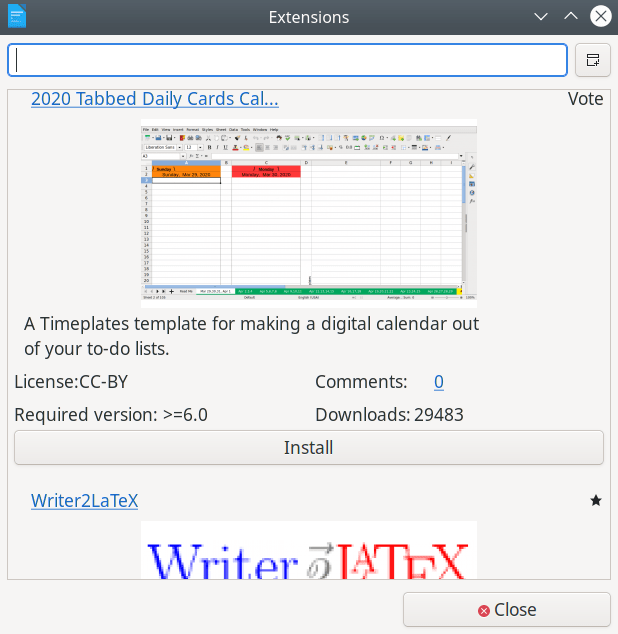
Additions – Tight integration of extensions by Yusuf Keten

Mentor: Muhammet Kara (Collabora)

Thanks to the work of Yusuf, users are now able to fetch extensions, templates and other resources as well as discover guide books without ever leaving LibreOffice.

Learn more about Additions in the final report.

Additions


Extending the UI testing framework by Ahmed ElShreif

Mentor: Markus Mohrhard

A domain-specific language (DSL) for LibreOffice’s Python-based UI testing framework was originally implemented by Saurav Chirania in 2018. Ahmed ElShreif continued the work in 2019 and now tackled further improvements in the DSL and in the testing framework itself. This means that the automated quality assurance system is better at preventing bugs from slipping into LibreOffice.

Learn more about the UI testing project in the final report.


Impress shape animations with a real physics engine by Sarper Akdemir

Mentor: Thorsten Behrens (CIB)

Sarper added the ability to enrich presentations with animations powered by the physics simulator engine Box2D.

Please confirm that you want to play a YouTube video. By accepting, you will be accessing content from YouTube, a service provided by an external third party.

YouTube privacy policy

If you accept this notice, your choice will be saved and the page will refresh.

Learn more about the physics engine project in the final report.


Moving the gallery code to a friendly format by Aditya Sahu

Mentors: Tomaž Vajngerl, Michael Meeks (Collabora)

It was not simple to work on galleries due to them being stored in a custom binary format. Now Aditya got us out of this unfortunate situation and designers will have a much easier time.

Learn more about the gallery project in the final report.


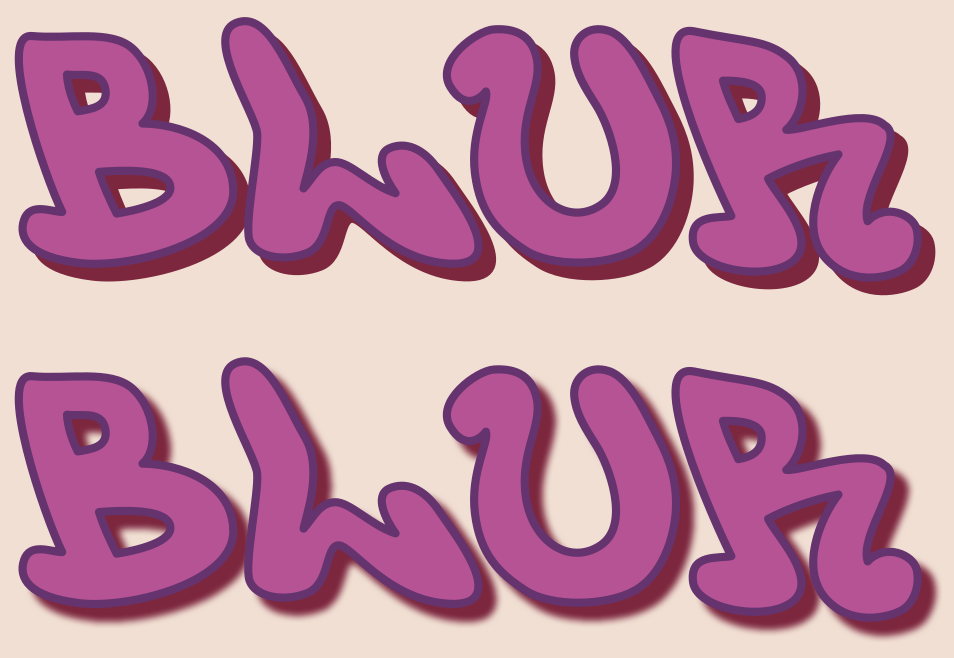
Blurry shadows by Ahmad Ganzouri

Mentors: Tomaž Vajngerl, Miklos Vajna (Collabora)

Shapes and objects in LibreOffice used to only support hard shadows. Now Ahmad implemented proper blurriness for the shadows, supporting both ODF and OOXML formats.

Blurry shadows

Learn more about blurry shadows in the final report.


Wrapping up

Many thanks to all students who spent their summer time improving LibreOffice. You are awesome! And special thanks also to the mentors who always put so much love and energy into these tasks. That‘s what makes LibreOffice rock.

Now we are looking forward to next year’s GsoC. If you are interested, why not prepare early? Learn more at out wiki page where some ideas are listed. Participating in GSoC is a great way to build your skills, and show future employers what you’re capable of!

Community Member Monday: Pranam Lashkari (Collabora/GSoC)

Today we’re talking to Pranam Lashkari from our Indian community, who is working in the LibreOffice ecosystem at Collabora, improving the web-based version of the suite…

First off, tell us a bit about yourself!

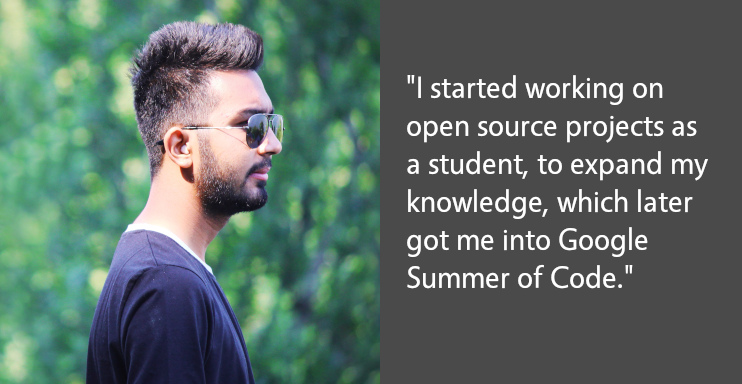
Pranam! (It means namaste, and yes, that’s my name too 😂). I live in Rajkot, a city in the middle of the state of Gujarat in India. I am a computer engineer who started working on open source projects as a student, to expand my knowledge, which later got me into Google Summer of Code – twice as a student, and this year I became a mentor and a maintainer of one of the Boost C++ Libraries called GIL (Generic Image Library).

The eagerness for always working in open source led me to work with Collabora Productivity, where I’m privileged to work full-time to take LibreOffice development further. So far, all the code I have written in my life is open source.

When I am not programming, I like to spend my time playing cricket (or any sport), doing some observational astronomy, or reading things related to science.

You can find me on LinkedIn and GitHub.

What are you working on in the LibreOffice project right now?

Most of my work is focused on LibreOffice Online, which also happens to be the project behind the mobile version of Collabora Office. I started by removing the Poco framework, and then adding major features like smooth scrolling in mobile.

Currently, I am working on desktop browser version of LibreOffice Online, where I try to align features with the core version. On the other hand, in the mobile version, I solve different bugs in mobile wizards and enable new features which are not yet available in mobile. While working on the mobile wizard, I also try to optimize the performance wherever possible by avoiding and reducing unnecessary communication with the server – and making things look more snappy on mobile.

Why did you decide to become a member of The Document Foundation?

I love it when my code is used by people. Having a large number of users of LibreOffice attracted me to be a developer in TDF projects, and I am very thankful to Jan Holesovsky and Michael Meeks for giving me this wonderful opportunity and helping me get started and grow.

At first, I wasn’t aware of the existence of such programmes where one can become a member, until I received an email inviting me to apply to become a member of TDF because of my continuous involvement in TDF projects the last six months. I decided to apply for the membership because it would help me align the development with the goals set by the organisation, and get a clear picture of further required development.

The best way to move forward is by collaborating and becoming a part of the project. By becoming a member, I also wish to give my feedback on decisions and strategies.

Anything else you plan to do in the future? What does LibreOffice really need?

In my work for Collabora, we focus on what our customers and partners most want to be done next – always something interesting.

Finally, one thing I would like to add: working on these projects which are involved in changing the user experience forever is one of the best experiences I have had as a developer. I would like to thank Collabora and TDF for this.

TDF says: we’d like to thank you, Pranam, for all your work! A strong and healthy ecosystem is essential for the future of LibreOffice, so we’re glad you’re enjoying working for Collabora and improving LibreOffice Online. Cheers!

“Discover LibreOffice” magazines for schools and communities

Do you work in a school, college or university? Perhaps you’re involved in local community events, and want to help spread the word about LibreOffice? Or maybe you work at a local library or non-profit that could benefit from learning about free and open source software. Well, we have some of these magazines to give away:

Discover LibreOffice is a complete guide to the suite, with extra articles about OpenDocument, migrations, the community and more. Much of the content was written by members of the LibreOffice community. There’s also an accompanying DVD with LibreOffice 6.1 – which is a slightly older version, but the disc may be useful in some places without regular internet access.

We’d like to get these into the hands of students and local communities as mentioned, so if you could help to distribute them, please drop us a line! Let us know:

  • Where you are
  • Who you plan to give them to
  • How many copies you need

And we’ll get back in touch. Note: this is not a giveaway of free copies for personal use. If you want a copy for yourself, check out the publisher’s shop for the latest version.

LibreOffice Tips & Tricks: Replacing Microsoft Fonts

Fonts are one of the main culprits of LibreOffice interoperability problems with Microsoft Office documents, when viewed from the end user’s point of view. In fact, Microsoft Office document are often using one of the default fonts – either the old “Core Fonts for the Web” (deprecated in 2002, but still in use) or the new “ClearType Fonts” (launched in 2000, and now adopted by Windows and Office) – which are not always available in LibreOffice, as they are proprietary and cannot be distributed with open source software. Also, in the case of ClearType fonts, the license is strictly connected to the Windows and/or Office license, so to legitimately use them with LibreOffice you need a Windows license where they are included.

When LibreOffice opens a Microsoft Office document, it will replace the fonts which are not available with one of the default Liberation fonts, which are metrically compatible with Arial (Liberation Sans), Courier New (Liberation Mono) and Times New Roman (Liberation Serif), but will have an impact on the visual appearance of the document if they replace a different font (in this case, the user will usually start to complain loudly about LibreOffice, without even checking if the contents are still there…).

To reduce the impact of this problem, which cannot be eliminated, at least until users stop using fonts creatively, LibreOffice offers a specific feature, a font replacement table that can be configured according to the user’s needs, and is among the program’s options. If the table is configured correctly, LibreOffice replaces the fonts with those metrically compatible – or simply more similar – defined by the user, and this in most cases will prevent the document from looking different. Luckily, there is a large number of free open source fonts available, with some specifically developed to replace Microsoft fonts as in the case of Croscore Fonts, from several online repositories. I suggest Google Fonts, as the website provides not only the font files but also all the associated legal resources, including the license.

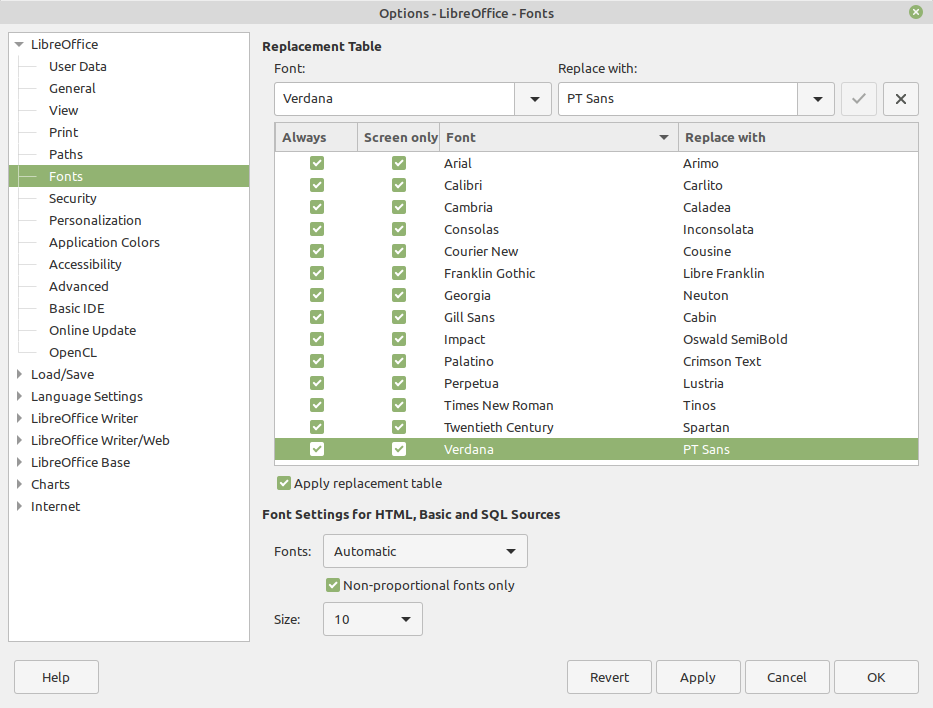
My LibreOffice font replacement table, which has been developed over the years, includes the following font pairs (the first is replaced by the second, which is installed on my Linux PCs): Arial -> Arimo, Calibri-> Carlito, Cambria -> Caladea, Consolas -> Inconsolata, Courier New -> Cousine, Franklin Gothic -> Libre Franklin, Georgia -> Neuton, Gill Sans -> Cabin, Impact -> Oswald, Palatino -> Crimson Text, Perpetua -> Lustria, Times New Roman -> Tinos, Twentieth Century -> Spartan, and Verdana -> PT Sans. This is how it looks in LibreOffice:

Installing fonts is rather easy, but for those who are not familiar with the procedure there are a couple of articles which provide a quick tutorial: Windows & macOS, and Linux.