 The year 2015 brought some challenging and exciting developments regarding the ongoing restructuring of our infrastructure. At the beginning of the year, the migration of our existing virtual machines and bare metal machines was ongoing after an extensive test phase of the new virtualization platform.
This virtualization platform consists of three servers, each with 256GB RAM, 64 CPU cores and quite a lot of hard drive space. One of the machines is meant to be used exclusively by developers for crash testing. These machines are all hosted by manitu in St. Wendel, Germany, and are currently undergoing migration onto our own dedicated 42U rack – including the flexibility to set up a private network between these machines and others that we house there.
After some problems with the software previously chosen for our virtualization platform, much work went into setting up virtual machines where services run isolated from each other, based on plain KVM. This already led to the transition of the hosted blog to one of our own machines, which give us more control over installed plugins, and also provides more flexible control over the WordPress setup that we use.
During the Hackfest at the University of Gran Canaria, work went into making the used Salt States more easy to hack on by people who want to get involved in our infrastructure. This also resulted in a tutorial video on how to create a development environment for our infrastructure.
Monthly infra calls were also set up, taking place every last Wednesday of the month at 17:00 UTC. They resulted in the creation of a weekly maintenance window for server upgrades, reboots and major configuration changes, every Monday between 03:00 and 05:00 UTC.
Operating system upgrades
 During the calls the community decided to upgrade the base operating system to Debian 8 over the next few months. This was already carried out on one of our virtualization hosts during the newly set up maintenance window, in order to check for any problems that may occur during the update. During the upgrade, some obstacles were identified and workarounds were set in place to allow smooth upgrades.
We have also invested in hardware from vendor Thomas Krenn which will allow us to set up two additional Windows buildbots with powerful dual CPUs and high speed SSDs, along with two more Linux buildbots with the same specs. These buildbots will also be housed in St. Wendel and connect to our growing intranet there. Two more servers will be used for backup space. We plan to connect all TDF-owned hardware with a VPN, forming a world-wide intranet.
In the second half of the year, more machines were migrated to Debian 8, including the two hypervisors still running Wheezy (Debian 7). Due to the huge success of the new build bots, two more were ordered and now extend the intranet, with a high performance cloud core router from Mikrotik becoming the central connection point of our intranet. The cloud core router also serves as a VPN provider for TDF members at areas with restricted internet access – such as the LibreOffice conference in Aarhus, Denmark in October.
As the number of new servers grew, we decided to migrate our monitoring platform to TKmon, running on a high-availability virtual machine that is separated from the rest of our infrastructure. TKmon integrates with the hardware vendor’s support and notifies them of hardware failures automatically. TKmon is open source software and uses tools such as icinga and pnp4nagios.
To be more flexible with the monitoring notifications, I wrote a tool called TMB that provides a bot for the Telegram chat service and sends notifications to admins. Development happened with PyCharm, a Python IDE.
Our server fleet
 The current state of the infrastructure consists of three rented hypervisors, each with four CPUs, 256 GB RAM, eight HDDs and partially SSDs. Additional rented servers include one backup server and one website stand-in host that was needed after the virtualization problems occurred at the beginning of the year, and that will be decommissioned soon. Nine housed servers with Intel SSDs and powerful dual CPUs are only reachable in the intranet, with access to them being controlled by the core router.
On the hypervisors, there are currently 31 VMs, providing services such as AskBot, WordPress, Gerrit, Bugzilla, Jenkins, MozTrap and much more. At Hetzner there are currently four servers: one that contains the Wiki, MirrorBrain and our public mailing lists, one that is for internal services, and two backup hosts – including one that provides storage capacity of over 17TB and is currently being set up.
Much of our documentation and many of our Salt States are published now at https://github.com/tdf/salt-states-base, while the compiled documentation can be found at http://salt-states-base.readthedocs.org/en/latest/. The Salt States are now tested with Travis and the build results are at https://travis-ci.org/tdf/salt-states-base. It is therefore now very easy to contribute to development and improve the documentation. Just fork the repository and create a pull request – then the results will automatically be tested in Travis. If you want to contribute to the infrastructure of our projects, you are invited to join our monthly infra calls, the next taking place on … or introduce yourself to the infra team in #tdf-infra on Freenode.

 Berlin, April 7, 2016 – The Document Foundation (TDF) announces LibreOffice 5.1.2, the second minor release of the LibreOffice 5.1 family.
 LibreOffice is approaching the 5.2 release season with the first bug hunting session, on Friday, April 22, 2016. Tests will be performed on the Alpha version of LibreOffice 5.2, which will be available on the
 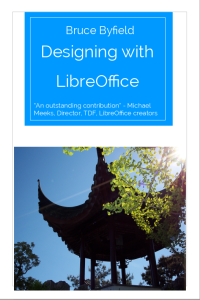 Bruce Byfield, a journalist who specializes in writing about free and open source software, has recently released Designing with LibreOffice, a book about our beloved free office suite, which is not the usual death march through the menu and standard tasks. Instead, the book takes two fresh approaches to the world’s most popular free office suite.