LibreOffice Tuesday T&T: Writer Keyboard Shortcuts

Interesting article on REPUBLICWORLD.COM about LibreOffice Writer Keyboard Shortcuts, which – according to the editor – help to improve the usability of the software:

However, it becomes highly important to know LibreOffice shortcut keys to create content faster. LibreOffice shortcut keys also help a user use the medium more effectively. If you want to learn how to use LibreOffice shortcut keys, here are some of the many essentials to know to be able to use the software more effectively.

Shortcuts are based on the English keyboard, but many works also with other keyboard layouts:

F2 – Formula Bar
Ctrl+F2 – Insert Fields
F3 – Complete AutoText
Ctrl+F3 – Edit AutoText
F4 – Open Data Source View
Shift+F4 – Select next frame
F5 – Navigator on/off
Ctrl+Shift+F5 – Navigator on, go to page number
F7 – Spellcheck
Ctrl+F7 – Thesaurus
F8 – Extension mode
Ctrl+F8 – Field shadings on / off
Shift+F8 – Additional selection mode
Ctrl+Shift+F8 – Block selection mode
F9 – Update fields
Ctrl+F9 – Show fields
Shift+F9 – Calculate Table
Ctrl+Shift+F9 – Update Input Fields and Input Lists
Ctrl+F10 – Nonprinting Characters on/off
F11 – Styles and Formatting window on/off
Shift+F11 – Create Style
Ctrl+F11 – Sets focus to Apply Style box
Ctrl+Shift+F11 – Update Style
F12 – Numbering on
Ctrl+F12 – Insert or edit Table
Shift+F12 – Bullets on
Ctrl+Shift+F12 – Numbering / Bullets off
Alt+Arrow Keys – Move object.
Alt+Ctrl+Arrow Keys – Resizes by moving lower right corner.
Alt+Ctrl+Shift+Arrow Keys – Resizes by moving top left corner.
Ctrl+Tab – Selects the anchor of an object.

Ctrl+A – Select All
Ctrl+D – Double Underline
Ctrl+E – Centered
Ctrl+F – Find and Replace
Ctrl+Shift+P – Superscript
Ctrl+L – Align Left
Ctrl+R – Align Right
Ctrl+Shift+B – Subscript
Ctrl+Y – Redo last action
Ctrl+0 – Apply Default paragraph style
Ctrl+1 – Apply Heading 1 paragraph style
Ctrl+2 – Apply Heading 2 paragraph style
Ctrl+3 – Apply Heading 3 paragraph style
Ctrl+5 – 1.5 Line Spacing

There is a larger list of LibreOffice Writer Keyboard Shortcuts on SHORTCUTWORLD.COM, and a full list on LibreOffice Online Help.
LibreOffice Tuesday T&T: Impress Presenter Screen

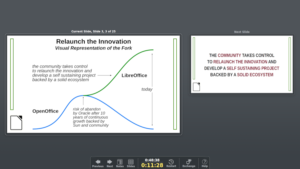
LibreOffice Impress is a valuable presentation software, with plenty of advanced features. One of the most liked by skilled presenters is the so called Presentation Screen, which shows the current and the next slide on screen, and the notes. It helps the presenter to maintain the rythm of the presentation, and to remember the details of the talk.

According to LibreOffice default configuration, the Presenter Screen shows only if the PC is connected to two displays. For some people this is a feature, for some others this is a bug. In fact, it is possible to launch the Presenter Screen instead of the Presentation Screen (full screen image of the slide), by following these instructions:

Open Expert Configuration via Tools > Options > LibreOffice > Advanced. Search for StartAlways. You should get the node org.openoffice.Office.PresenterScreen with line Presenter. Double-click that line to toggle the boolean value to true.

Once you have restarted LibreOffice Impress, when you launch the presentation either by hitting F5 or by choosing Slide Show > Start from First Slide, you will not only open the Presenter Screen but you will also launch a virtual Presentation Screen (which can even be shared or captured, if you are speaking at a virtual conference or recording a webinar or a talk).

Thanks to my fellow OSI BoD member Elana Hashman for suggesting the contents of this Tip & Trick with this blog post.

LibreOffice Tuesday T&T: Windows 7 SP1

Microsoft released Windows 7 on October 22, 2009, and ended the support on January 14, 2020. Technical assistance and software updates from Windows Update that help protect PCs are no longer available for the product.

Microsoft released the first Service Pack for Windows 7, also known as Windows 7 SP1, in February 2011, just a few days after the release of LibreOffice 3.3, the very first release after the fork. Only the first few versions of LibreOffice could run without Windows 7 SP1, which was turning Windows 7 into a stable operating system by solving 893 bug fixes and 77 security fixes.

In 2020, we still receive complaints from users who cannot install LibreOffice because the system asks them to install Windows 7 SP1. Nine years after the release of Service Pack 1 they are surprised when they are told to update their operating system. Although Windows 7 users are now a minority, the fact that there are people who have unconsciously used their completely unsecure PCs for years is a sign of a global security issue, as these users would not behave in a different way when using a different OS.

Anyway, users who are requested to update their PCs to Windows 7 SP1 can find more details about Windows 7 SP1 and the installation instructions on this Microsoft web page: https://support.microsoft.com/en-au/help/15090/windows-7-install-service-pack-1-sp1.

LibreOffice Tuesday T&T: Windows Installation Issues

According to our estimates, worldwide there are around 150 million LibreOffice users on Windows. And when we say worldwide we mean worldwide, as according to the origin of downloads we have users in every continent including Antarctica.

As a consequence, we get a large amount of questions related to LibreOffice on Windows. Many of these questions are about the installation process, because there are several issues which prevent the user to get the expected positive user experience. Unfortunately, the majority of these questions are related to Windows issues and not to LibreOffice issues.

When a issue is related to Windows, the Microsoft operating system will show a specific message, under the form of either an error number (for instance, “Error 1303”) or a specific sentence (for instance, “The program can’t start because api-ms-win-crt-runtime-l1-1-0.dll is missing from your computer”).

Of course, over the years we have built a small knowledge base on the subject, and we have published the results on one page on the wiki, in the area of frequently asked questions: https://wiki.documentfoundation.org/Faq/General/General_Installation_Issues_(Windows). Another useful resource is the Ask LibreOffice website (https://ask.libreoffice.org/en/questions/), where users can search for a solution.

The best resources, though, are provided by Microsoft, and are all multilingual, and are the Microsoft Support website (https://support.microsoft.com/) and the Microsoft Community website (https://answers.microsoft.com/en-us). For instance, a search for “Error 1303” provides around 20 answers, with comments, on the Ask LibreOffice website, and hundreds or even thousands of answers on the two Microsoft websites.

LibreOffice and macOS Catalina

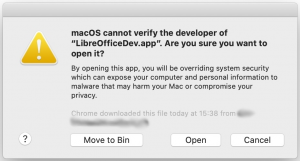
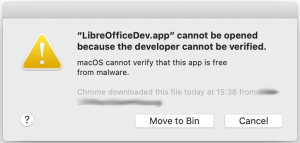
Apple has released macOS 10.15 Catalina on October 7, 2019. Mac apps, installer packages and kernel extensions that are signed with a Developer ID must be notarized by Apple to run on macOS Catalina. Although we have duly followed the instructions, when users launch LibreOffice 6.3.x – which has been notarized by Apple – the system shows the following scary message: LibreOffice.app cannot be opened because the developer cannot be verified, and provides only two options: Move to Bin (delete) and Cancel (revert the operation, i.e. do not run LibreOffice). Of course, this represents a problem for all Mac users who rely on LibreOffice for their office documents after they have upgraded to macOS Catalina.

To solve the issue and bypass the block, the user has to right-click with the mouse (or press Control on the keyboard while clicking with the mouse) on the LibreOffice icon and select Open. The system will show a less scary message: macOS cannot verify the developer of LibreOffice.app. Are you sure you want to open it?, and will eventually provide the Open option to launch LibreOffice.

There is also another solution, which does not bypass Gatekeeper forcing macOS Catalina to open LibreOffice as the solution just described (which is perfectly safe, in any case).

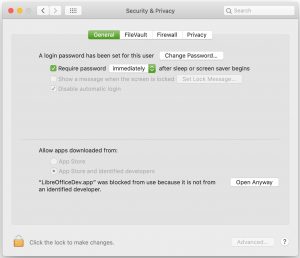
When the first scary message is on screen, the user has to click first on Cancel to close the window and then on the Apple menu to open the System Preferences window. Here the user has to open Security & Privacy and click on the Open Anyway button on the right side of the message LibreOffice.app was blocked from use because it is not from an identified developer to launch LibreOffice. Both solutions authorize LibreOffice to run without further authorizations. Of course, we will try to sort out the issue with Apple, in order to avoid similar issues in the future with macOS Catalina.

IMPORTANT NOTE: Screenshots have been grabbed while installing LibreOfficeDev.app (LibreOffice 6.4 Alpha) instead of LibreOffice.app, but do reproduce the same windows.

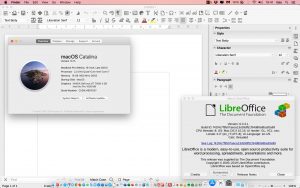
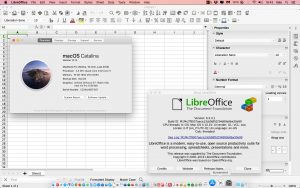
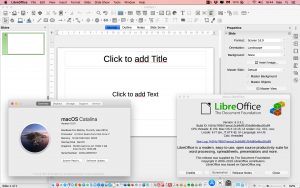
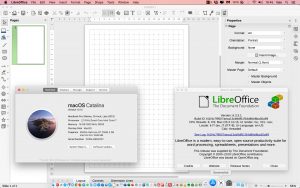
To complete the article, four screenshots of LibreOffice Writer, LibreOffice Calc, LibreOffice Impress and LibreOffice Draw (version 6.3.3.1) running on macOS Catalina.