LibreOffice: Advent Tip #22

form

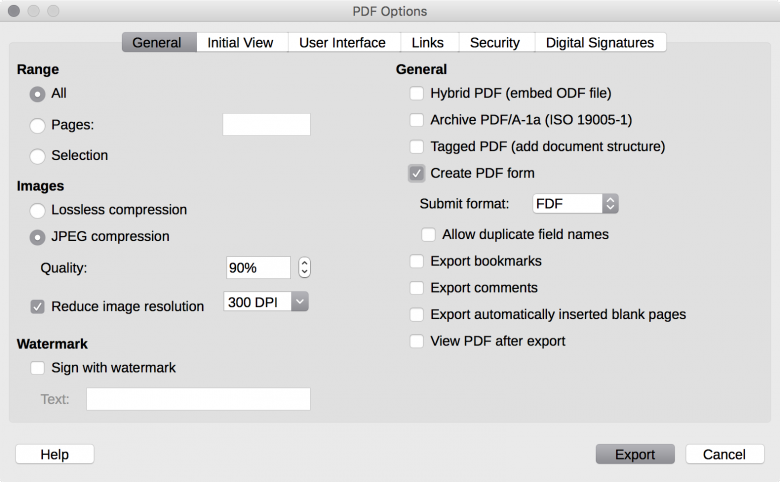
LibreOffice has several hidden gems, ignored by the majority of the users. One of these gems is the creation of editable PDF forms, which is a rather comprehensive feature and not a simple tip (but after 20 days, even the most basic user is now a skilled LibreOffice user…).

I will try to summarize the feature, which is explained in brief in this short tutorial (PDF) and in detail in a chapter of the LibreOffice Writer Guide (PDF).

Starting from an empty Writer document, and activating the Form Control and (optionally) the Form Design Toolbars, the user can access a number of tools to design a complete form (text fields, option buttons, check boxes, etcetera, each one with a large number of options), which at the end can be saved as a PDF standard form compatible with all PDF readers.

This feature is extremely useful for public administrations and enterprises, and replaces – adding value – printed forms, as a PDF form can be easily filled in by any user.

LibreOffice: Advent Tip #21

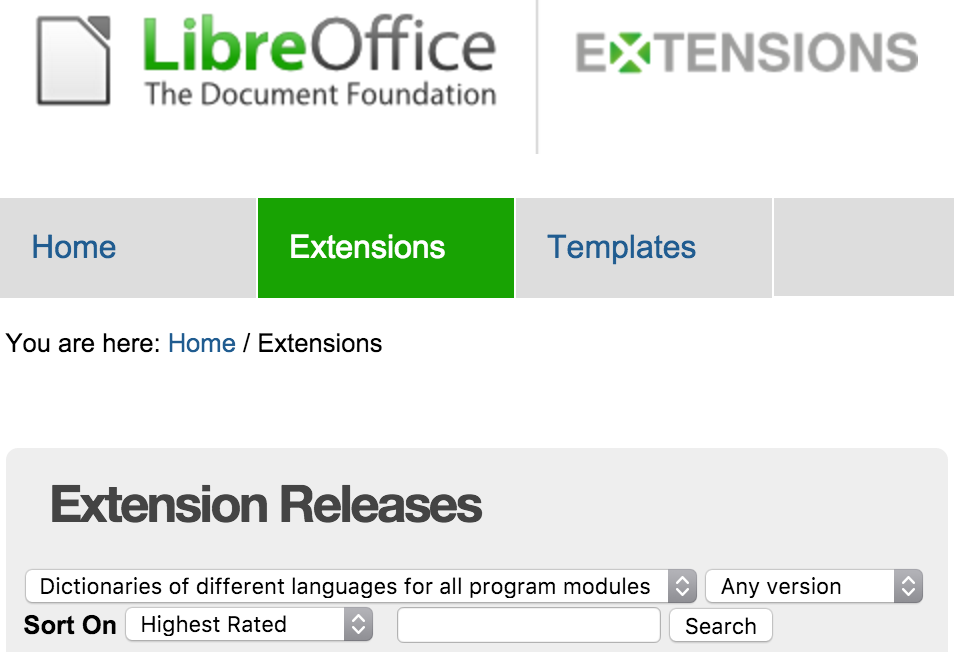
Extensions — LibreOffice ExtensionsLibreOffice offers a large number of dictionaries for spell checking documents and presentations. They are available from the Extensions website, and can be searched by using one of the pre-configured selections (as shown in the picture).

Dictionaries can be recognized by the OXT file extension.

Once downloaded, dictionaries must be installed with the Extensions Manager (menu Tools > Extensions Manager). There is a PDF guide available to walk users through the entire process.

LibreOffice: Advent Tip #20

noun_7771LibreOffice is the best free office suite ever, and is available thanks to the combined effort of a large global community, which is also providing professional and volunteer support to LibreOffice users.

LibreOffice enterprise users can obtain professional support services from certified developers (Level 3 Support for feature development or bug/regression fixes), certified migration professionals (project management for migrations or large deployments), and certified trainers (basic, intermediate or advanced trainings).

LibreOffice individual users can get volunteer support from community members, through different channels: the most popular are mailing lists and the Ask LibreOffice website.

LibreOffice: Advent Tip #19

donations.ods - LibreOffice Calc_006 donations.ods - LibreOffice Calc_007

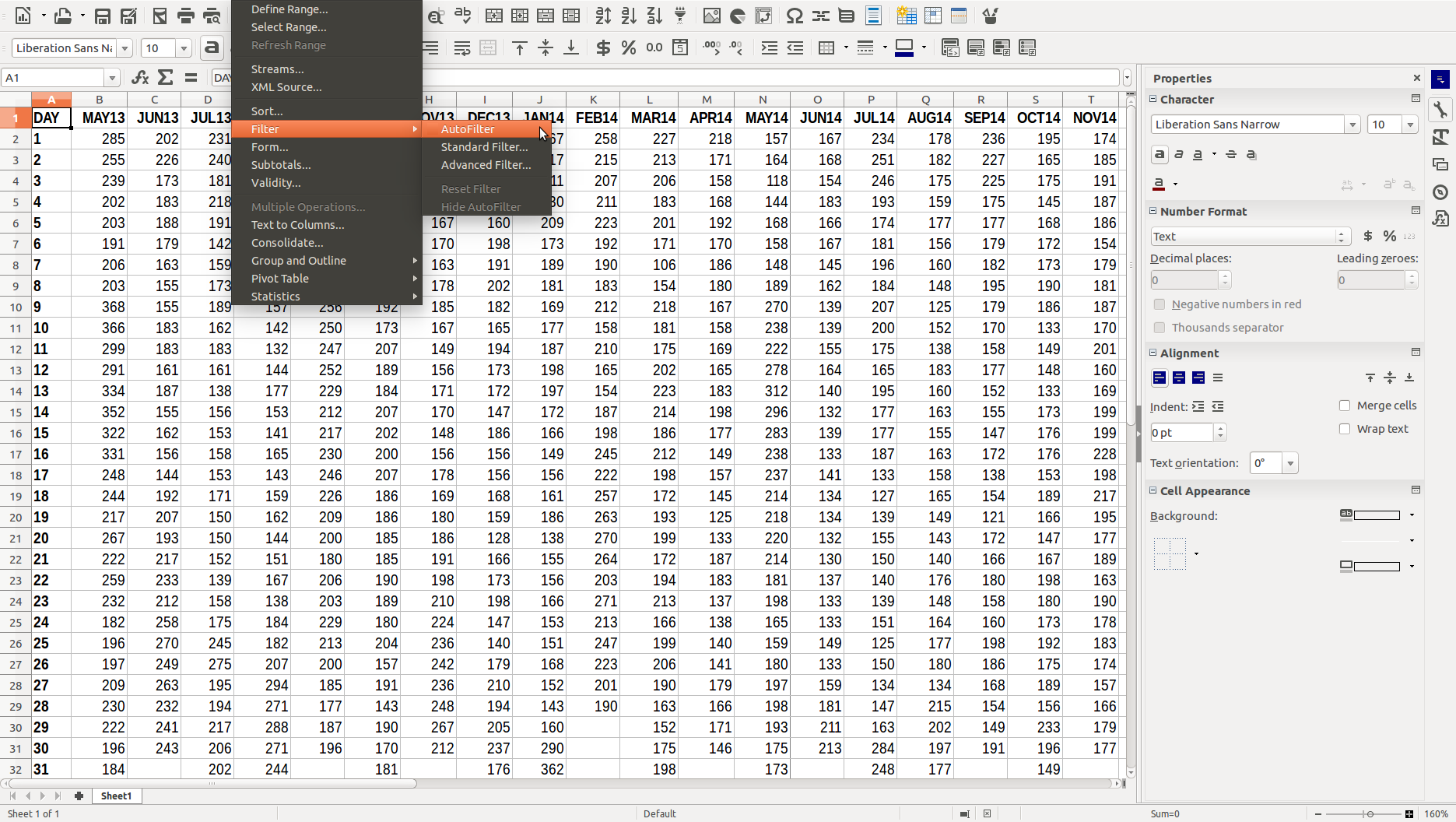
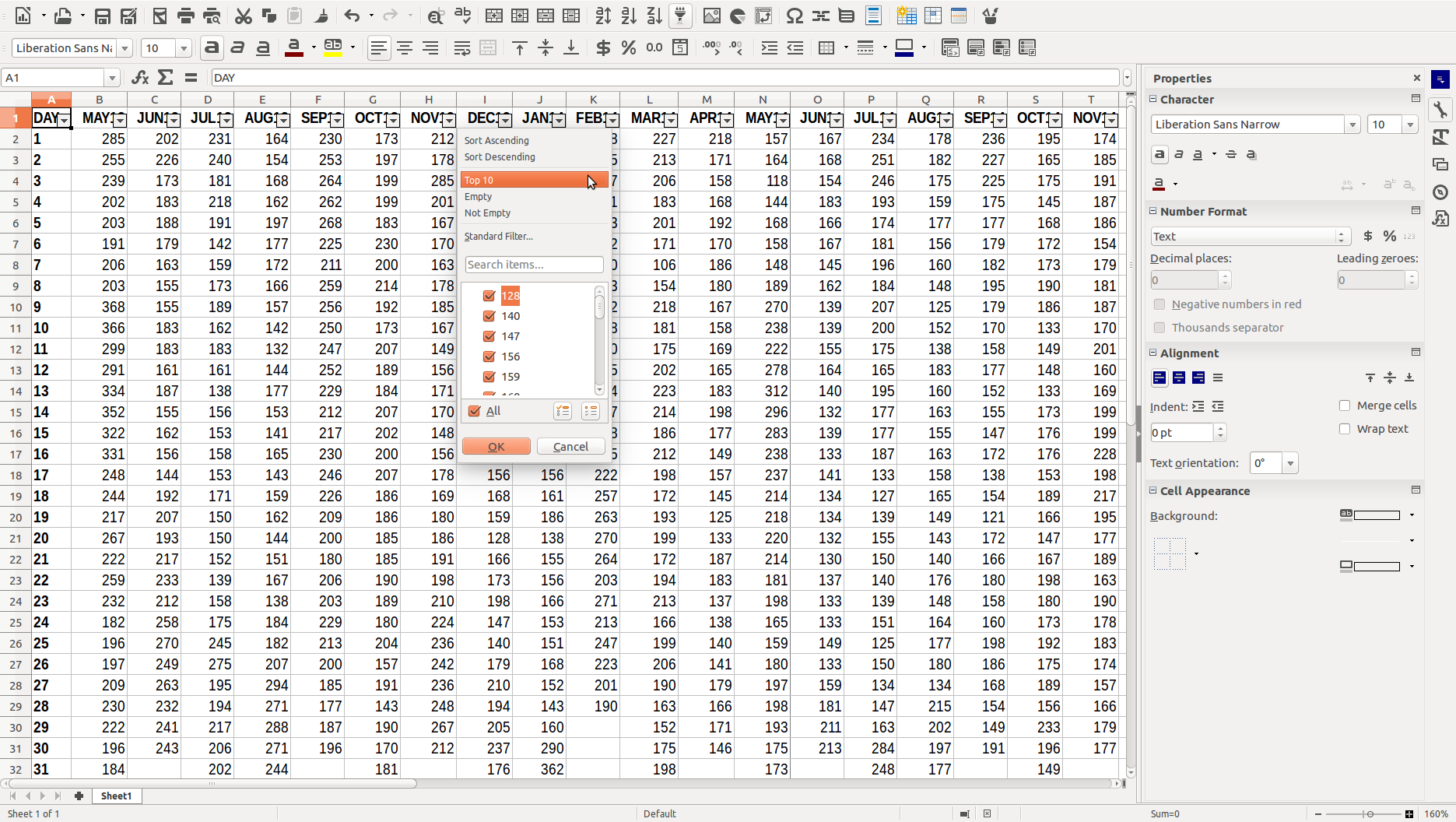
LibreOffice Calc allows to show quite easily the top 10 values in a spreadsheet column with the AutoFilter function, which is activated with the menu Data > Filter > AutoFilter (image on the left). Once active, the function shows a down arrow in the first cell of each column, which opens a drop down menu with different options (image on the right). The third option from the top, after Sort Ascending and Sort Descending, is Top 10 (values).

LibreOffice: Advent Tip #18

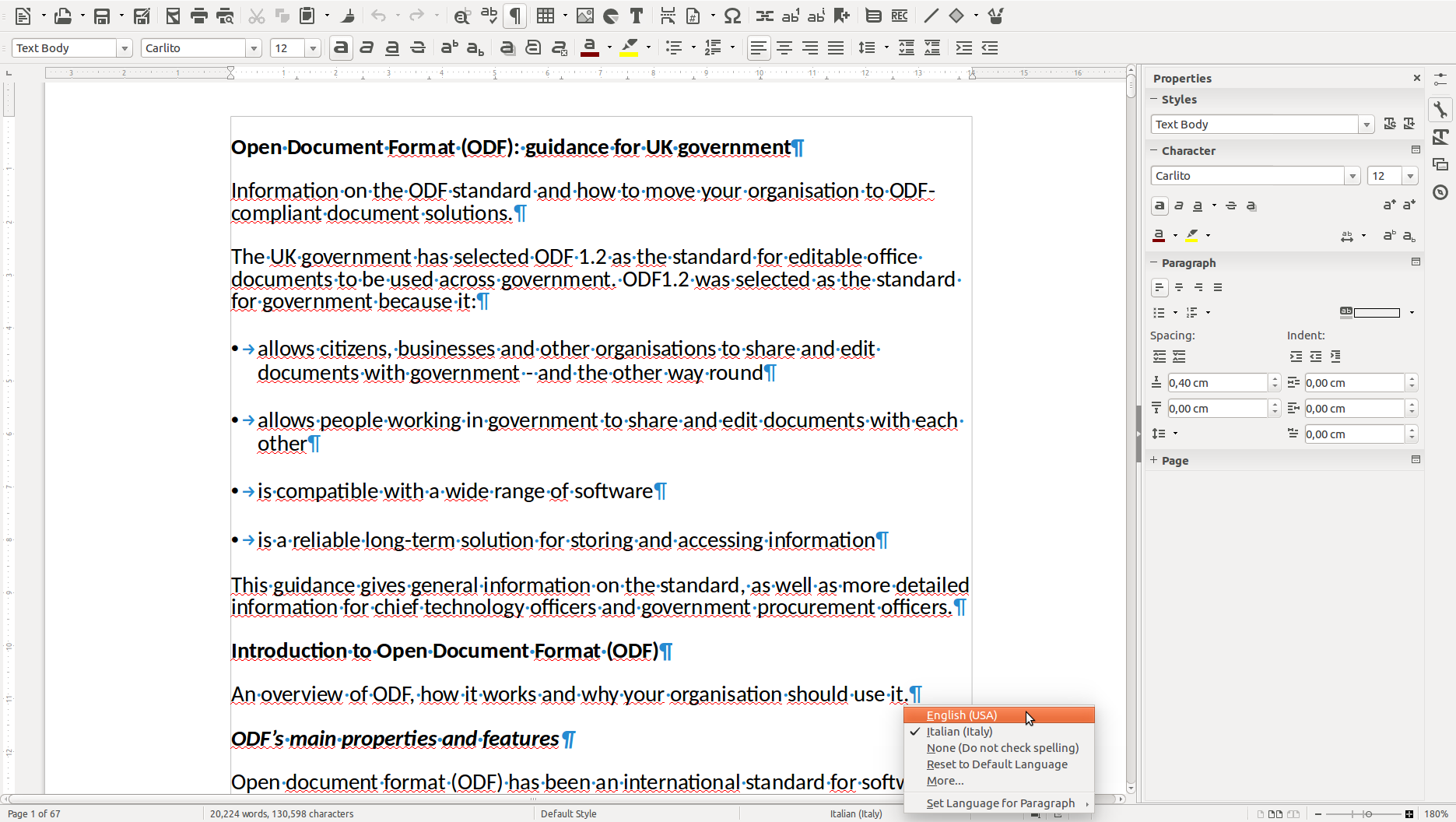
odf-guidance.odt - LibreOfficeDev Writer_004 LibreOffice allows to select the language to check the spelling of a document – or a paragraph – by clicking on the language area of the status bar. The action opens a menu with different options: first, the available dictionaries for the document, and then other choices from disabling the spell checker to choosing a language for a paragraph.

LibreOffice: Advent Tip #17

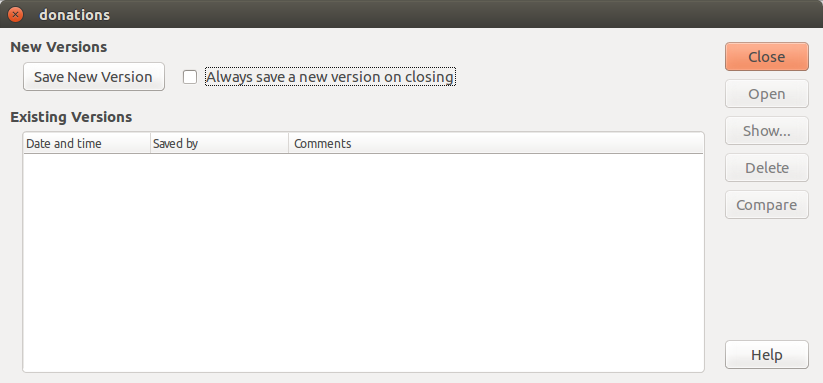
donations_003LibreOffice allows to save different versions of the same document in the ODF file. The feature can be accessed with the menu File > Versions…, which opens the dialog windows on the left.

The different options on this dialog window allow to save a new version of the document, or to force the software to always save a new version on closing the document.

Once the different versions are saved, they are listed in the box of Existing Versions. The user can select each version, and perform several operations: open, show or delete each single version, or compare two versions.