LibreOffice: Advent Tip #12

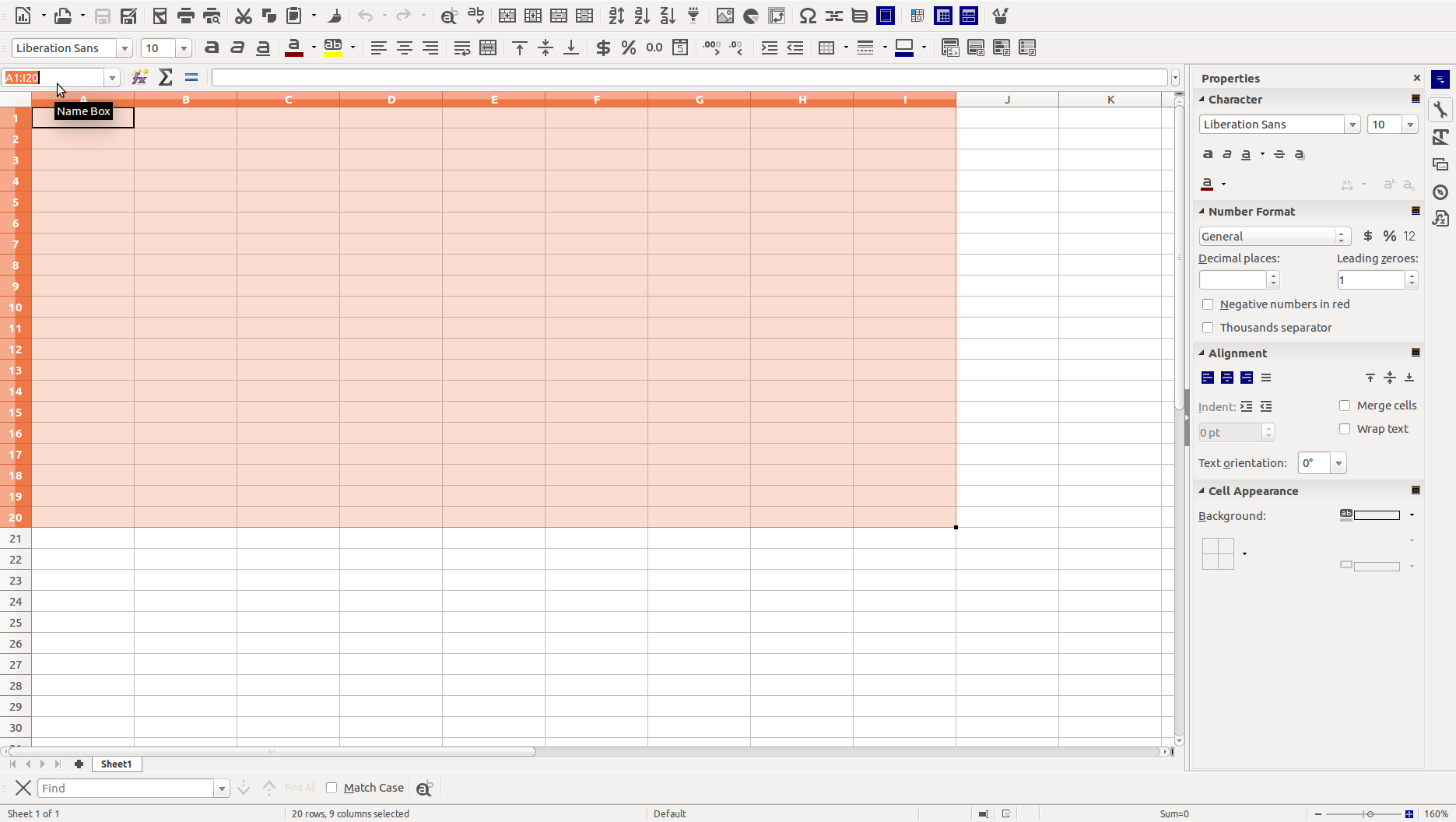
Untitled 1 - LibreOffice Calc_001 LibreOffice Calc allows to select a large number of cells without using the mouse (which might be rather awkward if the area is extremely large). To select the area, it is necessary to enter the range in the Name Box. For instance, to select the cells between A1 and I20, as in the picture on the left, you enter A1:I20 and press Enter on the keyboard.
LibreOffice: Advent Tip #11

tdf-lo447.odt - LibreOffice Writer_002

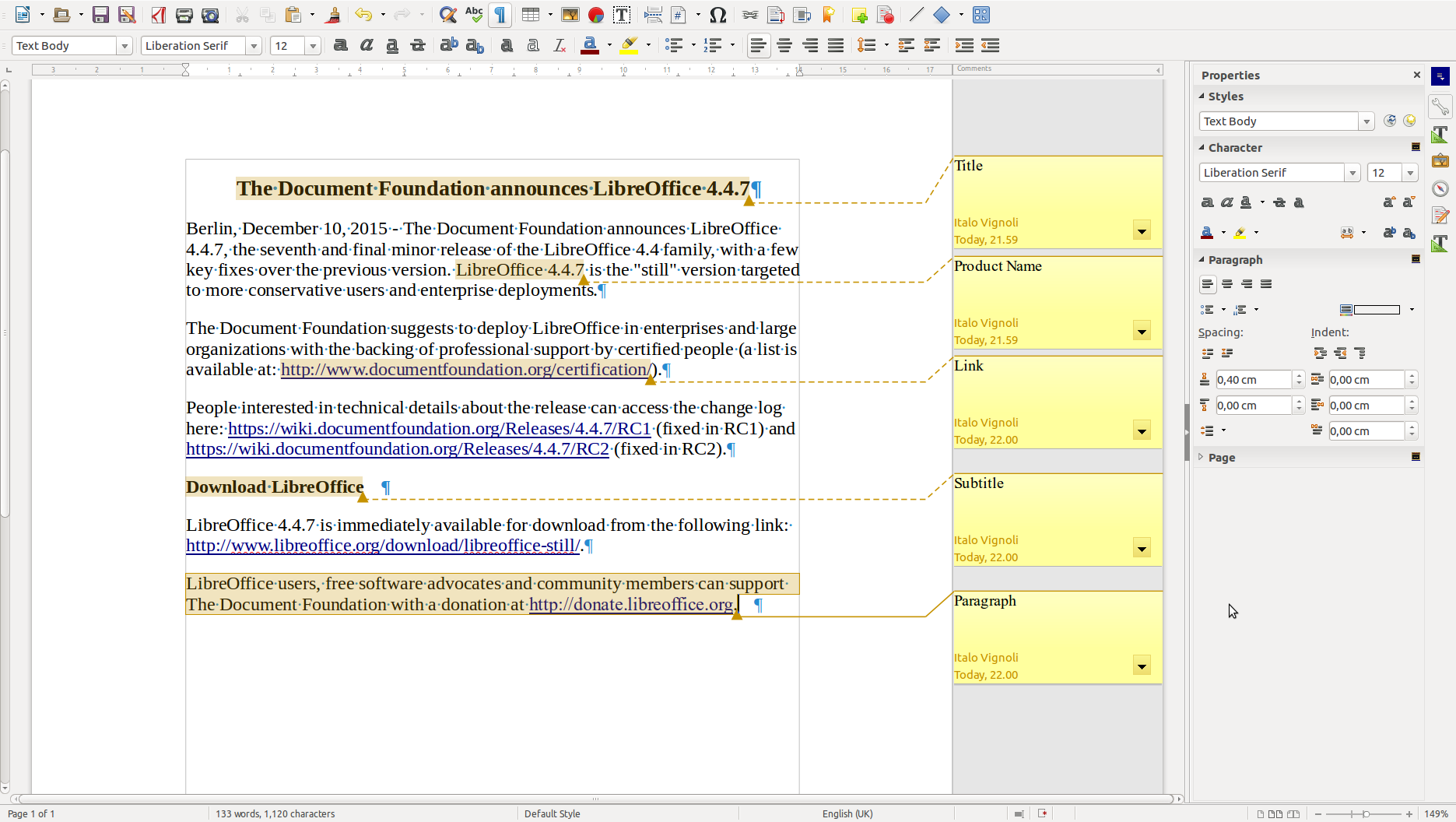
LibreOffice allows to add comments to Writer documents, with the menu Insert > Comment (shortcut: Ctrl+Alt+C). Comments can be added to a single word, a sentence, a paragraph, a link, or a specific point in the text. This feature is useful, for instance, to collect comments on a document before the final version. Comments have a different color for each user, to make it easier to attribute them to the right person. The down arrow on the right side of each comment allows to delete the single comment, all comments from an author, all comments from all authors, or to format all comments.

LibreOffice: Advent Tip #10

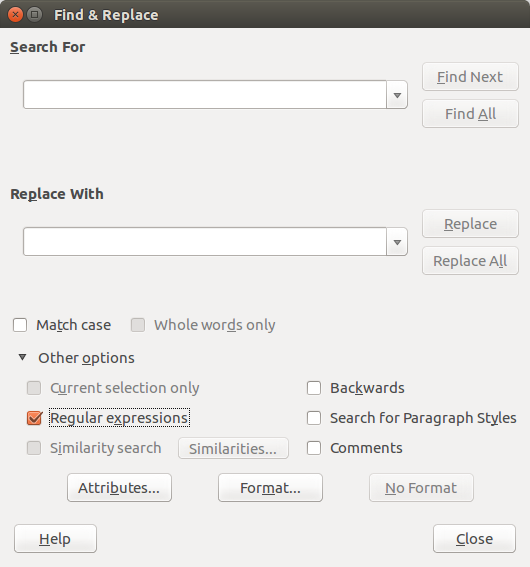
Find & Replace_001LibreOffice offers a powerful search and replace option of regular expressions – like, for instance, tabs, soft line breaks and empty paragraphs – based on the powerful International Components for Unicode (ICU) Regular Expressions engine. A complete list of the regular expressions can be found on the ICU Project website.

A list of the regular expressions most used by LibreOffice can be accessed via the dialog windows which opens when you enter Edit > Find & Replace… Clicking on the Other Options… arrow, you expand the list, from which you can select Regular Expressions. Hitting the Help button opens the relevant help page.

Half way down the page, under Regular Expression, you can find a link to the list. Additional links at the end of the page provide further info on the topic.

The Document Foundation announces LibreOffice 4.4.7

LibreOffice_FacebookBerlin, December 10, 2015 – The Document Foundation announces LibreOffice 4.4.7, the seventh and final minor release of the LibreOffice 4.4 family, with a few key fixes over the previous version. LibreOffice 4.4.7 is the “still” version targeted to more conservative users and enterprise deployments.

The Document Foundation suggests to deploy LibreOffice in enterprises and large organizations with the backing of professional support by certified people (a list is available at: http://www.documentfoundation.org/certification/).

People interested in technical details about the release can access the change log here: https://wiki.documentfoundation.org/Releases/4.4.7/RC1 (fixed in RC1) and https://wiki.documentfoundation.org/Releases/4.4.7/RC2 (fixed in RC2).

Download LibreOffice

LibreOffice 4.4.7 is immediately available for download from the following link: http://www.libreoffice.org/download/libreoffice-still/.

LibreOffice users, free software advocates and community members can support The Document Foundation with a donation at http://donate.libreoffice.org.

LibreOffice: Advent Tip #9

options

Libreoffice offers a number of different icon sets, which can be selected from the menu Tools > Options > LibreOffice > View. The default Linux icon set is called Human, while the default Windows icon set is called Tango.

Together with Galaxy and Oxygen, they have been the available options for quite a long time (although there have been several improvements to the design of the icons).

The modern Breeze and the monochromatic Sifr (the default icon set on MacOS X) are the new additions. Sifr has been introduced with LibreOffice 4.2, while Breeze has been announced with LibreOffice 5.0.

Last, but not least, there is a specific High Contrast icon set for specific applications.

Tango
Tango
Sifr
Sifr
Oxygen
Oxygen
Human
Human
Galaxy
Galaxy
Breeze
Breeze


LibreOffice: Advent Tip #8

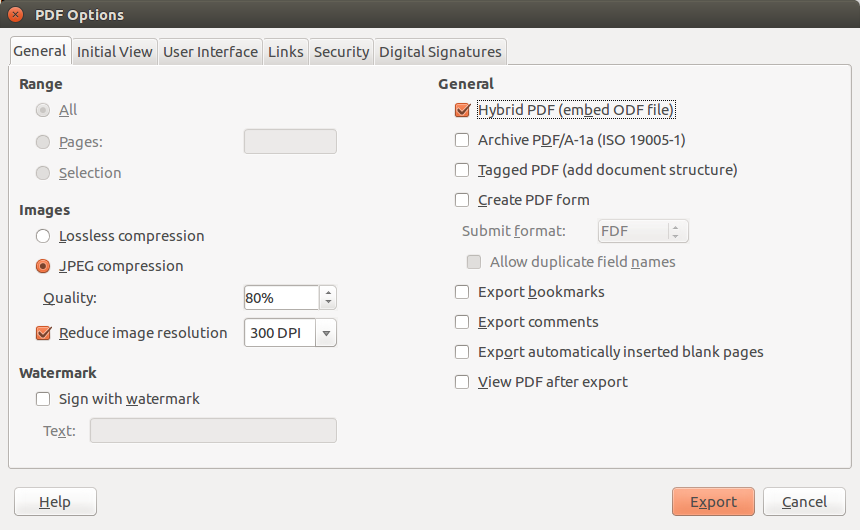
PDF Options_001Hybrid PDFs are a peculiar feature of LibreOffice, and are extremely handy for interoperability. They are standard PDF files, which embed a standard ODF document.

Because of this characteristic, although they have a PDF extension they can be opened by LibreOffice as fully editable documents (please note that they cannot be opened with a double click on the icon, as any regular ODF document, but they must be opened from within LibreOffice by using the menu File > Open).

The process to create a Hybrid PDF is extremely simple. In fact, Hybrid PDFs are one of the options of the menu File > Export as PDF…, which is used to create any kind of PDF file – PDF, PDF/A, signed PDF, Hybrid PDF – with LibreOffice.

Once the dialog window is open, the Hybrid PDF option is the first one on the right hand column, and can be combined with every other PDF option (which will be recognized by any PDF reader, independently from the fact that the file embeds the ODF document).