LibreOffice: Advent Tip #10

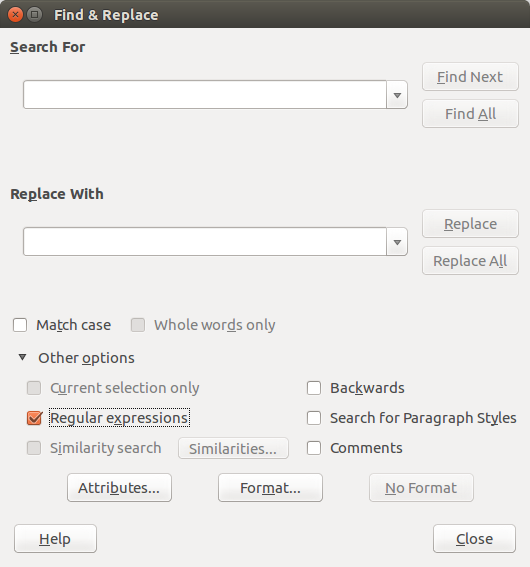
Find & Replace_001LibreOffice offers a powerful search and replace option of regular expressions – like, for instance, tabs, soft line breaks and empty paragraphs – based on the powerful International Components for Unicode (ICU) Regular Expressions engine. A complete list of the regular expressions can be found on the ICU Project website.

A list of the regular expressions most used by LibreOffice can be accessed via the dialog windows which opens when you enter Edit > Find & Replace… Clicking on the Other Options… arrow, you expand the list, from which you can select Regular Expressions. Hitting the Help button opens the relevant help page.

Half way down the page, under Regular Expression, you can find a link to the list. Additional links at the end of the page provide further info on the topic.


LibreOffice: Advent Tip #9

options

Libreoffice offers a number of different icon sets, which can be selected from the menu Tools > Options > LibreOffice > View. The default Linux icon set is called Human, while the default Windows icon set is called Tango.

Together with Galaxy and Oxygen, they have been the available options for quite a long time (although there have been several improvements to the design of the icons).

The modern Breeze and the monochromatic Sifr (the default icon set on MacOS X) are the new additions. Sifr has been introduced with LibreOffice 4.2, while Breeze has been announced with LibreOffice 5.0.

Last, but not least, there is a specific High Contrast icon set for specific applications.

Tango
Tango
Sifr
Sifr
Oxygen
Oxygen
Human
Human
Galaxy
Galaxy
Breeze
Breeze


LibreOffice: Advent Tip #8

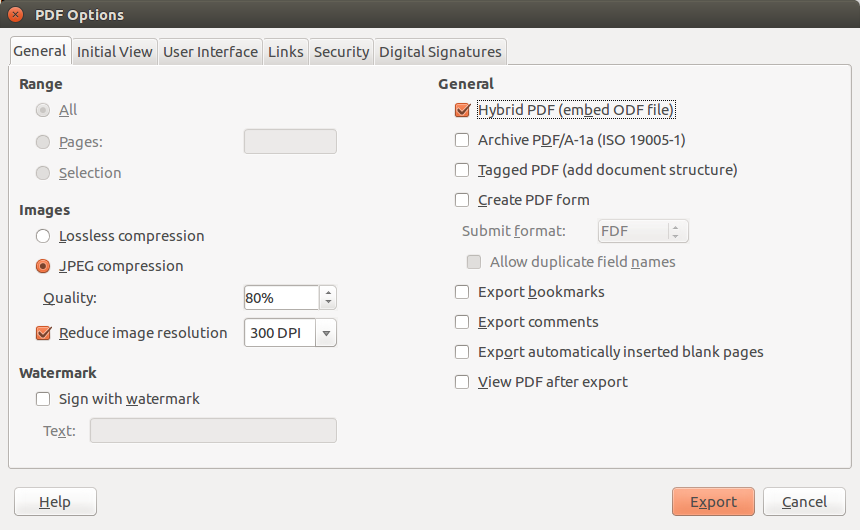
PDF Options_001Hybrid PDFs are a peculiar feature of LibreOffice, and are extremely handy for interoperability. They are standard PDF files, which embed a standard ODF document.

Because of this characteristic, although they have a PDF extension they can be opened by LibreOffice as fully editable documents (please note that they cannot be opened with a double click on the icon, as any regular ODF document, but they must be opened from within LibreOffice by using the menu File > Open).

The process to create a Hybrid PDF is extremely simple. In fact, Hybrid PDFs are one of the options of the menu File > Export as PDF…, which is used to create any kind of PDF file – PDF, PDF/A, signed PDF, Hybrid PDF – with LibreOffice.

Once the dialog window is open, the Hybrid PDF option is the first one on the right hand column, and can be combined with every other PDF option (which will be recognized by any PDF reader, independently from the fact that the file embeds the ODF document).

LibreOffice: Advent Tip #7

odf-guidance.odt - LibreOffice Writer_003LibreOffice Writer was born – as StarWriter – to produce lengthy documents, such as thesis and relations, and as such offers a number of specific features in this area. Two of the most important are Templates and Styles, which facilitate the creation of good looking documents, and make it easier to reproduce a standard document once the layout – including Styles – has been defined and consolidated. LibreOffice offers an almost hidden feature to produce a Template, which can be accessed from the menu File > Send > Create Master Document. This opens a “save as…” dialog window, which allows to save the open document as a Template.

LibreOffice: Advent Tip #6

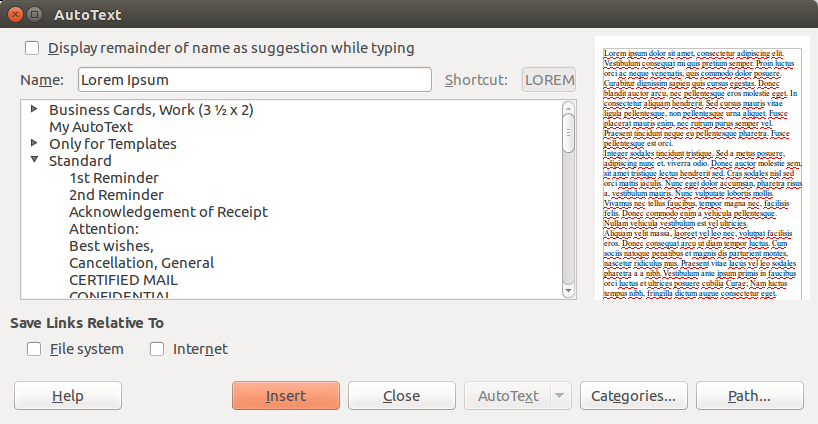
AutoText_001LibreOffice offers an AutoText feature which can be accessed from the menu Edit > AutoText, which opens a simple dialog windows. The example shown in the image on the left is the well known Lorem Ipsum pseudo Latin blurb, which can be used to mimic a document layout, but the feature offers a number of pre-defined standard strings (for instance: 1st Reminder, 2nd Reminder, etcetera), plus several Business Cards layouts, plus a number of template elements (for instance: Header Brochure, Header Newsletter, etcetera). In addition, you can import a document to create your own AutoText elements. To insert the AutoText, you can either recall the dialog window or type the shortcut for the AutoText entry, and then press F3.

LibreOffice: Advent Tip #5

noun_76831_ccToday, a very simple tip, for all those people who are using LibreOffice and own a mouse with a scroll wheel (today, most mice have a scroll wheel, or are able to mimic the behavior of a scroll wheel).

LibreOffice allows to zoom a document from 20% (very tiny) to 600% (very large), independently from the application (Writer, Calc, Impress and Draw), by pressing the Control key on the keyboard and rotating the scroll wheel. You go from 20% to 600% by rotating the wheel forward, and from 600% to 20% by rotating the wheel backward.

Of course, the zoom speed is strictly related to a number of factors, so might not be as quick as the user would like. Start gently, and increase the speed with time, considering that a large document or a small RAM may slow down the process.