LibreOffice: Advent Tip #16

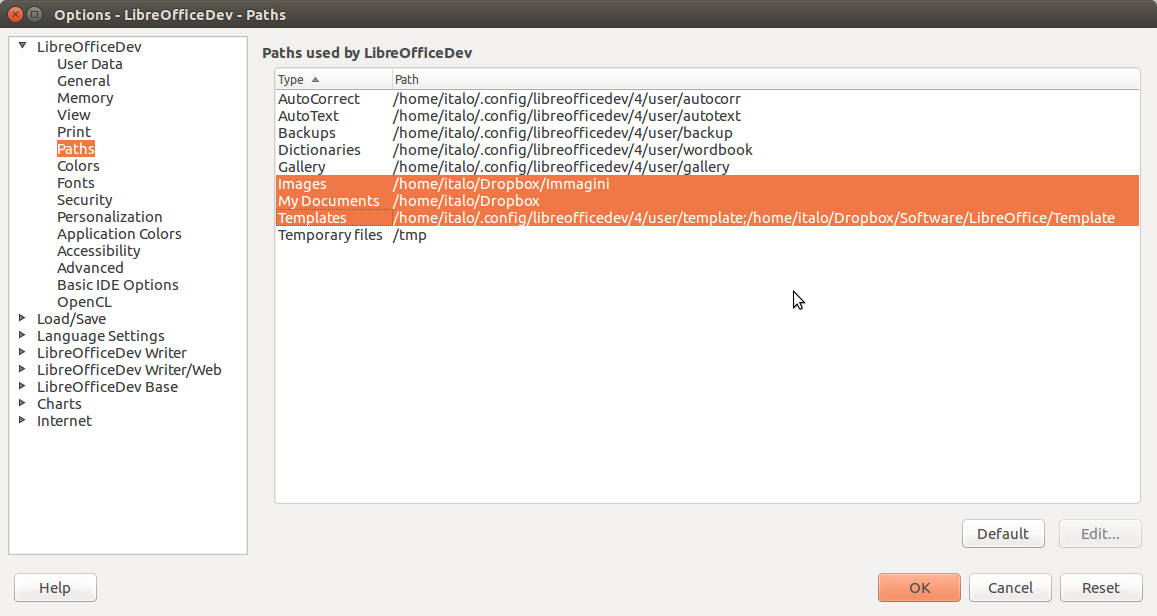
Options - LibreOfficeDev - Paths_002 LibreOffice can be configured according to user needs with the menu Tools > Options, which opens a context sensible dialog window with a menu on the left and many corresponding option pages on the right.

One of the least known options pages is the Paths one, where the user can modify (or add to) the default directories used by LibreOffice to store – among the others – Images, Documents and Templates.

The screenshot represents my own configuration, where I edit the three highlighted paths according to my working habits: I store all documents and images in two different folders, and I have a separate folder for templates.

By tweaking the configuration, when I access templates, import an image or open/save a document, the dialog window will always point to the right folder inetad of the default one.

Of course, this is especially handy for large deployments, as LibreOffice can be configured to access a shared storage area instead of the local folder.
LibreOffice: Advent Tip #15

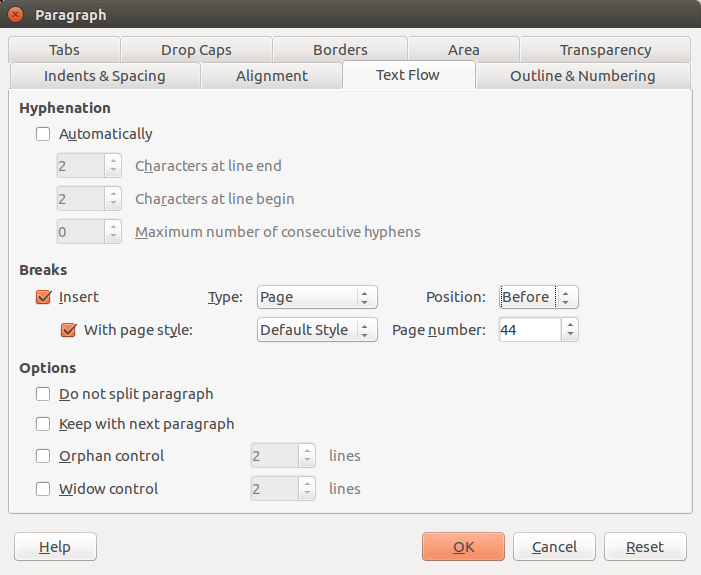
Paragraph_001 To change the number of a page – for instance, if you add a new document to a series which has to be compiled into a single book at the end of the year – you must put the cursor somewhere in the first paragraph of the page and access the menu Format > Paragraph. Inside the multi tab dialog window, you have to open the Text Flow tab (shown in the image on the left), and in the Break section check the Insert box – with Type “Page” and Position “Before” – and the With Page Style box, using Default Style. Then, you enter the Page Number in the box on the right and confirm by hitting the OK button. You will immediately see the new page number in the footer.

LibreOffice: Advent Tip #14

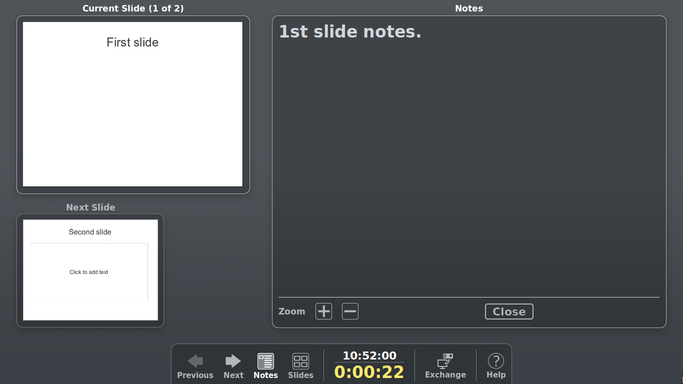
AcquU LibreOffice Presenter Screen is a useful tool for presenters, as the name implies. Unfortunately, only a minority of Impress users are leveraging this feature, which can be activated with a few easy steps:

  1. Open the Display (or Screen) control panel, and turn Mirroring Off.

  2. Configure the Impress Slide Show Settings with the menu Slide Show > Slide Show Settings, and in the Multiple Display area select the appropriate screen for the presentation (usually, it is named “screen number 2” or “alternate screen” or “secondary screen”).

  3. Launch the presentation hitting F5 or using the menu Slide Show > Start from First Slide.

The slide should show on the second screen (usually, the projector) while the Presenter Screen should appear on the screen of your PC or laptop.

Thanks to the Presenter Screen, you can visualize the current and the next slide, plus the notes (if necessary) or the slide sorter (should you jump to a different slide in the presentation, without showing that you are searching for it). In addition, you can see the time of the day, and the time of the presentation.

LibreOffice: Advent Tip #13

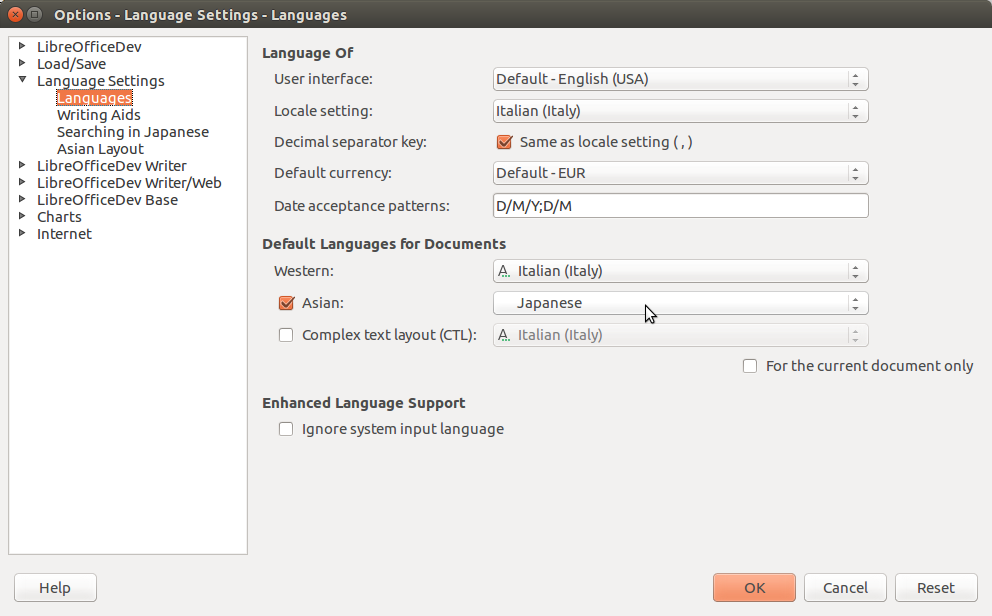
Language to Asian
Language to Asian
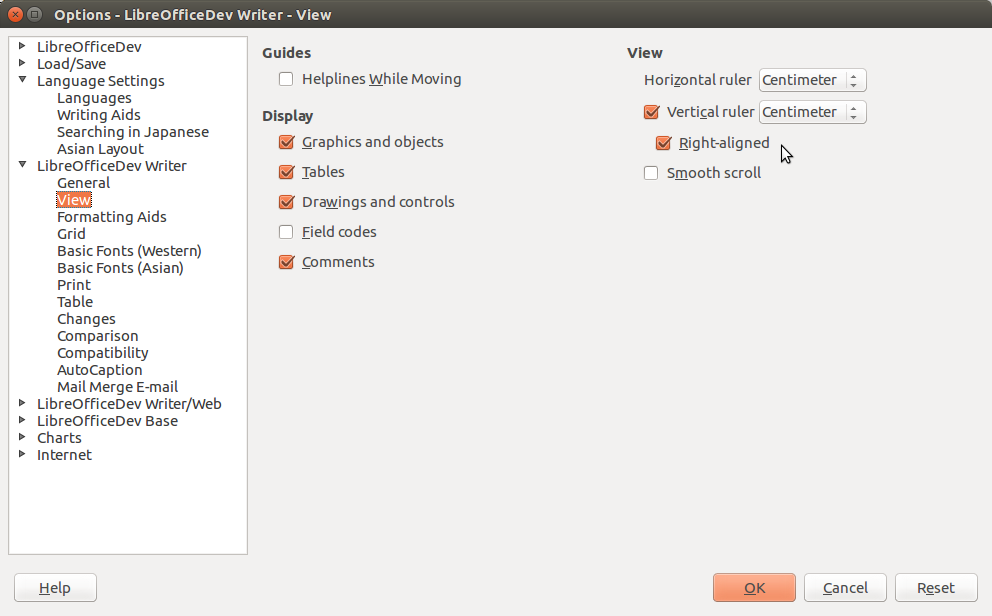
Vertical Ruler to Left Aligned

LibreOffice allows left-handed users to move the vertical scroll bar from the right side to the left side of the screen with a simple procedure. You must open LibreOffice Options dialog window with the menu Tools > Options… Then, go first to the Language Settings > Languages window to set the document language to Asian, and second to the LibreOffice Writer > View window to set the vertical ruler as left aligned.

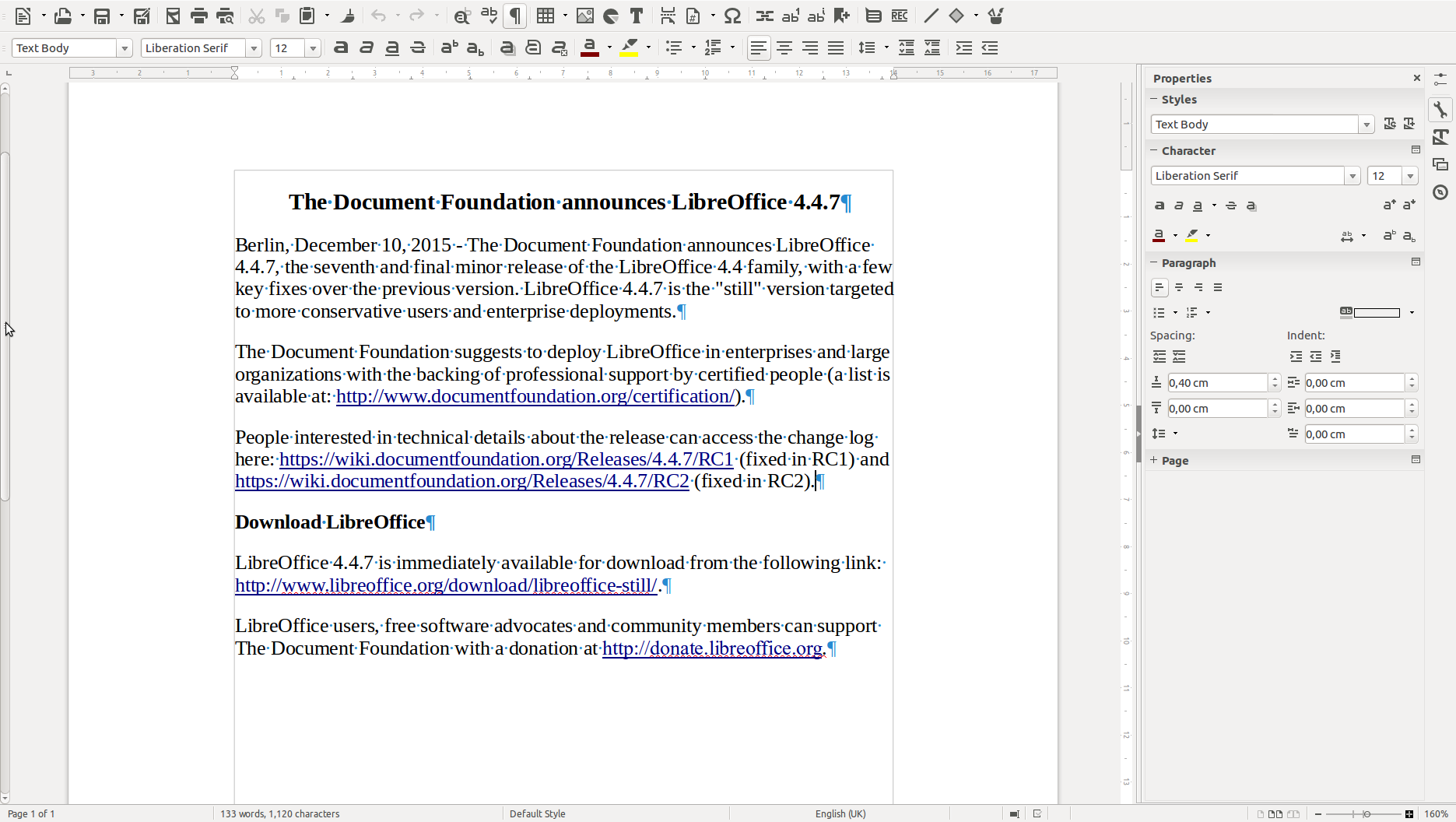
LibreOffice will immediately move the vertical scroll bar to the left of the screen. This will help left handed users to avoid crossing the screen with the mouse cursor each time they need to scroll the document.

tdf-lo447.odt - LibreOfficeDev Writer_003

LibreOffice: Advent Tip #12

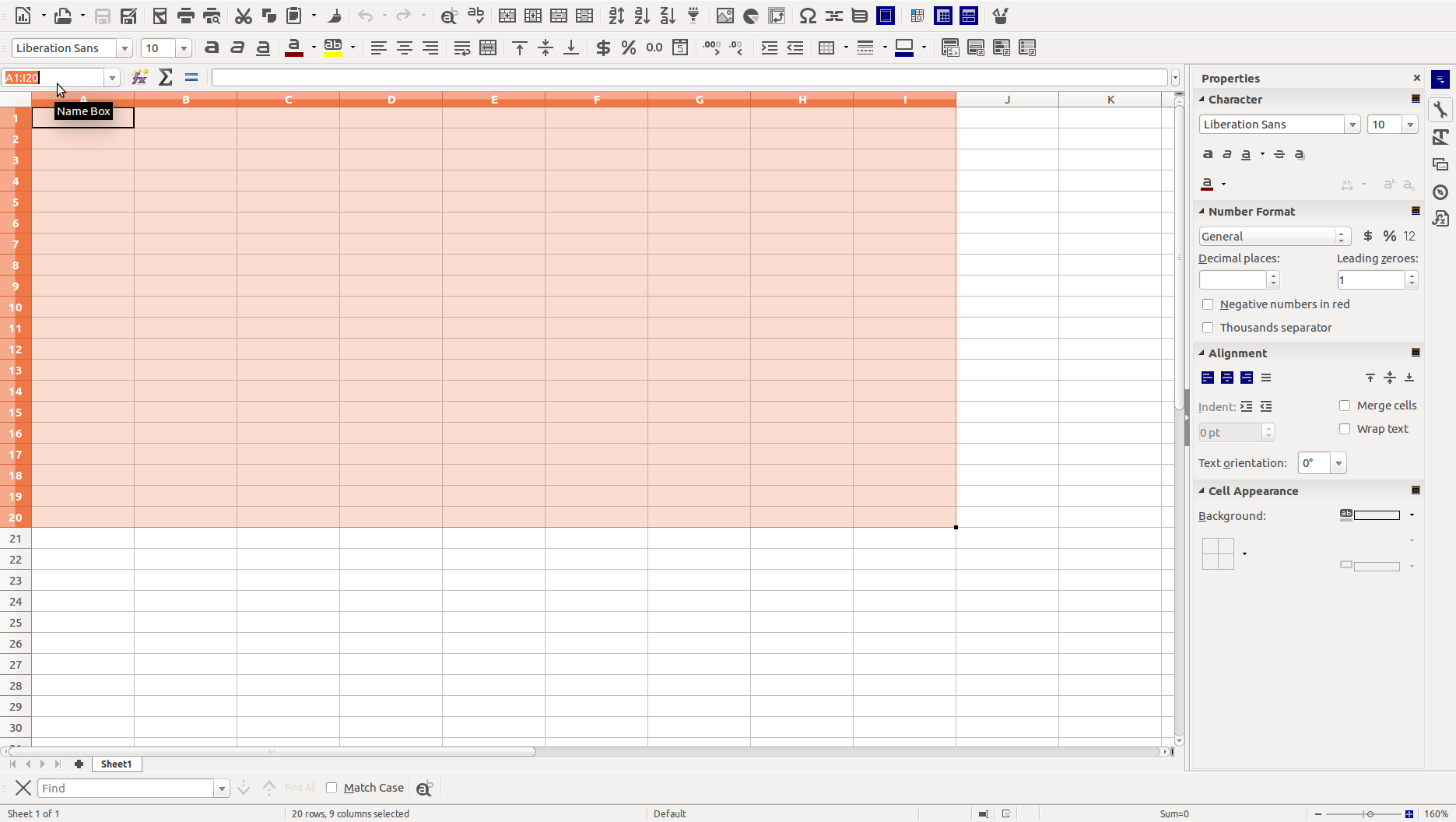
Untitled 1 - LibreOffice Calc_001 LibreOffice Calc allows to select a large number of cells without using the mouse (which might be rather awkward if the area is extremely large). To select the area, it is necessary to enter the range in the Name Box. For instance, to select the cells between A1 and I20, as in the picture on the left, you enter A1:I20 and press Enter on the keyboard.

LibreOffice: Advent Tip #11

tdf-lo447.odt - LibreOffice Writer_002

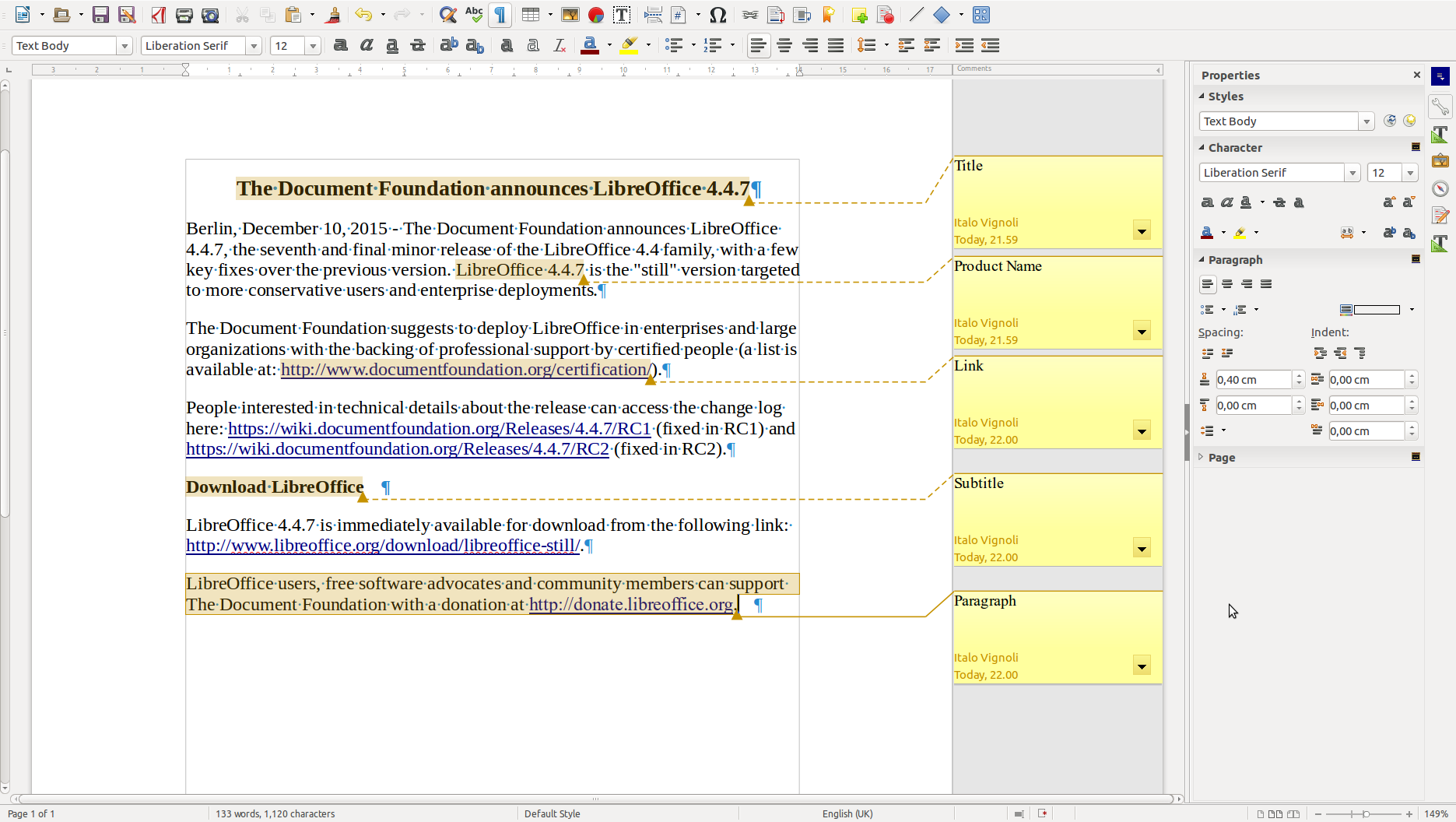
LibreOffice allows to add comments to Writer documents, with the menu Insert > Comment (shortcut: Ctrl+Alt+C). Comments can be added to a single word, a sentence, a paragraph, a link, or a specific point in the text. This feature is useful, for instance, to collect comments on a document before the final version. Comments have a different color for each user, to make it easier to attribute them to the right person. The down arrow on the right side of each comment allows to delete the single comment, all comments from an author, all comments from all authors, or to format all comments.